Open Customer Management via:
Navigation bar → Customers → Customers
Note: The exact naming of the menu items may vary depending on the configuration of your LDB. For example, Customers may also be labelled as Contacts.
The following describes the functions for managing customers in the LDB.
Customer Management is the central overview of all customers recorded in your LDB. From here you can access all customer-related data and create new customers.
Customer Management allows you to:
Customers are displayed in a tabular overview. The following table describes the columns of the overview table.
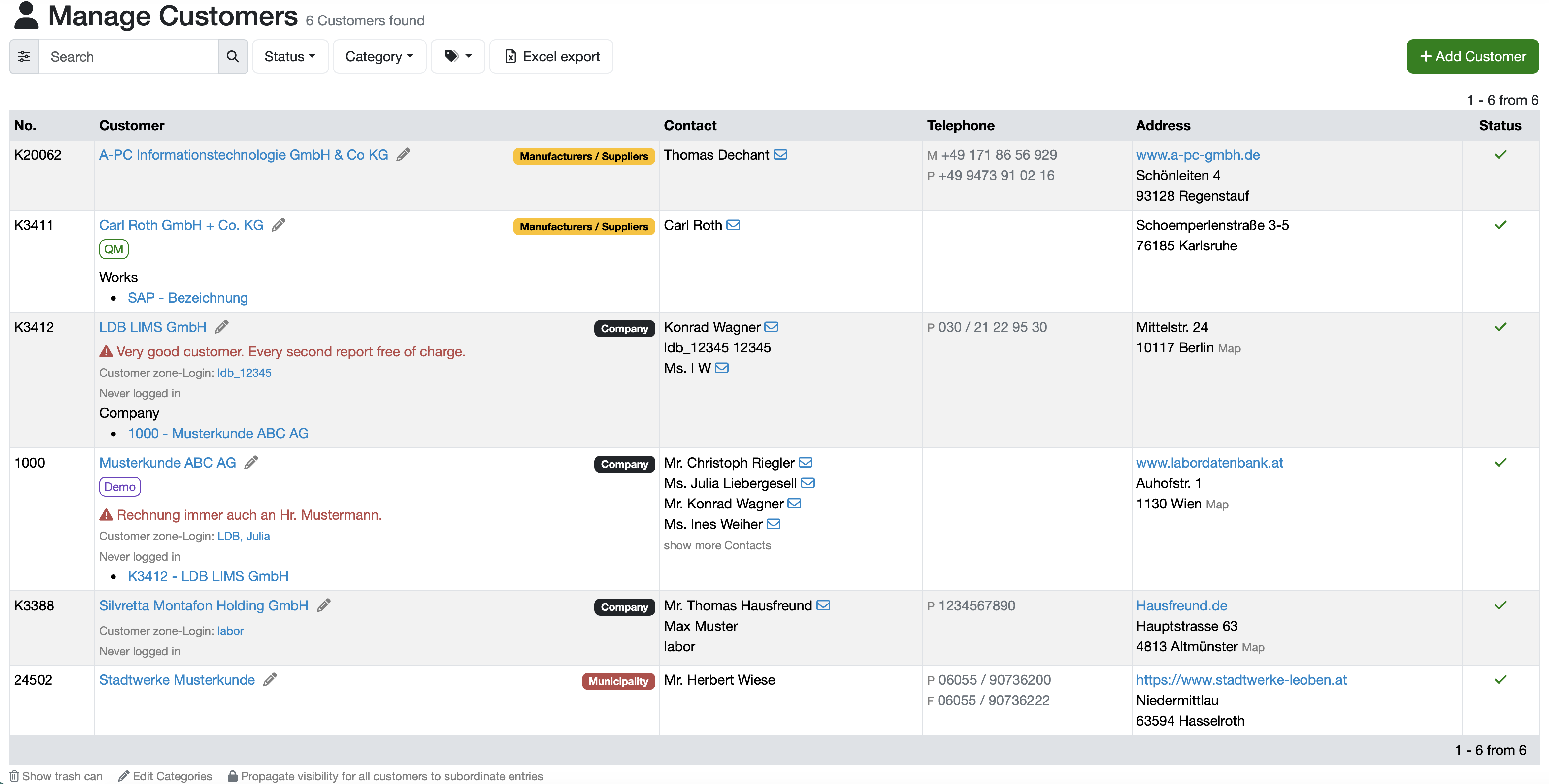
Figure: Overview of Customer Management
Note: All texts highlighted in blue in the table are clickable links to the respective data types. Some columns are always present, others are configuration-dependent. The naming of the columns may also be configuration-dependent.
| Column | Description |
|---|---|
| No. | Customer number. It is used to uniquely identify the customer. |
| Customer | Name of the customer as a blue-highlighted link to the detail view. A pencil icon for editing appears to the right of the name. In addition, the following can be shown here: configuration-dependent category labels (e.g. Manufacturers / Suppliers, Company, Municipality), tags (e.g. QM, Demo), a red-highlighted lock note with warning symbol, the customer zone login including login status, as well as linked or assigned customers. |
| Contact | Stored contact persons of the customer. An email can be composed directly via the envelope icon next to a name. If there are several contacts, show more Contacts is displayed. |
| Telephone | Telephone numbers of the customer, marked by number type: M for mobile, P for telephone/landline |
| Address | Postal address of the customer. If stored, the website is displayed as a link. Via Map you open the address in the map view. |
| Status | Shows the current status of the customer. With the corresponding access right, the status can be changed by clicking the status symbol. |
Various search options are available to help you find customers quickly and precisely.
Quick search
The quick search enables a search across data types without first switching to the respective area.
/ or s, or click into it and enter your search term.k:searchterm for a targeted search in this area.Simple search
Advanced search / Detailed search
Additional search and filter functions

Figure: Add Customer
Further information: LINK_TO_PAGE=Add Customer
Change the data of an already recorded customer via the edit function.

Figure: Edit Customer
Open the full detail view of a customer.
Compose an email to a customer's contact person directly from the overview.
Export the current customer list for further processing.
Manage the categories assigned to customers (e.g. Manufacturers / Suppliers, Company, Municipality).
Open deleted or archived customers.
Propagate the visibility of all customers to subordinate entries.
Note: This action affects all customers and their subordinate entries.
Sorting logic
The list is ordered according to the configured sorting. If needed, the sorting can be adjusted by your customer support.
Last change: 10/14/26
General information
8D-report
Supplier evaluation
Material
Employees
Customers
Orders
Samples
PDF templates
Assets
Recipes
Reports
Report table editor
Interfaces
AI functions
Introductory phase
Query reports
Templates
Client zone (optional)
Offers
Invoices
Parameters
Calculating with parameters
Webservices
Transformationscode
Test plans / limit values / specifications
Documents control
Questions and answers
Equipment
Trainings
Others
File management
Processes