To open the detail view of a customer, follow this path:
Navigation bar → Customers → Manage customers → Click on the number or name of the desired customer
If needed, use the search function, e.g. on the left in the navigation bar, to find a specific customer quickly and precisely.
Note: The exact labeling of the menu items may differ depending on the configuration of your LDB.
The detail view clearly bundles all essential information about a customer. It allows you to:
Note: Which tabs and sections are displayed depends on the configuration, permissions and data. Only sections that are populated or enabled for you will appear. The labeling of the tabs and sections may also depend on the configuration.
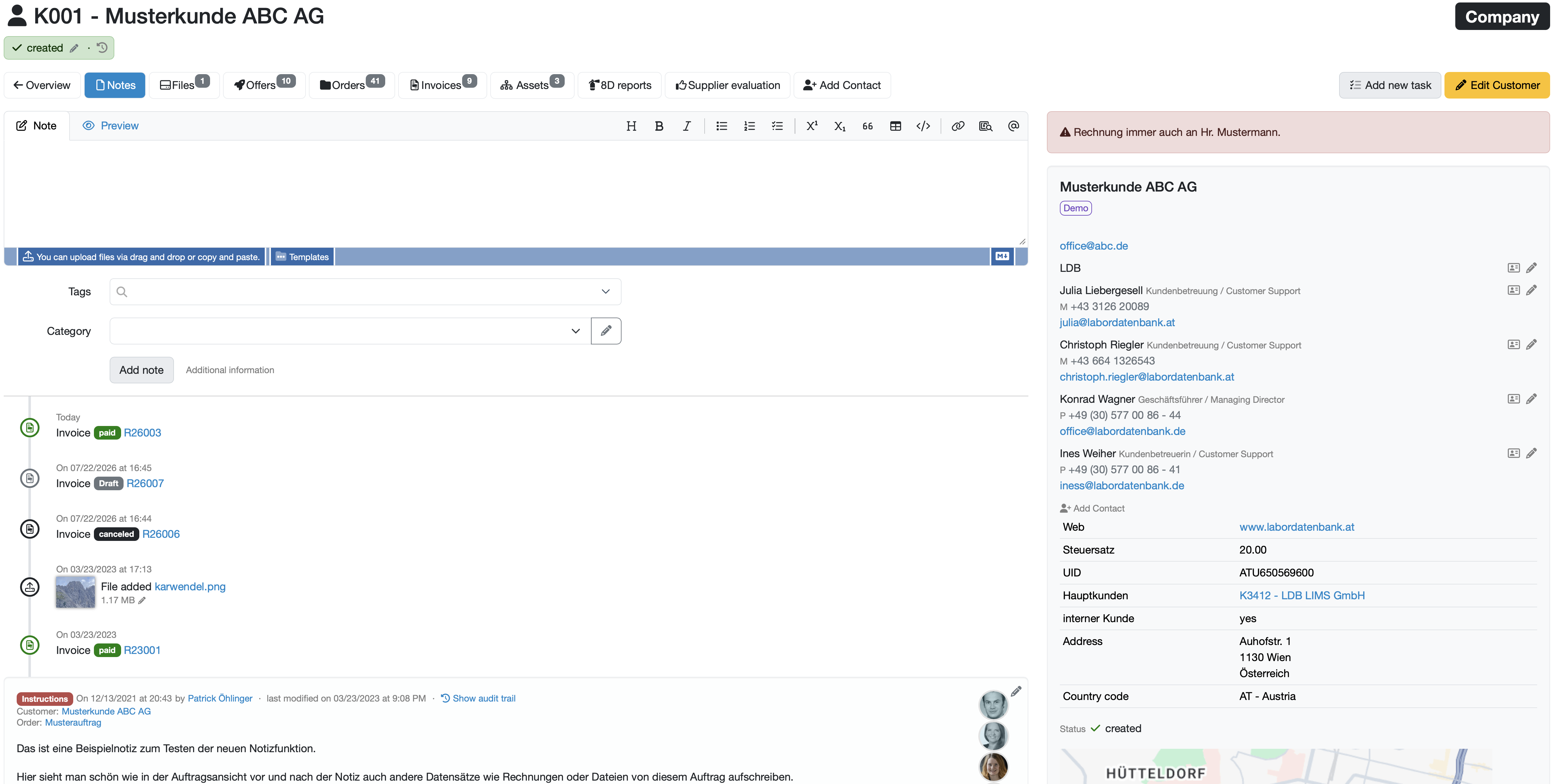
Figure: Detail view of a customer (tab Notes active)
In the header area you see the number and name of the customer, the category as a badge (e.g. Company) as well as the current status.
Below the header area is the tab menu. Using the tabs you switch between the data areas belonging to the customer. The small number (badge) on a tab shows the number of existing entries in each case (e.g. Orders 41).
| Tab | Description |
|---|---|
| Notes | Add notes for the customer and view the activity history. |
| Files | Files stored for the customer (upload via drag and drop possible). |
| Offers | Offers of the customer incl. date, subject, balance and status. |
| Orders | Orders of the customer incl. linked reports and status; references to all orders, samples and reports. |
| Invoices | Invoices of the customer incl. amount, status and partial payments if applicable; export of the account statement. |
| Assets | Assets of the customer; separate display of active and archived assets. (industry-specific configuration) |
| 8D reports | Problem reports or 8D reports for the customer. |
| Supplier evaluation | Evaluations of the customer based on defined criteria. |
| + Add Contact | Adds a new contact for the customer. |
The content area shows the content of the respectively selected tab. The active tab is marked in blue.
Content area of the tab Notes:
Our recommendation: Use tags and categories consistently so that notes can be filtered and found again in a targeted way later.
Content area of the other tabs (Offers, Orders, Invoices, etc.):
To the right of the content area, the attributes of the customer as well as – depending on configuration and existing data – supplementary areas are displayed.
Note: If a note is stored, it appears highlighted in red at the very top of the side area (e.g. "Rechnung immer auch an Hr. Mustermann.").
| Entry | Description |
|---|---|
| Name / Customer type | Name of the customer and any stored tags. |
| Central email address of the customer (clickable). | |
| Contact persons / Contacts | Assigned contacts with role (e.g. Customer Support, Managing Director), phone and email. Using the contact card symbol or the pencil symbol the contact can be exported or edited. |
| + Add Contact | Adds a further contact for the customer. |
| Web | Website of the customer (clickable). |
| Address | Address of the customer. |
| Country code | Country identifier (e.g. AT – Austria). |
| Status | Current status of the customer. |
| Map | Map section for the stored address. |
Note: Depending on the data situation and configuration, further areas may appear, e.g. configured attributes, open tasks, client zone access (logins), email templates, evaluations.
Further information: Create/edit/delete customer
##vCard Export
Last change: 10/14/26
General information
8D-report
Supplier evaluation
Material
Employees
Customers
Orders
Samples
PDF templates
Assets
Recipes
Reports
Report table editor
Interfaces
AI functions
Introductory phase
Query reports
Templates
Client zone (optional)
Offers
Invoices
Parameters
Calculating with parameters
Webservices
Transformationscode
Test plans / limit values / specifications
Documents control
Questions and answers
Equipment
Trainings
Others
File management
Processes