Open the filter management via:
Navigation bar → Samples → Manage Samples → My Filters → Filter
Note: The My Filters option appears above the sample list as soon as you have saved at least one filter. The Public Filters option appears as soon as a filter created by another user has been shared with you.

Alternatively, you can open the filter management from the result table:
Result table → My Column Filters → Filter
Note: The My Column Filters option appears above the results table as soon as you have saved at least one filter. The Public Column Filters option appears as soon as a filter created by another user has been shared with you.
The filter management is divided into two sections displayed side by side:
Contains saved search filters that are applied to the sample list.
Note: Filter names highlighted in blue are clickable links that open the respective filter directly and display the sample list with the corresponding filter applied.
Further information on creating a search filter for the sample list: Manage samples
Contains saved column filters that control the display of the result table. These filters cannot be opened directly, but can be opened automatically via a linked search filter.
Further information on creating a column filter for the result table: Results table
The figure shows what the page for managing filters looks like in the LDB:
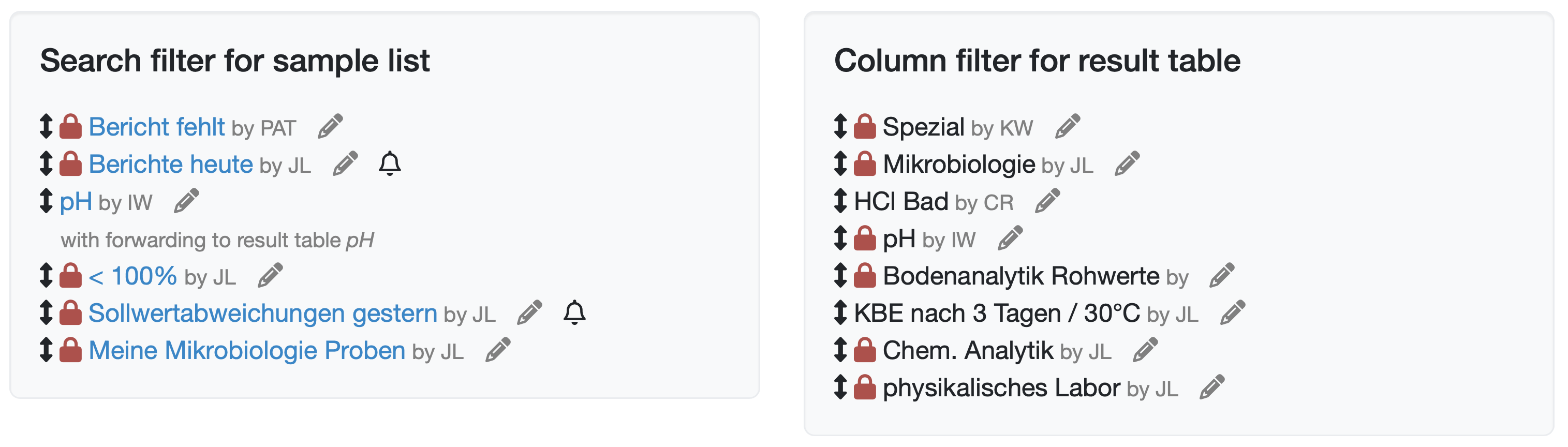
Figure: Filter Management
Each filter is displayed with its name along with additional elements and information about linked functions:
| Element | Description |
|---|---|
| Arrow icon | Drag handle for reordering the filter via drag and drop. |
| Lock icon | The filter is not visible to all users. |
| Filter name | Name of the filter; for search filters for the sample list, displayed as a clickable link if visible to the current user. |
| by | Abbreviation of the employee who created the filter. |
| Pencil icon | Button for editing the filter (only visible if you have editing rights). |
| Bell icon | An automatic e-mail notification has been set up for this filter. |
| Forwarding to result table | Indicates that the filter forwards directly to the result table; where applicable, with the name of the linked column filter. |
Note: The pencil icon is only displayed if the filter is visible to you or if you have the Edit all search and column filters permission.
Last change: 10/14/26
General information
8D-report
Supplier evaluation
Material
Employees
Customers
Orders
Samples
PDF templates
Assets
Recipes
Reports
Report table editor
Interfaces
AI functions
Introductory phase
Query reports
Templates
Client zone (optional)
Offers
Invoices
Parameters
Calculating with parameters
Webservices
Transformationscode
Test plans / limit values / specifications
Documents control
Questions and answers
Equipment
Trainings
Others
File management
Processes