To open the detail view of an email, follow this path, for example:
Navigation bar → Clients → Manage emails → Click the email icon in the first column of the table overview
If needed, use the search function to quickly and precisely locate a specific email.
Note: The exact naming of the menu items may vary depending on the configuration of your LDB.
Which fields appear depends on the message type, the available data, and your configuration. In addition to classic emails, SMS and fax messages (deprecated) are also shown in the same view. Depending on the type, additional details such as Status (SMS), SMS segments, or Report pages (fax) are displayed.
The detail view clearly bundles all the essential information of a sent message. It allows you to:
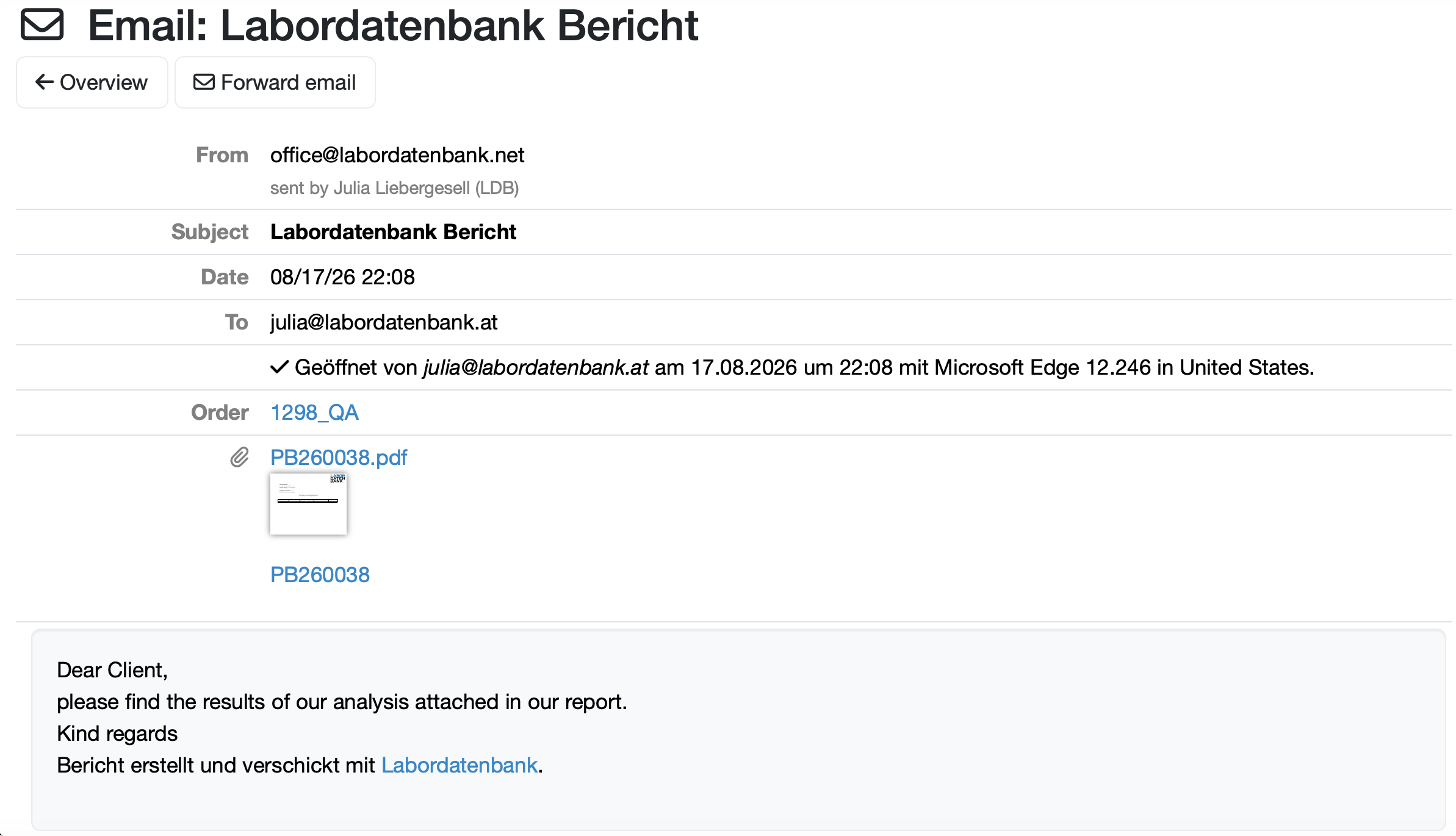
Figure: Detail view of an email
In the header area you see the subject of the email (e.g. Email: Labordatenbank Bericht) as well as the available actions.

Figure: Available actions in the detail view of an email
The information of the email is presented in a table overview. The following table describes the fields.
| Field | Description |
|---|---|
| Error message | Only shown if an error occurred during dispatch (highlighted in red). For SMS with an error code, a link to the dispatch service's error documentation is additionally displayed. |
| From | Sender address of the message (e.g. office@labordatenbank.net). For SMS, the sender number is shown instead. |
| sent by | Shows the employee who actually sent the message. Only appears if an employee is stored. |
| Subject | Subject or name of the message. Can be individually adjusted in the email templates. |
| Date | Timestamp of the dispatch. |
| To | Recipient address(es) of the message. |
| CC | Recipients in copy. Only shown if CC recipients are present. |
| BCC | Recipients in blind copy. Only shown if BCC recipients are present. |
| Delivery confirmation | Confirms the opening of the email including timestamp, browser used, and region (e.g. ✓ Opened by julia@labordatenbank.at on 17.08.2026 at 22:08 with Microsoft Edge 12.246 in United States.). Highlighted in green. |
| Status (SMS) | For SMS, shows the delivery status – green for delivered/sent, red for a failed delivery. |
| Report pages / SMS segments | For fax, the number of transmitted pages is confirmed; for SMS, the number of segments; for reports, the number of report pages. |
| Order | Blue-highlighted link to the linked order (e.g. 1298_QA). |
| Attachment | Attachments are shown via the paperclip icon – e.g. the sent report as a PDF (e.g. PB260038.pdf) including a preview image as well as the link to the corresponding report. |
| Further links | Depending on the process, additional linked records are linked as well, e.g. Sample, Invoice, Offer, Document, or Evaluation. |
| Email text | The complete message text in the highlighted text area. Security-relevant content such as password reset links is automatically anonymized for data protection reasons. |
| Message ID | At the bottom – depending on the dispatch channel – the technical message ID (Postmark Message ID or SMS Message ID) is shown. Used by support for tracking. |
Using the forward function, you send an already sent email to additional recipients.
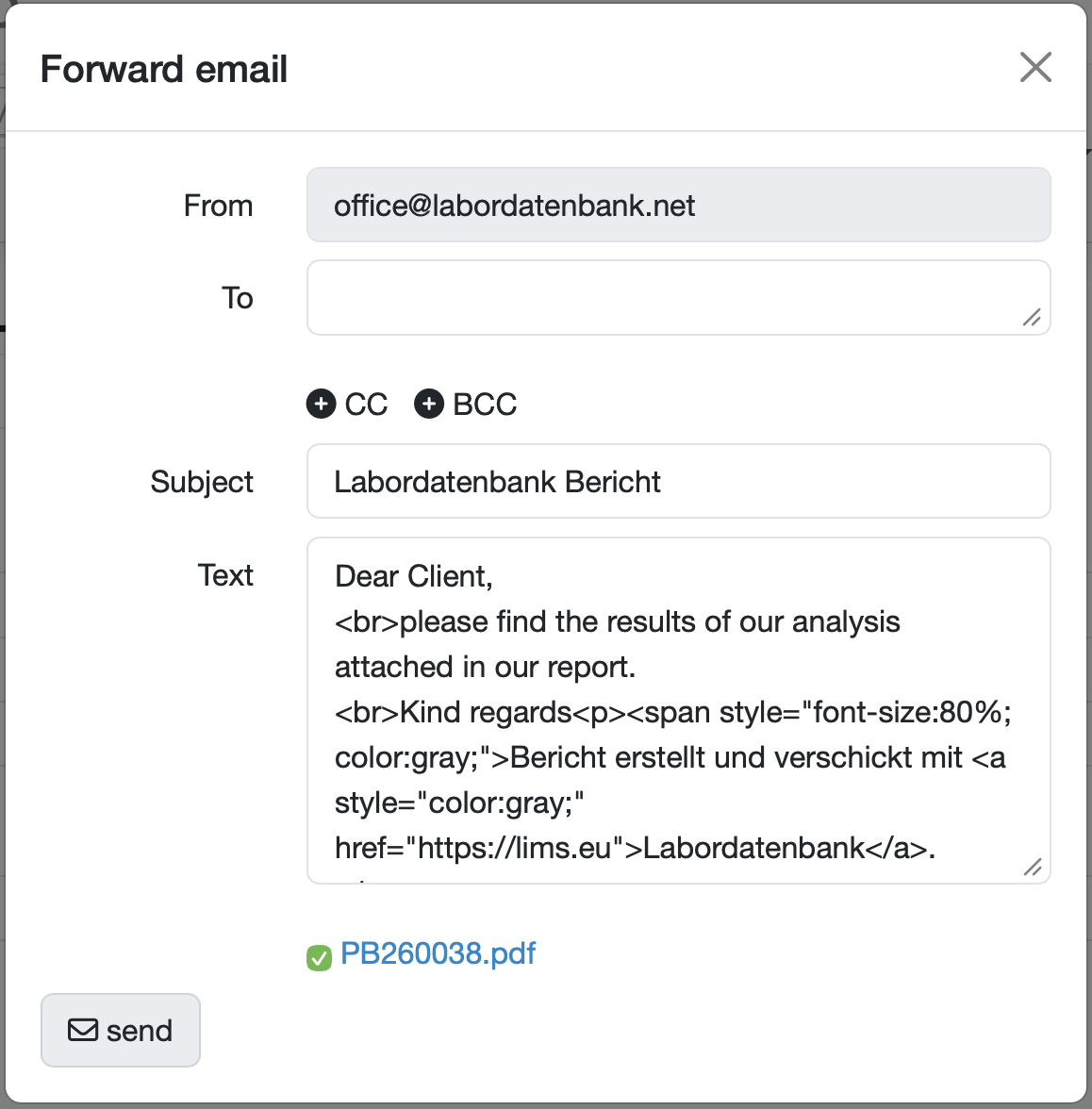
Figure: Forward email
Last change: 10/14/26
General information
8D-report
Supplier evaluation
Material
Employees
Customers
Orders
Samples
PDF templates
Assets
Recipes
Reports
Report table editor
Interfaces
AI functions
Introductory phase
Query reports
Templates
Client zone (optional)
Offers
Invoices
Parameters
Calculating with parameters
Webservices
Transformationscode
Test plans / limit values / specifications
Documents control
Questions and answers
Equipment
Trainings
Others
File management
Processes