Open the vacation view via:
Navigation bar → Clock icon → Show hours overview → Vacation Days tab
The Vacation Days view shows the recorded vacation days of all employees as a calendar and allows you to:
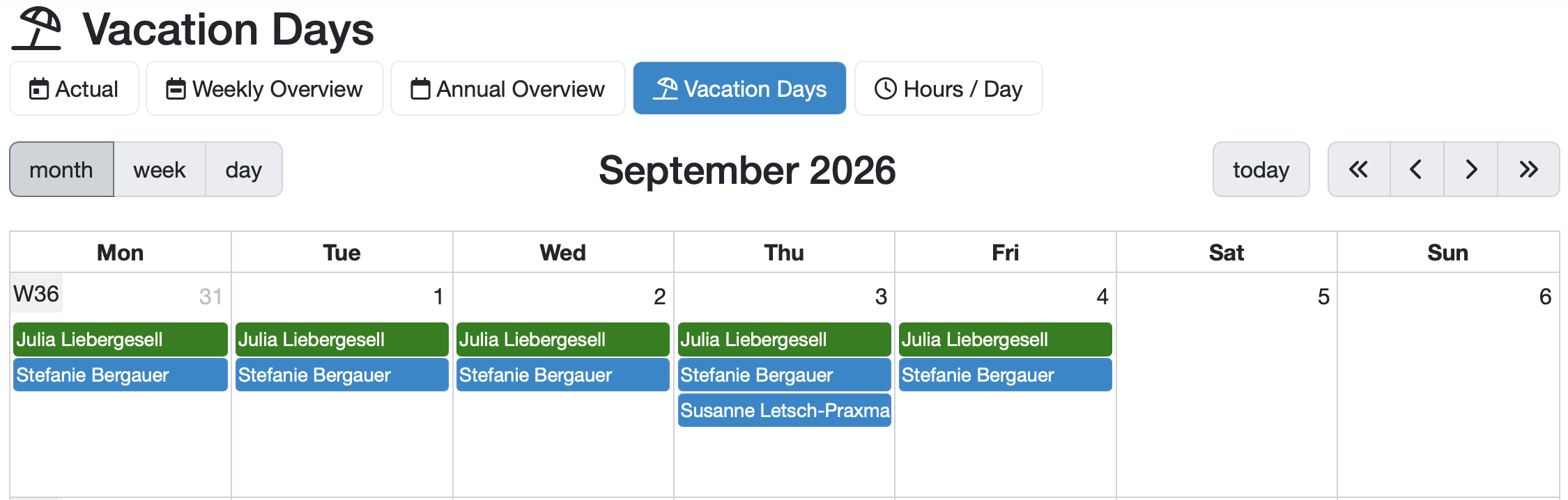
Figure: Vacation Days view
At the top, you switch between the time tracking views using the tabs. The active tab (Vacation Days) is highlighted in blue.
| Tab | Description |
|---|---|
| Actual | Overview of the most recently recorded hour entries. |
| Weekly Overview | Weekly display of the recorded hours. |
| Annual Overview | Annual view of the recorded hours. |
| Vacation Days | Calendar view of the vacation days. |
| Hours / Day | Display of the hours per day. |
Above the calendar, the following control elements are available:
The calendar shows the recorded vacation days. Each entry is assigned to an employee and displayed with their name on the respective day.
The entries are color-coded:
Below the calendar, you find a table overview of the recorded vacation days for the selected year. The following table describes the columns.
| Column | Description |
|---|---|
| Employee | Name of the employee. |
| recorded | Number of vacation days already recorded in the selected year. |
| Remaining vacation | Number of remaining vacation days. These result from the vacation entitlement minus the recorded days plus any stored correction. |
Note: Only your own entries are clickable. Vacation entries of other employees (blue) cannot be edited here.
Last change: 10/14/26
General information
8D-report
Supplier evaluation
Material
Employees
Customers
Orders
Samples
PDF templates
Assets
Recipes
Reports
Report table editor
Interfaces
AI functions
Introductory phase
Query reports
Templates
Client zone (optional)
Offers
Invoices
Parameters
Calculating with parameters
Webservices
Transformationscode
Test plans / limit values / specifications
Documents control
Questions and answers
Equipment
Trainings
Others
File management
Processes