The Outgoing Messages view lists all messages sent from the LDB – emails, SMS, and (deprecated) faxes. It serves as a complete sending history and allows you to:
Note: All texts highlighted in blue are clickable links to the respective data types or attachments.
Open the Outgoing Messages view via:
Navigation bar → Customers → Outgoing Messages
Note: The exact labels of the menu items may differ depending on the configuration of your LDB. After sending a report, the link Show outgoing messages also takes you directly here.
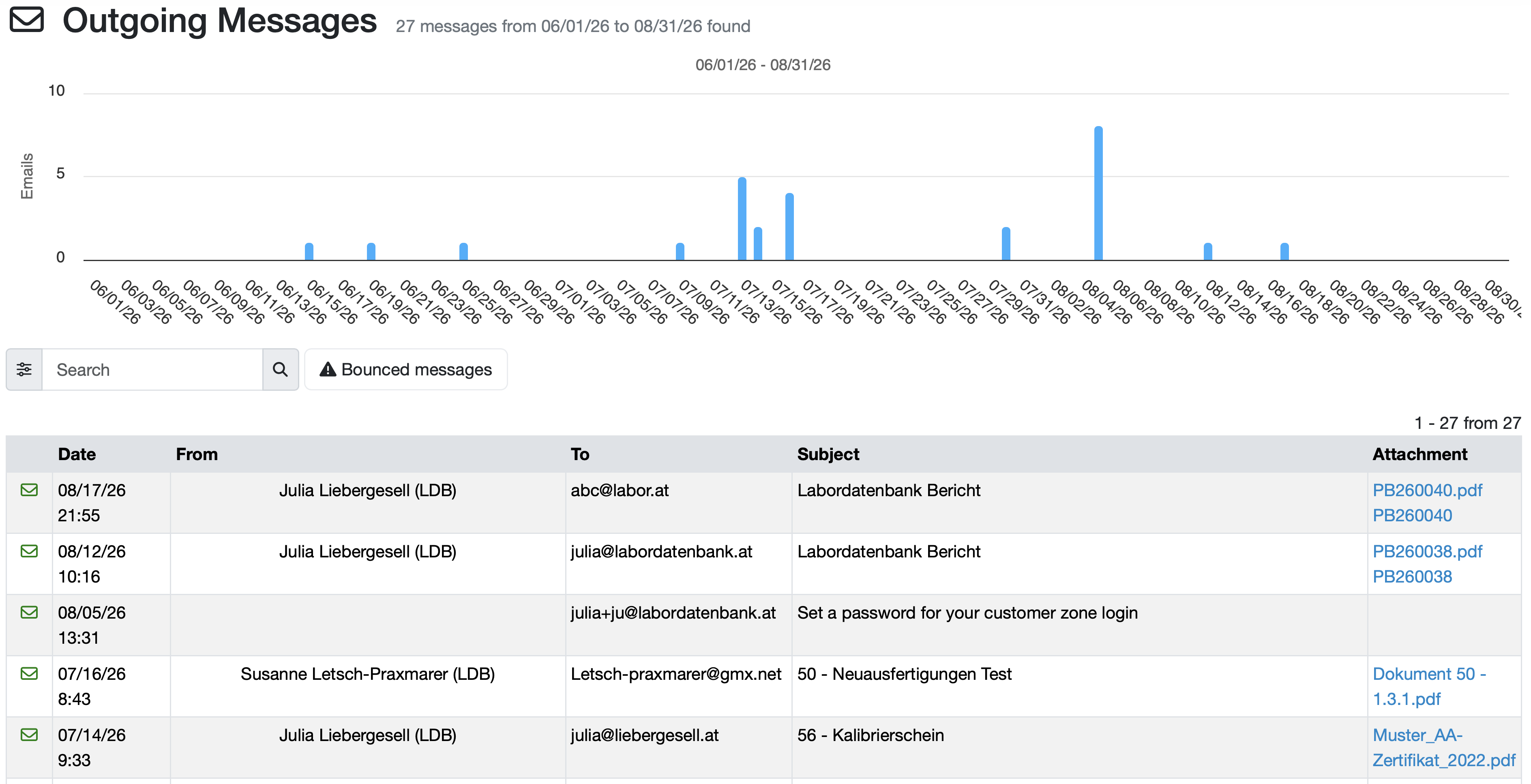
Figure: Outgoing Messages overview
The functions of the Outgoing Messages view in the LDB are described below.
A bar chart shows the number of emails sent per day over the selected period. The title at the top also states the total number of messages found as well as the period (e.g. 29 messages from 06/01/26 to 08/31/26 found).
Note: By default, the messages from the last 30 days are displayed.
The sent messages are displayed in a table overview. The following table describes the columns.
| Column | Description |
|---|---|
| Status symbol | Symbol in the first column. The shape indicates the message type (envelope = email, phone = SMS, fax = fax), the color indicates the delivery status. Clicking it opens the message detail view. |
| Date | Date and time the message was sent. |
| From | Sender of the message (the employee who sent it). For automatically sent system messages, this column may remain empty. |
| To | Recipient address. If present, the CC and BCC recipients are shown below it. |
| Subject | Subject of the email. For SMS, the message text is shown instead. If a label is assigned, it appears as a badge. |
| Attachment | Shows the sent attachments as well as linked reports as blue links. Clicking opens the respective file or the report PDF. |
| Color | Meaning |
|---|---|
| Green | The message was successfully delivered or opened. |
| Red | The message is undeliverable, or an error occurred during sending. The error message appears on mouseover. |
| Neutral (gray) | The message was sent. |
When open tracking is active, it is logged when an email was opened. The detail view then shows a note in the form Opened by [recipient] on [date] at [time] – supplemented by the email program used and the location, if this information is available.
For SMS, the delivery status of the mobile network provider is adopted; undeliverable messages are marked with an error message.
Last change: 10/14/26
General information
8D-report
Supplier evaluation
Material
Employees
Customers
Orders
Samples
PDF templates
Assets
Recipes
Reports
Report table editor
Interfaces
AI functions
Introductory phase
Query reports
Templates
Client zone (optional)
Offers
Invoices
Parameters
Calculating with parameters
Webservices
Transformationscode
Test plans / limit values / specifications
Documents control
Questions and answers
Equipment
Trainings
Others
File management
Processes