Manage recipes

The recipe management feature of the LDB provides your laboratory with a central platform for the systematic recording and management of all recipes. Optimized workflows and complete documentation in accordance with regulatory requirements. Recipe management helps you to maintain quality standards while increasing productivity. Individually configurable, intelligent search and filter functions allow you to access the information you need quickly and accurately.

Overview of recipe management

This guide describes the comprehensive management of recipes in the LDB, including navigation, filtering, creation, editing, approval, and batch processing.
You find the recipes under: Navigation bar → Recipes.
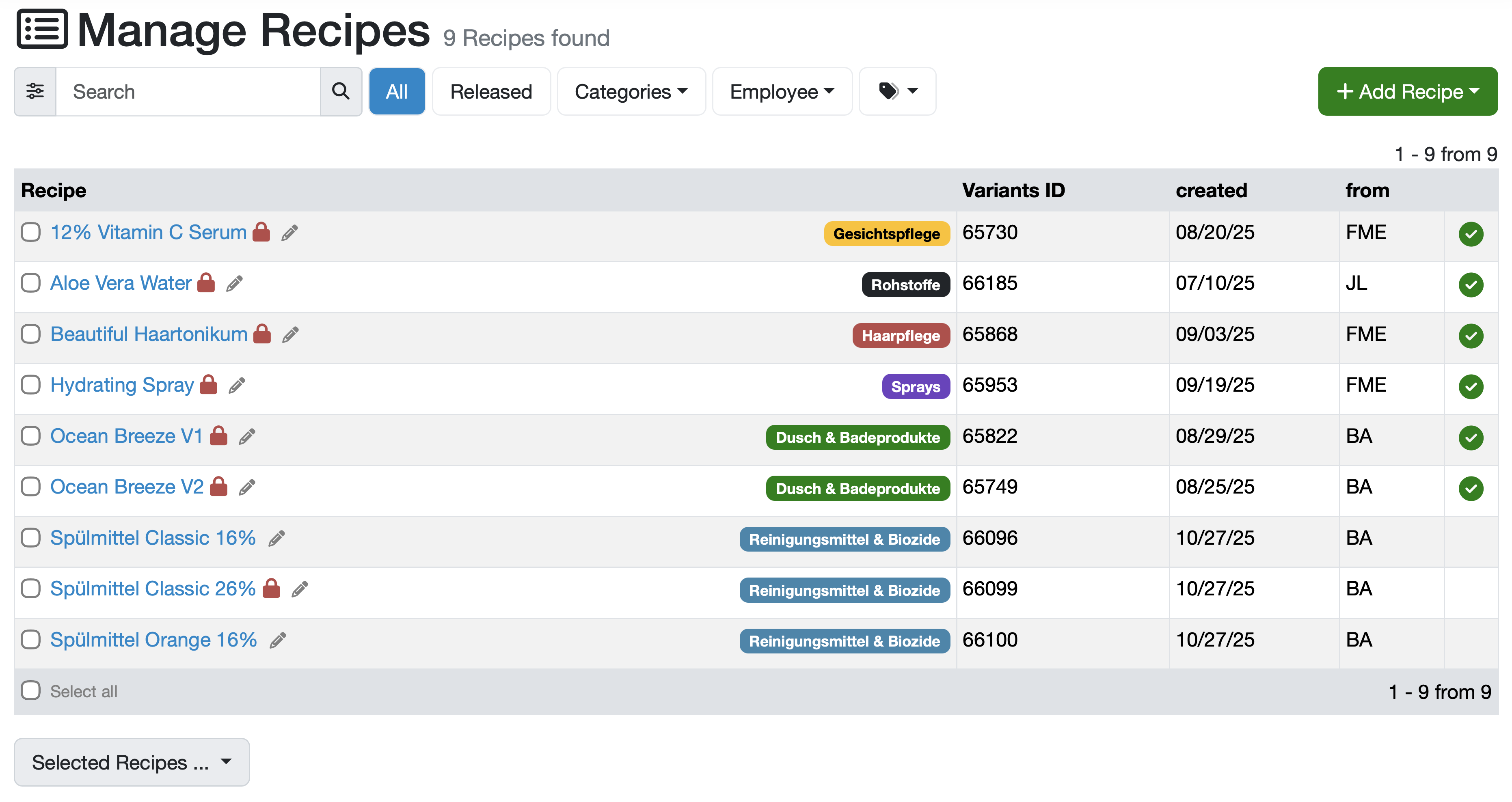
Main functions of the user interface

Search function

Simple search:

  • Use the search field at the top left to quickly find specific recipes.
  • Enter the name and click on the magnifying glass or press Enter to start the search.
  • If necessary, narrow down the search results by selecting additional filter options (Category, Responsible employee, etc.).

Advanced search:

  • Click on the slider icon to the left of the search field to open the advanced search function.
  • Define your search criteria here.

Create a new recipe

  • Click on the green button + Add recipe in the top right corner to create a new recipe.
  • See also: Create/edit recipe

Edit recipe

  • Click on the pencil icon next to the recipe name to edit the recipe.
  • See also: Create/edit recipe

Archive recipes

  • Click on the pencil icon next to the recipe name.
  • Scroll down on the following page, check the Archived checkbox, and Save the settings.

Recipe overview

All created recipes are displayed in a table in the recipe table.
Each recipe has its own row in the table.
Each row is displayed in columns (from left to right):

  • Recipes: The recipe name in blue font is a link to the detail view of the recipe. Click on this link to obtain detailed information about the recipe.
    Recipes that are locked for editing are marked with a red lock to the right of the name.
    To the right of the name is a pencil icon for editing the recipe.
    The category of the recipe is shown at the right end of the column.
    Variants ID: Individually configured database field.
  • created: Date of creation.
  • from: Responsible employee (short)
  • Approval status: Green check mark: Recipe is approved and active, No symbol: Recipe is not yet approved

Multiple selection for collective editing

  • Selected recipes...: Drop-down menu for collective editing of selected recipes.
  • Checkbox on the left: For individual selection of recipes.
  • Select all: Checkbox at the bottom left for total selection.

Related topics: Create/edit recipe, Recipe detail view and ingredients

Last change: 24.11.2025

General information

Reports

Report table editor

Interfaces

Kompetenzen

AI functions

Employees

Introductory phase

Query reports

Orders

Samples

Templates

Customers

Client zone (optional)

Assets

Offers

Invoices

Parameters

Calculating with parameters

Webservices

Transformationscode

Test plans / limit values / specifications

Documents control

Material

Questions and answers

Equipment

Trainings

8D-report

Others

PDF templates

Supplier evaluation

File management

Processes