Name: Give the template a unique name (e.g., “Sample Label”).
Language: Select the desired language for the document.
Type: Select Label.
Date format: Specify how dates are displayed.
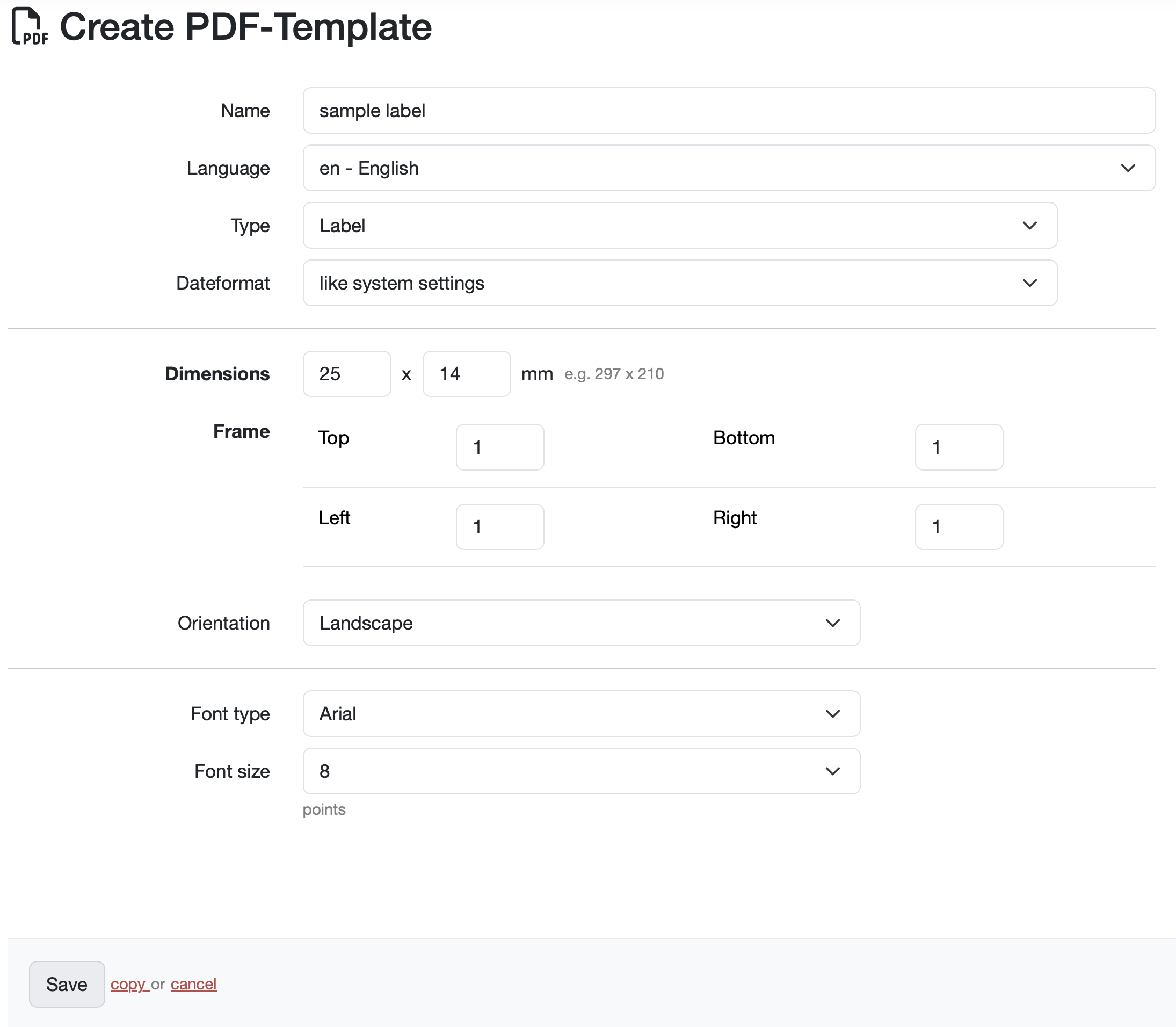
Dimensions: Enter the dimensions of your label, e.g., 25 × 17 mm
Frame: Define the margins for Top, Bottom, Left, Right (in mm)
Orientation: Landscape or Portrait
Font type: Select the font, e.g., Arial.
Font size: 8 points (adjustable)
Save the basic settings and then create the design elements.
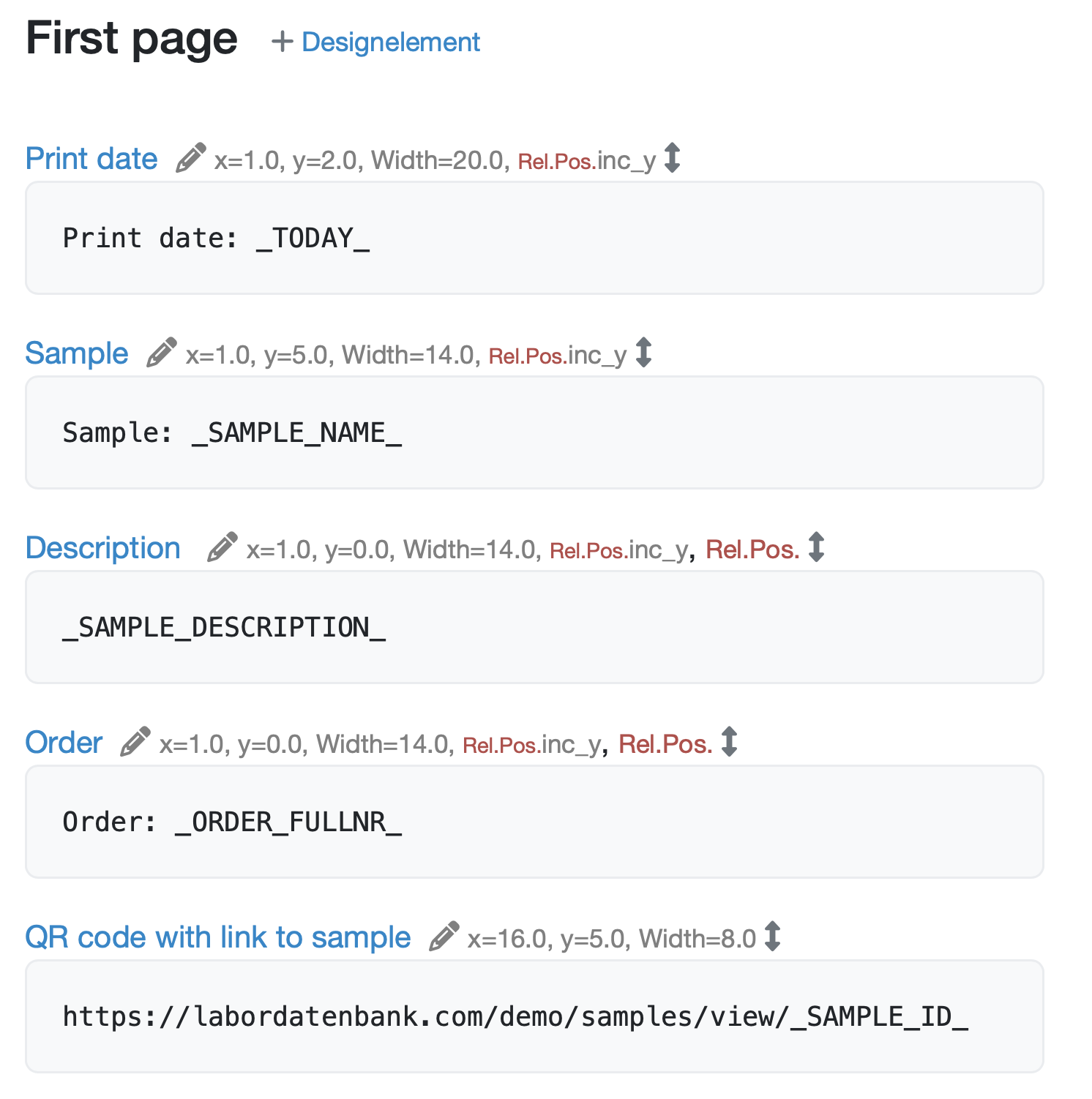
Add the relevant information about design elements and place the design elements on the first page.
In this example, the following information is visible on the label:
Print date: Shows the current date (variable: _TODAY_)
Sample number: Shows the sample number. (Variable: SAMPLE_NAME)
Description: Shows the description stored with the sample (variable: SAMPLE_DESCRIPTION)
Order: Element for the order number. (Variable: ORDER_FULLNR)
QR Code: For the QR code, you need a design element of type QR-Code. To ensure that the QR code displays the link to the sample in your LDB, use the variable SAMPLE_ID. Copy the complete URL of the sample view from the browser address bar and replace the specific ID (e.g., 12345) at the end of the URL with SAMPLE_ID.
Additional elements that appear on all labels can be added via + Design element.
Further information on the design elements can be found at: Create design elements

Last change: 08/21/26
General information
Supplier evaluation
Material
Employees
Customers
Orders
Samples
PDF templates
Assets
Recipes
Reports
Report table editor
Interfaces
AI functions
Introductory phase
Query reports
Templates
Client zone (optional)
Offers
Invoices
Parameters
Calculating with parameters
Webservices
Transformationscode
Test plans / limit values / specifications
Documents control
Questions and answers
Equipment
Trainings
8D-report
Others
File management
Processes