To open the detail view of a parameter, follow this path:
Navigation bar → Manage Parameters → Click on the parameter
The detail view brings together all key information about a parameter at a glance. It allows you to:
Note: Which sections are displayed depends on your configuration and available data. Only sections that contain data or are enabled for you will appear.
The header area shows the name of the parameter and the current version.
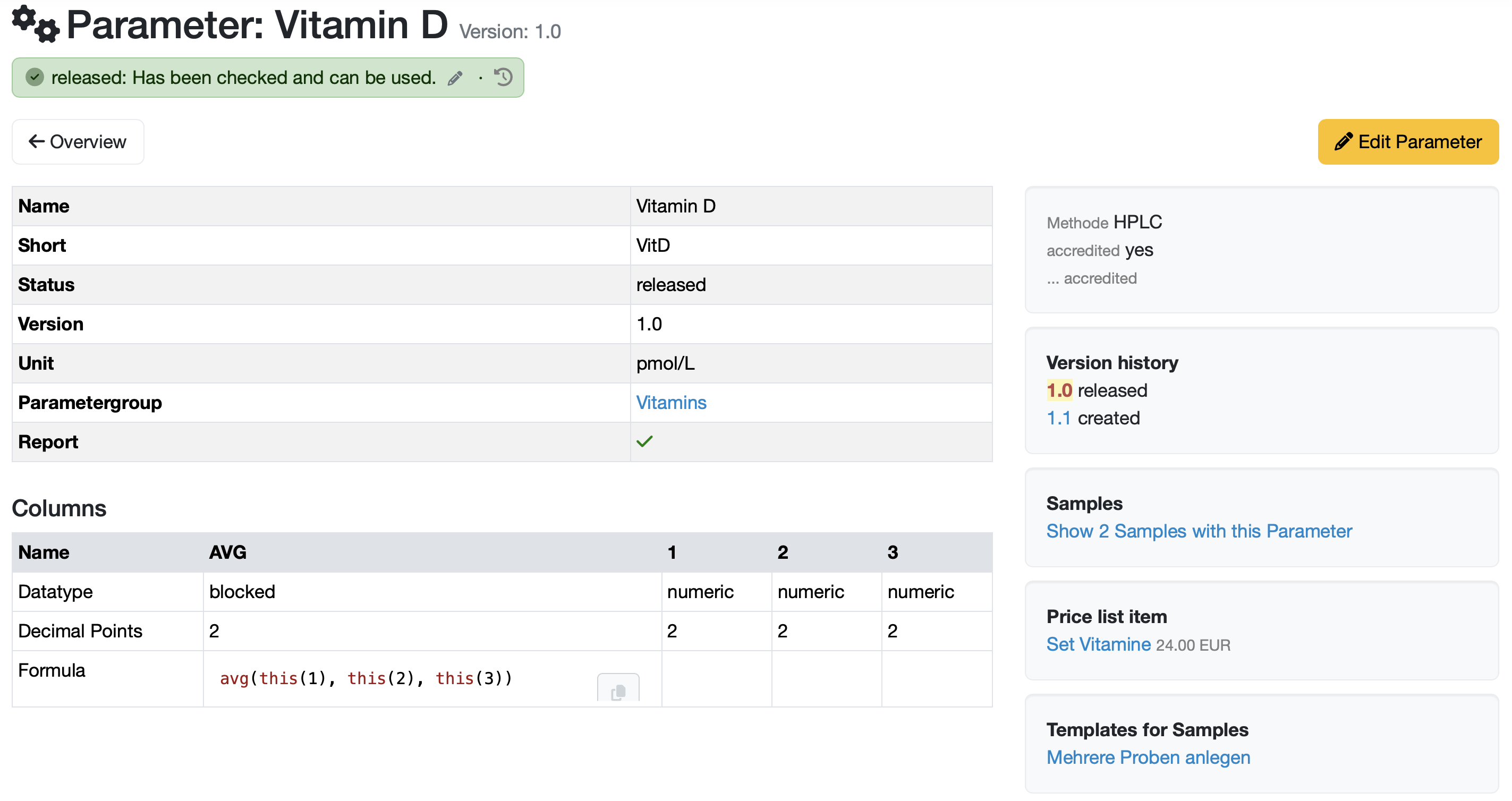
Figure: Detail view of the parameter "Vitamin D"
The central table shows the basic information about the parameter. The following table describes the fields.
| Field | Description |
|---|---|
| Name | Designation of the parameter. If a color is assigned, the name is marked with a colored bar on the left. |
| Short | Abbreviation of the parameter. |
| Status | Current release status (e.g. released). |
| Version | Version number of the parameter (default: 1.0). |
| Unit | Unit of measurement for the values (e.g. pmol/L). Only shown if assigned. |
| Parametergroup | Assigned group as a clickable link to the group (e.g. Vitamins). |
| Report | A green check mark indicates that the parameter is included in the report. |
Note: If a category is also assigned, it appears as an additional row.
The Columns section describes the column structure used to record the values of this parameter. It only appears if at least one column is defined.
| Row | Description |
|---|---|
| Datatype | Type of value expected per column (e.g. blocked, numeric). |
| Decimal Points | Number of decimal places per column. |
| Formula | Formula assigned per column, e.g. avg(this(1), this(2), this(3)) to calculate an average. Use the copy icon to copy the formula to the clipboard. |
Note: The Formula row is only shown if you have the corresponding permission. If a formula contains an error, a red warning triangle with an error message appears.
To the right of the standard attributes, additional sections are displayed depending on your configuration and available data:
Note: Depending on the available data, further sections may appear, e.g. Specifications, Price list items with price, Tags, Documents, Test equipment, Report tables or file attachments...
Note: Changes to a released parameter can affect already linked samples, templates, specifications... For version-relevant changes, check whether a new version should be created instead.
See: Section Add New Parameter Version in: Add/Edit/Delete Parameter
Last change: 10/14/26
General information
8D-report
Supplier evaluation
Material
Employees
Customers
Orders
Samples
PDF templates
Assets
Recipes
Reports
Report table editor
Interfaces
AI functions
Introductory phase
Query reports
Templates
Client zone (optional)
Offers
Invoices
Parameters
Calculating with parameters
Webservices
Transformationscode
Test plans / limit values / specifications
Documents control
Questions and answers
Equipment
Trainings
Others
File management
Processes