In this onboarding video, you will get a compact introduction to objects management in the LDB:
Open the Objects management via:
Navigation bar → Customers → Objects
Alternatively:
Navigation bar → Orders → Objects
Note: The exact naming of the menu items may vary depending on the configuration of your LDB.
The following section describes the functions for managing Objects in the LDB.
The Objects management is the central point of access for all Objects recorded in the LDB. Objects serve as a structured basis for data collection – they bring together customers, all associated tapping points, order templates and test results in one place. Depending on the configuration of the LDB, it is available for different areas of application. Here some examples:
The Objects management enables you to:
The Objects management is organised in levels:
Customer → Object/s → Tapping point/s (Subasset/s) → Order/s → Sample/s
An object cannot exist without a customer, and samples cannot exist without an order.
Objects
Objects are always assigned to a customer and are created via the customer record. The name is the only mandatory field. Templates can be used to predefine master data fields for different object types.
Tapping points (Subassets)
Tapping points are linked to the object and represent the concrete sampling locations. Templates with master data fields are also available here. Recurring information can be recorded here to avoid redundant data entry for each individual sample. Images can be stored to document the exact location.
Orders and samples
Orders are linked to an object. Samples within the order can then be assigned directly to a tapping point. Master data fields from the tapping point do not need to be entered again in the sample.
Order planning (planned orders)
For recurring sampling, planned orders with a schedule (e.g. quarterly) can be created, including predefined planned samples per tapping point with sample template, responsible person and pre-filled master data fields.
Access rights
Required rights are: View object and Create/edit object.
Objects are displayed in a tabular overview. The following table describes the columns.
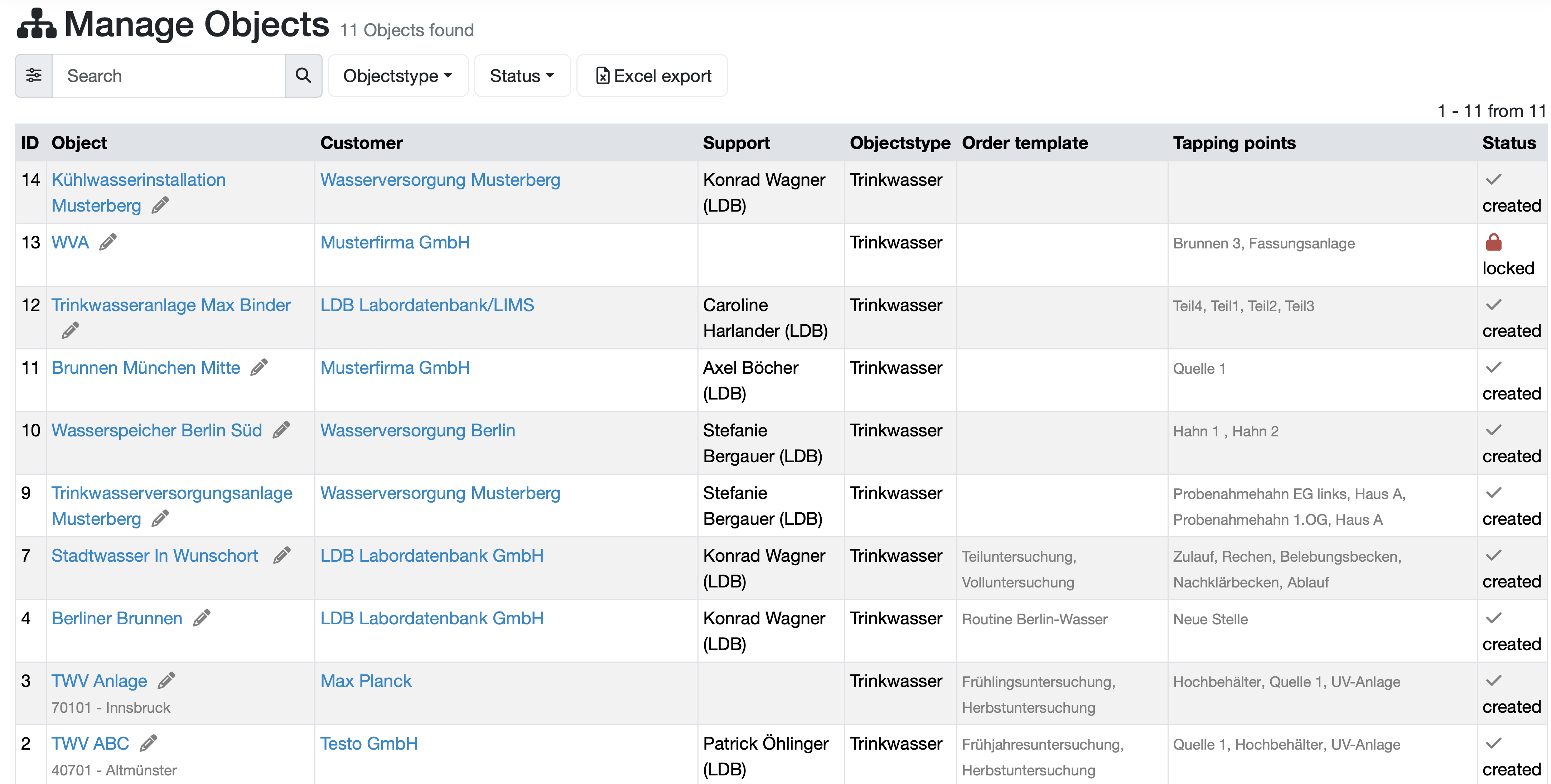
Figure: Objects management
Note: All blue highlighted texts in the table are clickable links to the respective data types.
Some columns are always present, others are configuration-dependent. The column names may also vary depending on the configuration.
| Column | Description |
|---|---|
| ID | Unique numeric identifier of the object. |
| Object | Name of the object as a clickable blue highlighted link to the detail view. A pencil icon appears next to the name, which allows the object to be edited directly. |
| Customer | Name of the assigned customer as a clickable blue highlighted link to the customer detail view. |
| Support | Name of the responsible support person (from the employee management). |
| Objectstype | Type of the object (e.g. Trinkwasser). Configuration-dependent. |
| Order template | Names of the linked order templates. |
| Tapping points | Names of the associated tapping points. |
| Status | Current status of the object. |
Various search options are available to find objects quickly and precisely.
Quick search
The quick search enables a cross-data-type search without having to navigate to the respective area first.
/ or s, or click into it and enter your search term.object:search term for a targeted search in this area.Simple search
Advanced search / detailed search
Additional search and filter functions
Change the data of an already recorded object using the edit function.
The list is ordered according to the configured sorting. The sorting can be adjusted in the system settings.
Last change: 08/21/26
General information
Supplier evaluation
Material
Employees
Customers
Orders
Samples
PDF templates
Assets
Recipes
Reports
Report table editor
Interfaces
AI functions
Introductory phase
Query reports
Templates
Client zone (optional)
Offers
Invoices
Parameters
Calculating with parameters
Webservices
Transformationscode
Test plans / limit values / specifications
Documents control
Questions and answers
Equipment
Trainings
8D-report
Others
File management
Processes