Detect and filter reference range deviations

Samples that deviate from reference range values are highlighted in color in the sample overview, sample detail view as well as results table, and can be found using the sample search function.

Visually highlight reference range deviations

The numbers of samples with target value deviations can be highlighted in color (red or orange). This allows you to identify deviations at a glance—without having to check all values individually.

Note: Contact your customer service representative to activate color coding for target value deviations in your LDB.
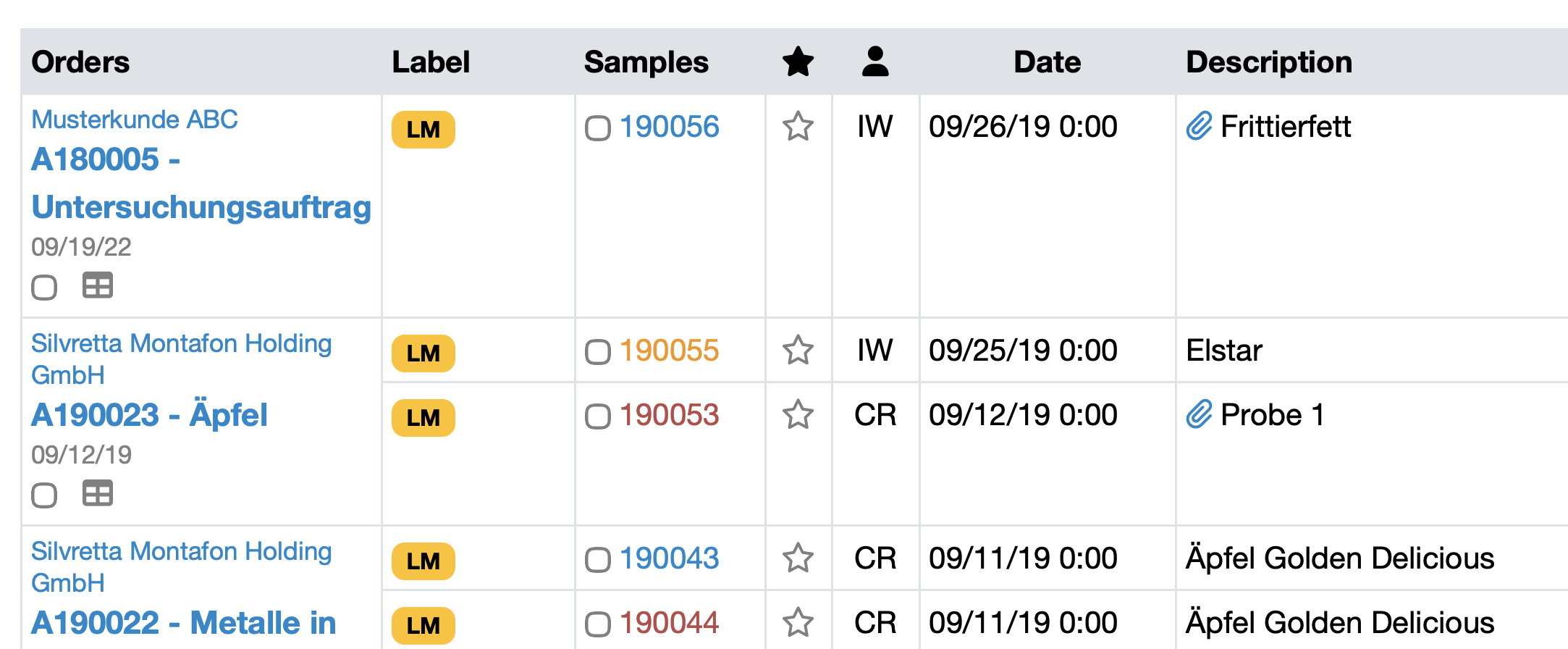
Filter samples by reference range deviations / target value deviations

With the Reference range deviation filter, you can search specifically for samples that deviate from the defined reference ranges.

Here's how:
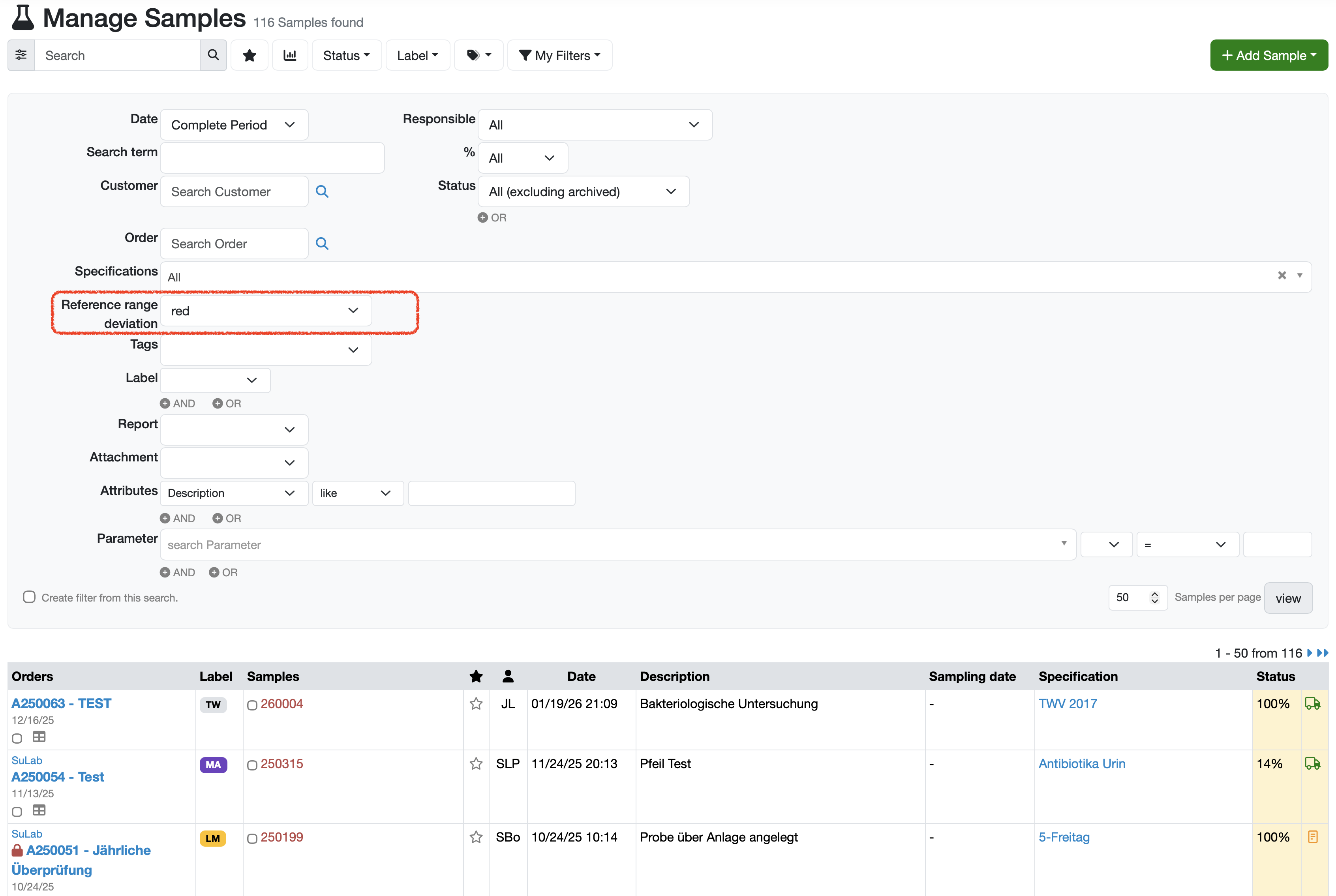
  • Open the sample list. (Navigation bar → Samples → Manage samples)
  • Click on the magnifying glass icon in the top bar to open the advanced search.
  • Scroll to the Reference range deviation filter field.
  • Select the desired color (red or orange) from the drop-down menu.
  • Clicking on view filters the sample list and displays only the corresponding samples.
  • Save frequently used filters using the Create filter from this search checkbox.
  • If necessary, activate the Automatic email notification option to be informed if samples with this search filter are found.

Last change: 01/28/26

General information

PDF templates

Recipes

Reports

Report table editor

Interfaces

Kompetenzen

AI functions

Employees

Introductory phase

Query reports

Orders

Samples

Templates

Customers

Client zone (optional)

Assets

Offers

Invoices

Parameters

Calculating with parameters

Webservices

Transformationscode

Test plans / limit values / specifications

Documents control

Material

Questions and answers

Equipment

Trainings

8D-report

Others

Supplier evaluation

File management

Processes