This page shows the detail view of a recipe with its ingredients, quantities, and preparation instructions in the LDB. It allows you to view and manage all recipe-specific information, including documentation and administration in accordance with regulatory requirements.
You find the recipes under: Navigation bar → Recipes.
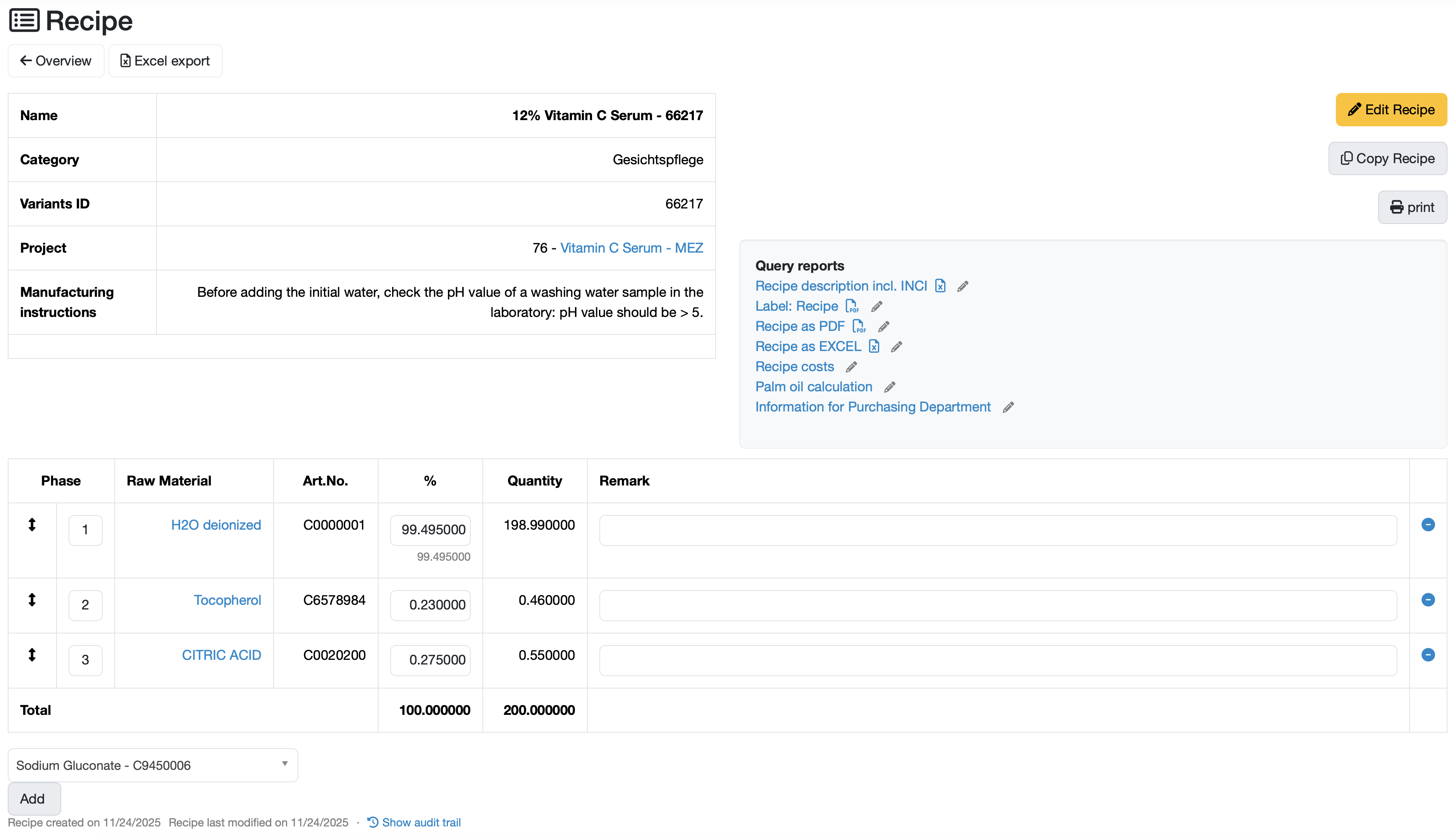
The following navigation elements are located in the upper left area of the application:
Overview: This button takes you back to the overview page, where all available recipes are listed. Use this function if you want to return to the main view.
Excel export: This button allows you to export the currently displayed recipe as an Excel file. The exported file contains all relevant recipe data and can be used for further processing or archiving.
There are three main action buttons in the upper right-hand corner:
Edit recipe (orange button): Clicking this button takes you to the edit mode for the recipe currently displayed. You can then make changes to the recipe master data or add further information.
Copy recipe (gray button): This function allows you to create a copy of the current recipe. This is particularly useful if you want to create a similar recipe and use the existing one as a template.
Print (gray button): This button generates a PDF print preview of the recipe. You can then print the PDF or save it digitally.
The table in the upper area shows the most important information about the recipe:
Name: Name of the product.
Category: Product category (e.g., facial care)
Variant ID: Unique identification number.
Project: Name of the assigned project as link to the project detail view.
Manufacturing instructions: Instructions for production.
To the right of the main recipe information, the gray area contains the individually configured views and output formats for the current recipe.
In this example, the Query report Recipe description incl. INCI creates a complete recipe description with all raw materials and INCIs for product labeling and regulatory documentation. Label: Recipe generates a compact product label with the most important recipe information, QR code, etc. The two export options Recipe as PDF and Recipe as Excel provide the complete recipe either as a PDF for archiving and production documentation or as an Excel file for flexible further processing. Formula costs shows a detailed cost breakdown of all raw materials with a total cost overview. The Palm oil calculation calculates the proportion of palm oil for sustainability certifications. Information for purchasing provides a purchasing-specific report with raw material quantities, item numbers, and all relevant information for the purchasing department.
The main table shows a separate row for each ingredient (e.g. raw material) in the recipe with the following columns:
Phase: Production step (1, 2, 3, ...)
Raw material: Name of the ingredient (linked for details)
Art. No.: Article number of the ingredient
%: Percentage concentration (entered)
Quantity: Quantity (calculated)
Comment: Field for additional notes
Arrows: Change the order of the ingredients
Blue circles: Remove individual ingredients from the recipe
Total: The bottom row automatically adds up the percentages and quantities.
Below the table is a drop-down menu for selecting ingredients.
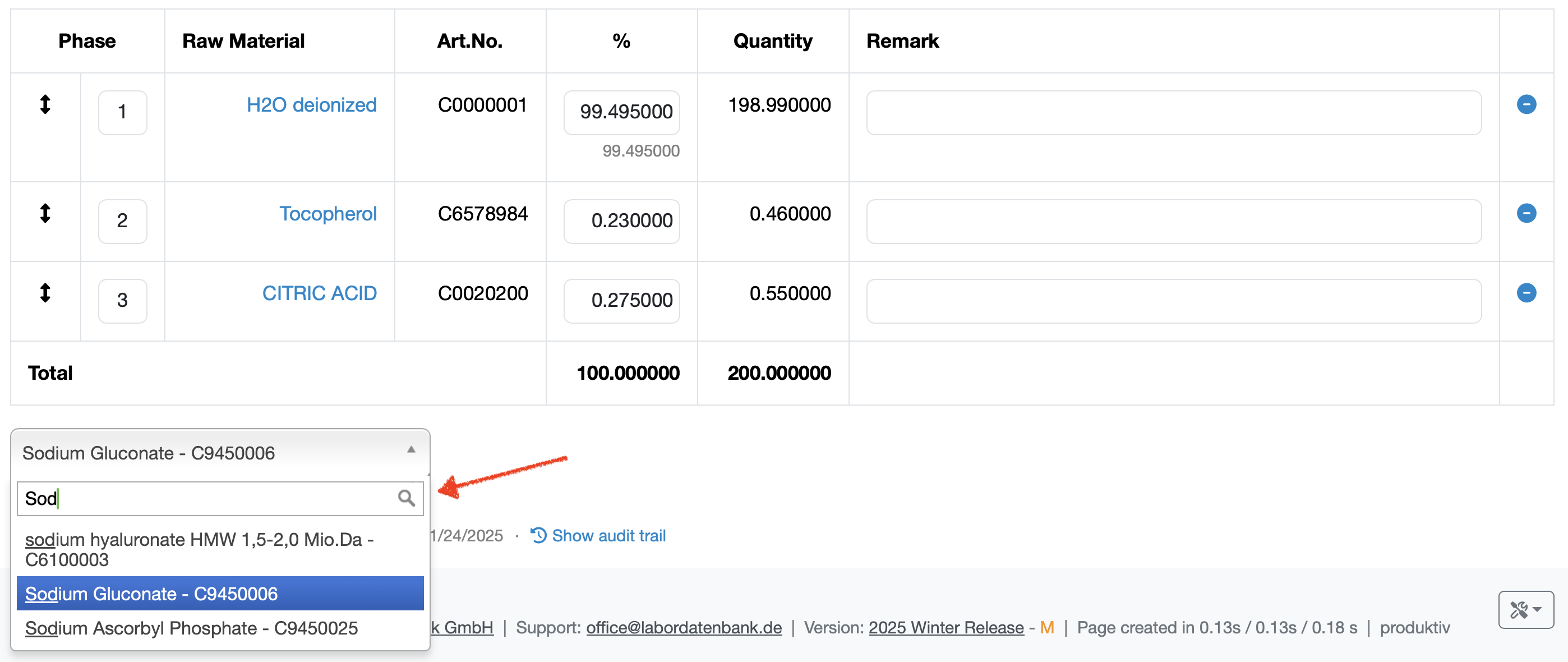
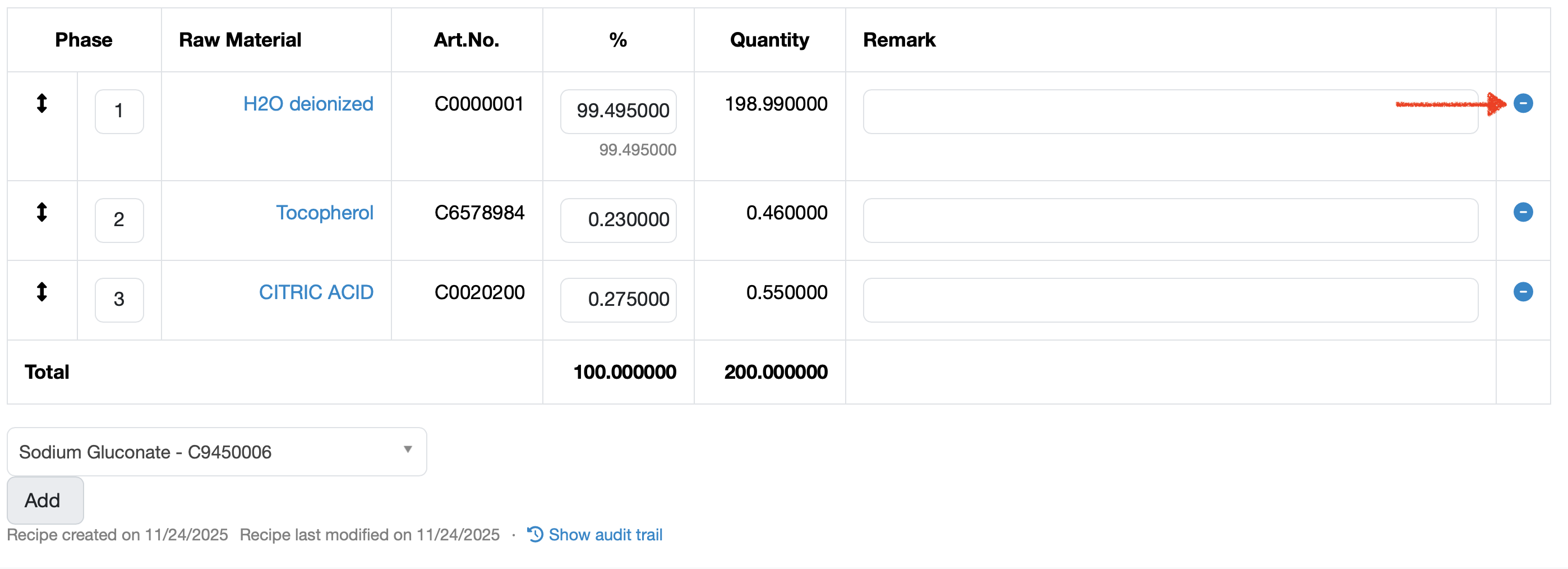
(at the bottom of the page)
Show audit trail: Shows the change history of the recipe.
Creation and change date: Shows when the recipe was created and last modified.
Related topics: Manage recipes, Create/edit recipe
Last change: 10/14/26
General information
8D-report
Supplier evaluation
Material
Employees
Customers
Orders
Samples
PDF templates
Assets
Recipes
Reports
Report table editor
Interfaces
AI functions
Introductory phase
Query reports
Templates
Client zone (optional)
Offers
Invoices
Parameters
Calculating with parameters
Webservices
Transformationscode
Test plans / limit values / specifications
Documents control
Questions and answers
Equipment
Trainings
Others
File management
Processes