This guide explains how to edit and configure search filters for sample lists and column filters for results tables in the LDB, including visibility and permission settings.
Navigation
Open the filter management via:
Navigation bar → Samples → Manage Samples → My Filters / Public Filters → Filter
Overview
Filters allow you to search for samples in the LDB and customize the display of the results table. There are two filter types:
With the Search Filter (for the sample list) you can:
- Call up reusable sample searches with one click.
- Display found samples directly in the results table and link them to a column filter.
- Receive automatic e-mail notifications as soon as samples matching the defined criteria are available.
- Control visibility for specific employees or employee groups.
The Column Filter (for the results table) allows you to:
- Display only the relevant parameter columns in the results table.
- Save and reuse column selections for different use cases.
- Link to a search filter to immediately get the matching column view.
Search Filter
Creating a Search Filter
For further information on creating search filters for the sample list: Manage samples in the section Save Search Filter for Sample List.
Editing a Search Filter
You can link additional functions to a saved search filter.
- Open the Filter screen.
- Click the pencil icon next to the desired filter to open the editing screen.
The following functions are available:
Show Found Samples in the Results Table and Link to Column Filter
- Enable the checkbox Show found Samples directly in Result Table. to be redirected from the sample list directly to the results table with the samples found by the search filter.
If you have enabled the checkbox Display found samples directly in results table, an additional field appears:
- Column Filter: Optionally select a column filter from the dropdown to display only the selected columns in the results table. Create a suitable column filter in advance.
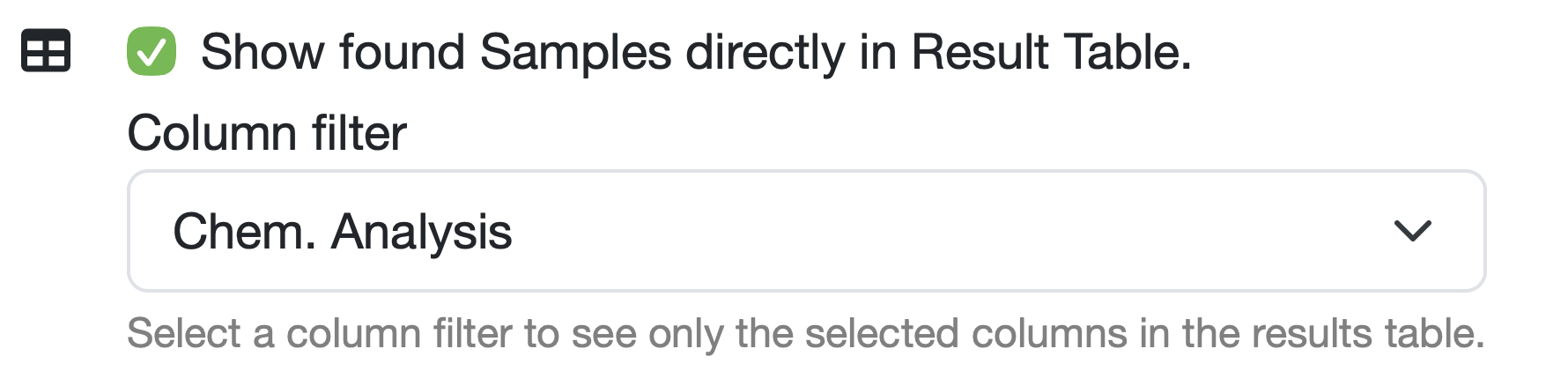
Figure: Show found samples in Results Table
Automatic E-Mail Notification for Samples
Note: At the selected times, a sample search using this search filter is performed automatically. A notification is only sent if the search filter actually finds samples.
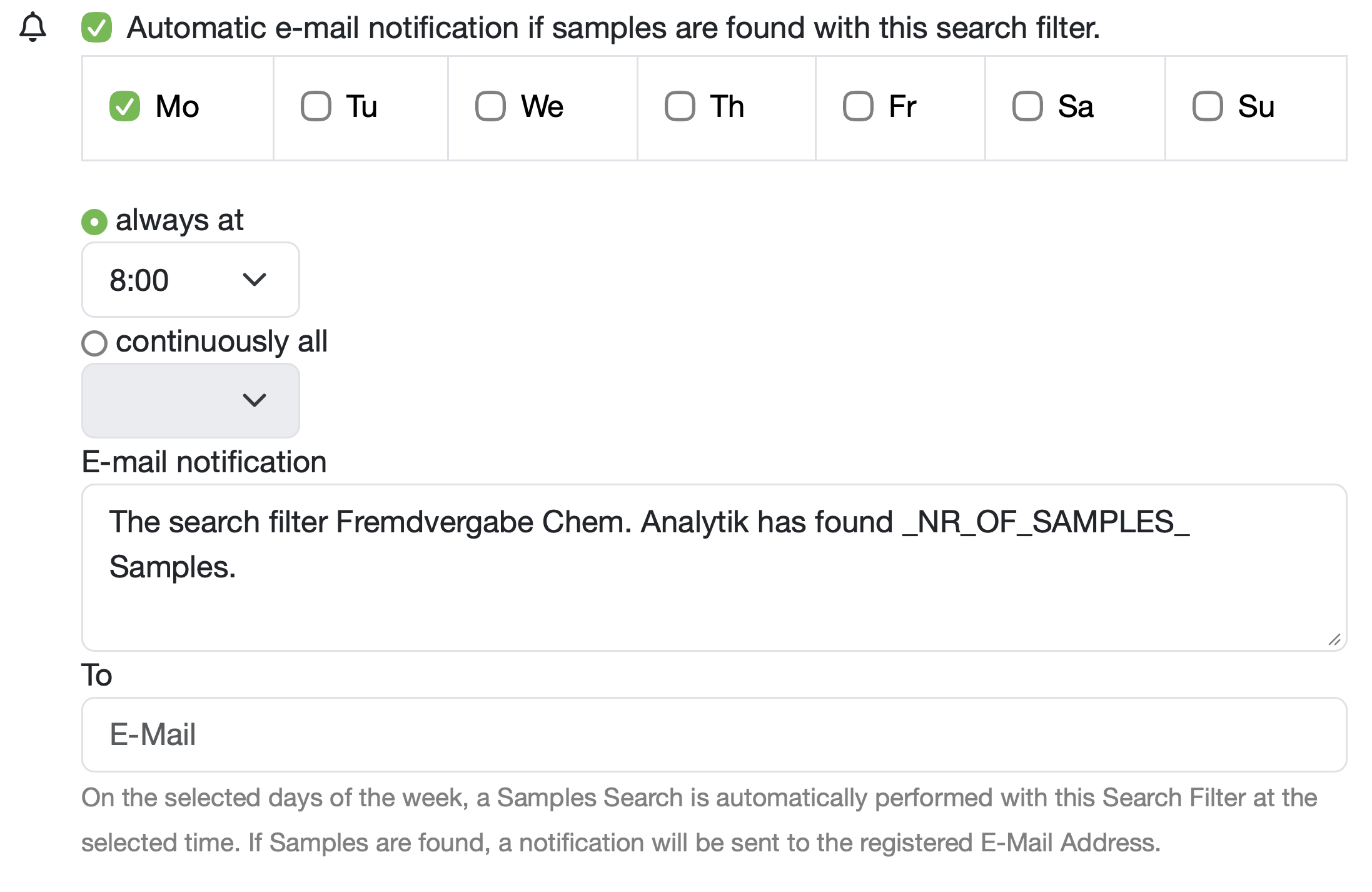
Figure: Automatic E-Mail Notification
Column Filter
Creating a Column Filter
For further information on creating column filters for the results table: Results table in the section Create Column Filter.
Editing a Column Filter
You can link additional functions to a saved column filter.
- Open the Filter screen.
- Click the pencil icon next to the desired filter to open the editing screen.
The following options are available:
- Filter: Name of the column filter, can be changed.
- Selected Columns: Lists all parameter columns currently included in the column filter. Each column shows the parameter name and, in brackets, the name of the parameter column. Individual columns can be removed from the filter using the trash icon.
- Add Column: Use the search field to add another parameter. Then select the desired parameter column (0–9) from the dropdown. Click Save to apply the new column.
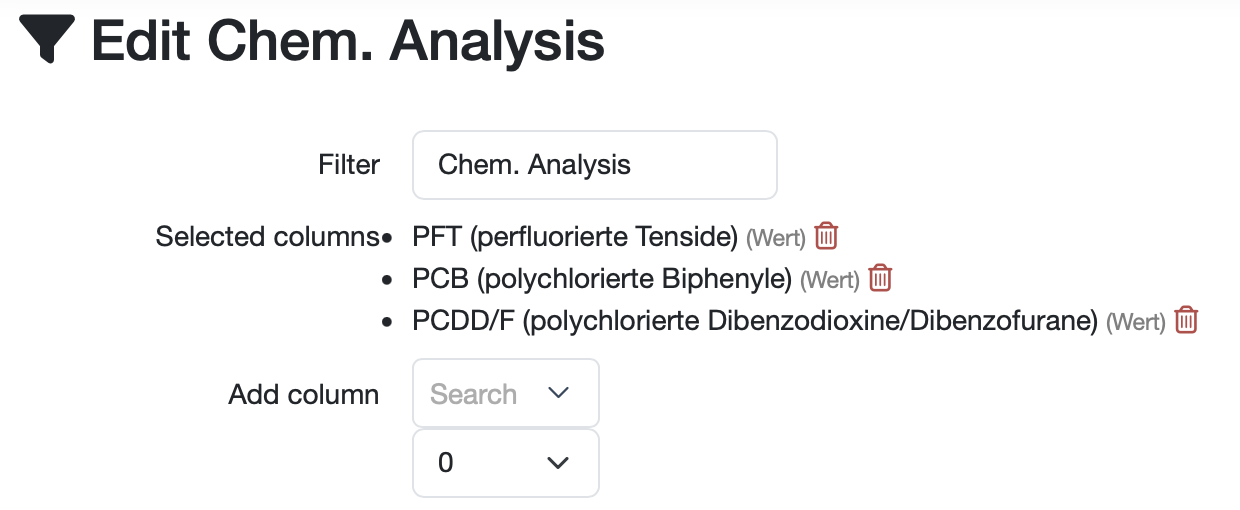
Figure: Edit Column Filter
Filter Visibility
In the right section of the editing screen for search filters and column filters, you can define Who can see this entry?:
- Everyone: The filter is visible to all users.
- Only me: The filter is only visible to the user who created it.
- Employee Groups: The filter is visible to selected employee groups.
- Employees: The filter is visible to individually selected employees. Multiple employees can be assigned simultaneously. Add employees via Select employee....
Note: The Employee Groups and Employees options can be combined to make the filter visible to specific groups and individual persons at the same time.
Change History
- The bottom of the editing screen shows when the filter was created and by whom.
- Via Show history all changes to the filter can be traced.
Deleting a Filter
- Click delete at the bottom of the editing screen.
Note: A filter can only be deleted by its creator or by users with the appropriate access permission.
Practical Examples
Example 1: Filter for Different Processing Phases
If the same sample is handled by different employee groups depending on the processing phase – e.g. the group Sample Collectors records measurements on site, the group Laboratory records measurements in the lab, and the group Office creates the report – the following approach is recommended:
- Define separate filters with the relevant criteria for each processing phase.
- In the Sample List or Results Table view, go to My Filters and Filter.
- Click the pencil icon next to the relevant filter to edit it.
- Use the checkbox under Who can see this entry? to define which Employees or Employee Groups can see this filter, and save the selection.

Figure: Edit Search Filter for Sample List
Example 2: Filter for External Chem. Analysis
For example, the parameters PFT, PCB and PCDD_F are analysed externally. Proceed as follows:
- Create a search filter in the sample list for the relevant parameters and name it e.g. External Chem. Analysis.
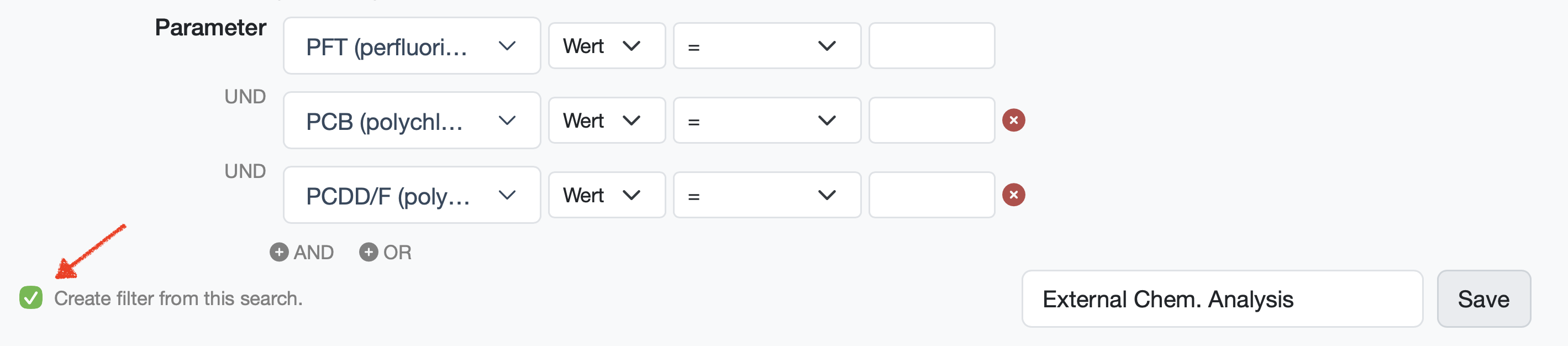
Figure: Search Filter for Sample List
- Select the found samples, display them in the results table, and create a column filter for the relevant parameter columns, e.g. Chem. Analysis.
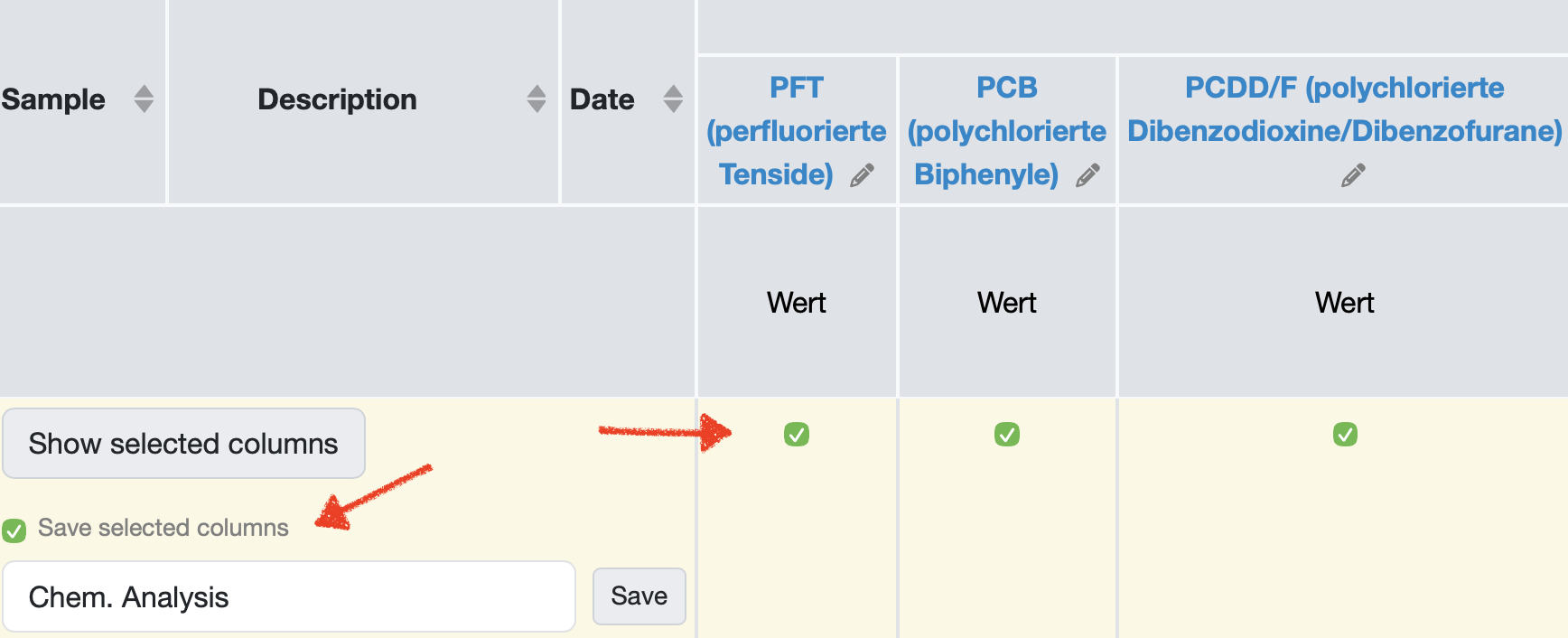
Figure: Column Filter for Results Table
- Link the search filter External Chem. Analysis to the column filter Chem. Analysis.
- Go to My Filters and Filter in the sample list or results table.
- Click the pencil icon next to the search filter External Chem. Analysis.
- Adjust the search filter settings:
- If necessary, adjust the settings under Who can see this entry?.
- Enable the checkbox Display found samples directly in results table.
- Select the column filter Chem. Analysis.
- Save the settings.
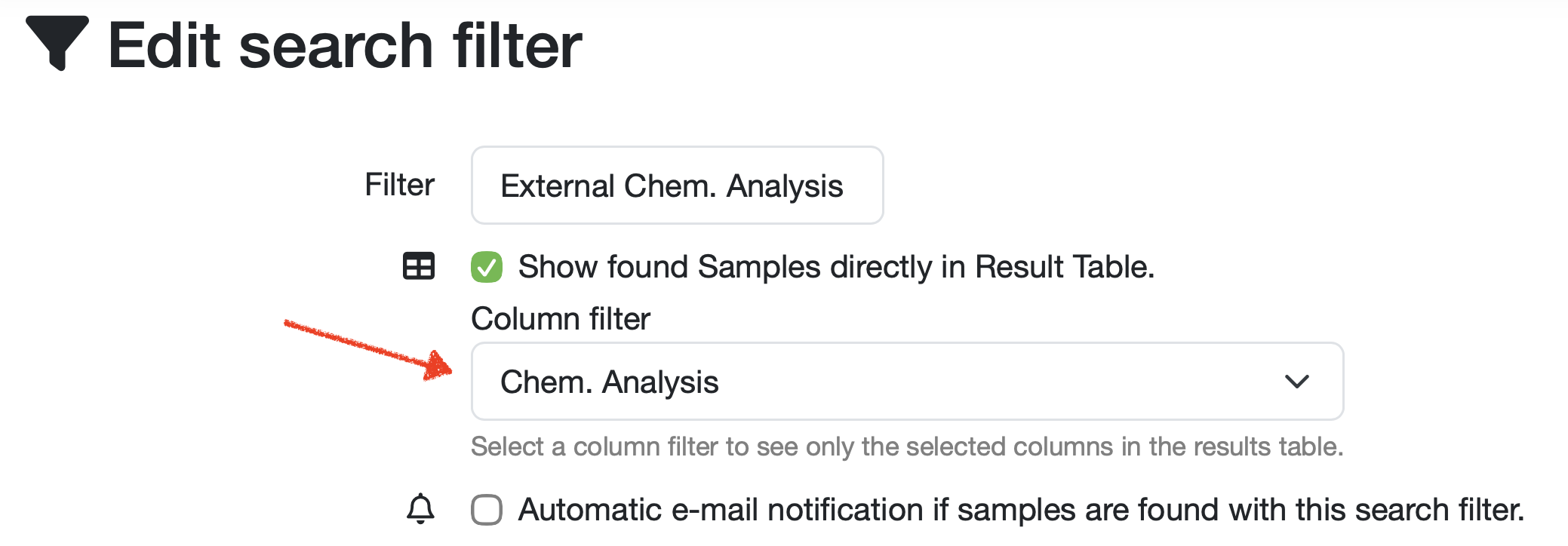
Figure: Linking Search Filter and Column Filter
If needed, you can set up an automatic e-mail notification as soon as new samples are available for external analysis.
The search filter External Chem. Analysis now appears directly above the sample list. One click on the filter displays the results table of all samples for which parameters relevant to external analysis are still missing. Then click the Excel Export button to export the data and send it together with the samples to the responsible external laboratory.
Example 3: Filter for Time-Dependent Parameters
For example, the parameter TVC-Milk is evaluated 3 days after sample receipt and the corresponding data is entered in the Result column. A suitable search filter is created as follows:
- Click Search (magnifying glass icon) above the sample list to open the search screen.
- Click on Date and Custom period (relative).
- Define the time period based on the sample receipt date, e.g. Older than 3 days and younger than 365 days.
- Define the column Result = no entry (empty) for the parameter TVC-Milk as an additional criterion. This way you only get samples for which no values have been entered yet.
- Save the search as a filter, e.g. as TVC after 3 days / 30°C.
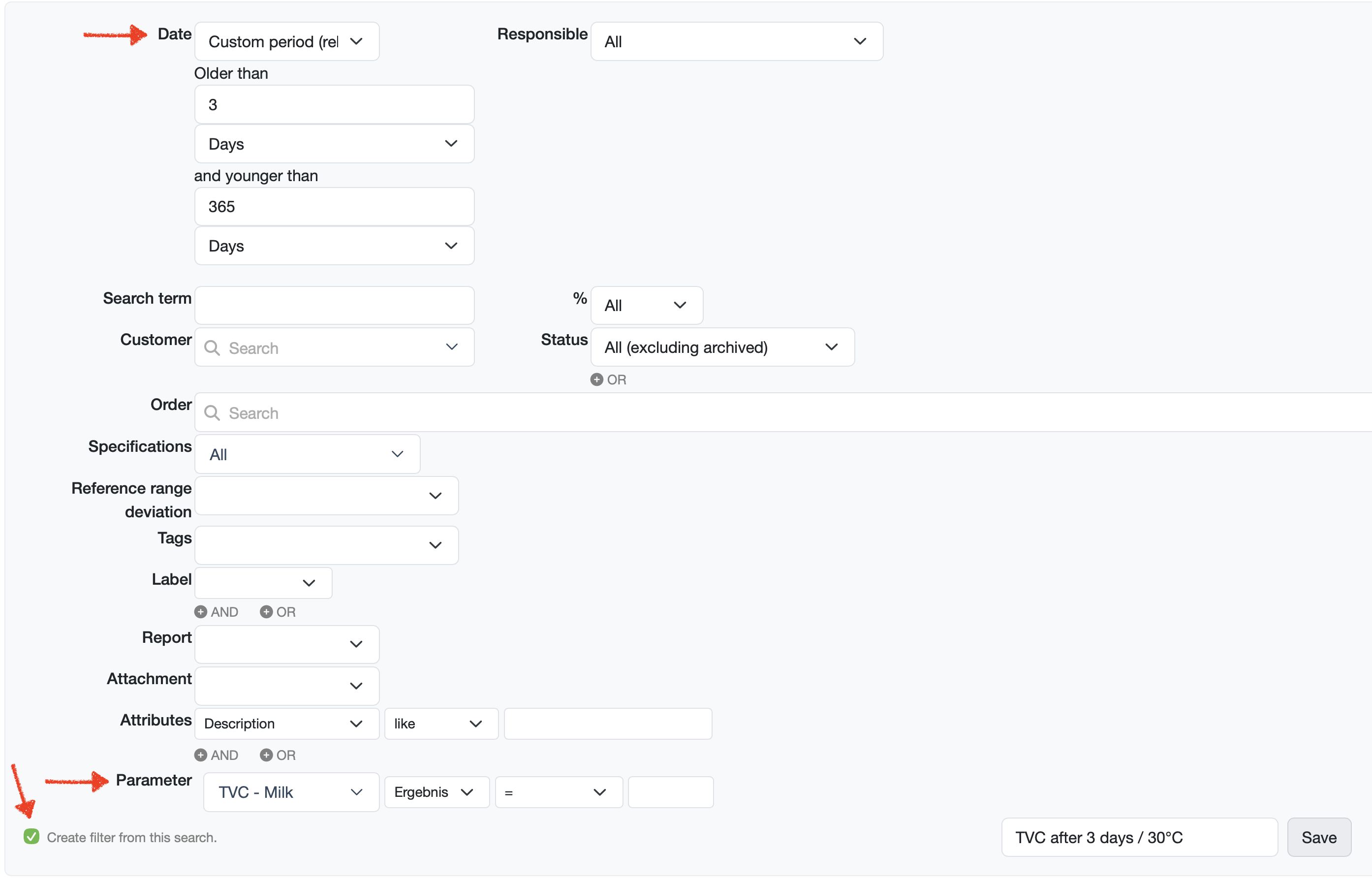
Figure: Search Filter for Sample List
- Make the search filter visible to the relevant employees.
- Click select all and Show results table to show the filtered samples.
- Create and save a column filter that displays only the relevant columns, e.g. Result for the parameter * TVC-Milk*.
- Link the search filter to the column filter for the results table.
- You and the employees who have been granted access to the filter can now call up the samples to be evaluated using this search filter. If needed, you can set up an automatic e-mail notification to be informed as soon as samples are ready for evaluation.
Related Topics:
Manage Filters