The material management is part of the QM module of the LDB.
In this onboarding video, you get a compact introduction to the material management of the LDB:
Open the material management via:
Navigation bar → QM → Materials
Note: The exact naming of the menu items may vary depending on the configuration of your LDB.
The following describes the functions for managing materials in the LDB.
The material management offers you the following functions:
With these functions, the material management ensures precise, transparent, and efficient handling of consumables – a decisive contribution to quality assurance in laboratories.
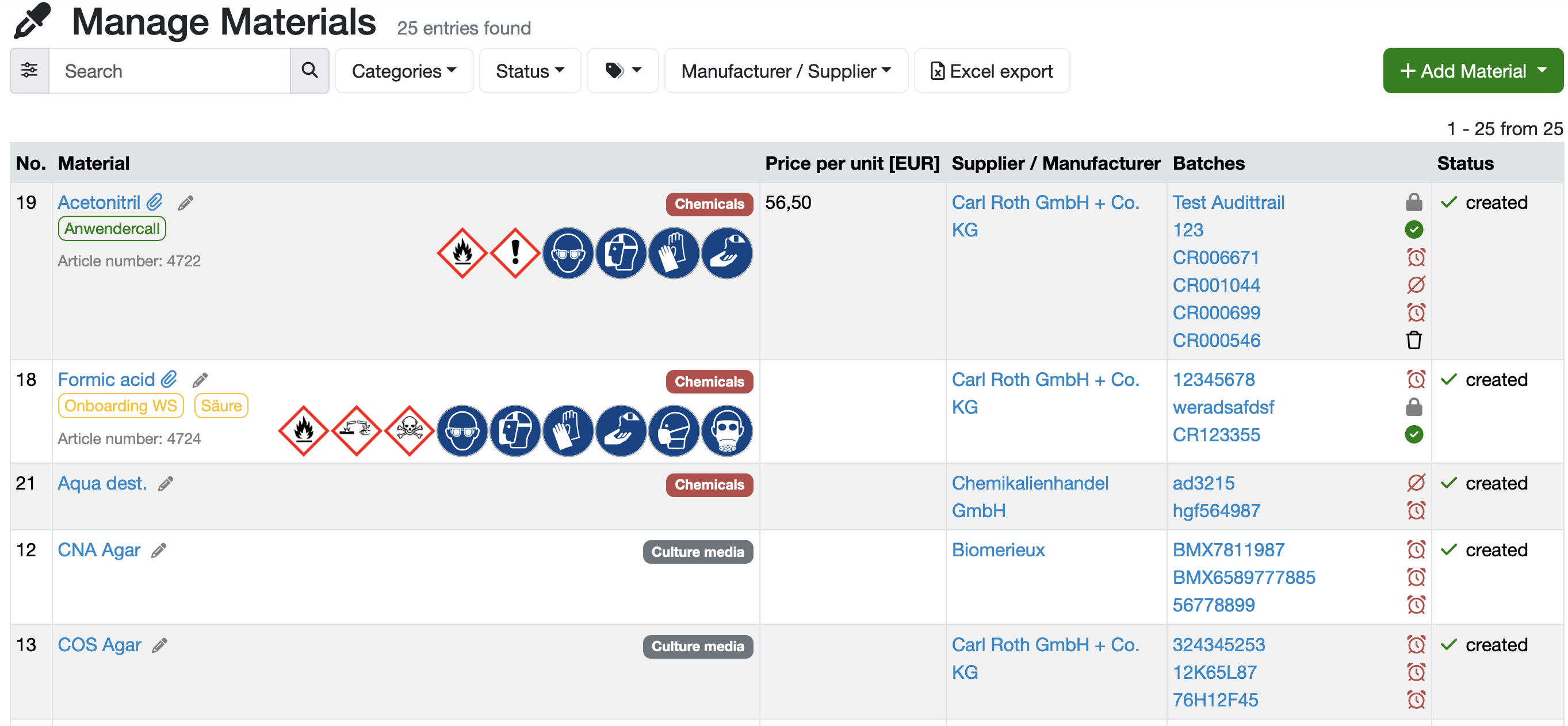
Figure: Overview of the material management
Note: All blue-highlighted texts in the table are clickable links to the respective data types. Some columns and functions are always present, others depend on your permissions and the configuration of your LDB. The naming of the columns may also be configuration-dependent.
The materials are displayed in a table overview. The following table describes the columns.
| Column | Description |
|---|---|
| No. | Sequential number of the material in the list view. |
| Material | Name of the material as a clickable link (blue-highlighted) that leads to the detail view. Below or next to the name – depending on the available data – a category label, tags, a short description, custom attributes, the GHS hazard symbols and the pictograms for protective measures are displayed. Via the paperclip icon, you reach linked files or documents; via the pencil icon, you go directly to editing. |
| Supplier / Manufacturer | Shows the assigned supplier or manufacturer as a clickable link (blue-highlighted). If both manufacturer and supplier are stored, both are displayed one below the other. |
| Batches | Lists the assigned batches as clickable links (blue-highlighted) including a status symbol and, if applicable, an expiry note. From nine batches onward, the show more link is displayed to expand further batches. |
| Status | Shows the current status of the material as a symbol together with a label (e.g. created). The status is configuration-dependent. |
To find materials quickly and precisely, various search options are available to you.
Quick search
The quick search enables a cross-data-type search without first switching to the respective area.
/ or s, or click into it and enter your search term.Simple search
Advanced search / detail search
Further search and filter functions
Further information: Create/edit/delete material, Templates for orders, customers, materials, and other data types
When configured, the selected hazard and protection symbols are automatically displayed in the Material column:
Note: The Excel export button is only shown with the corresponding permission.
Several batches can be maintained for each material. These are displayed in the Batches column with a status symbol and can be opened by clicking.
Further information: Manage/Create/Edit/Delete Batches
Last change: 10/14/26
General information
8D-report
Supplier evaluation
Material
Employees
Customers
Orders
Samples
PDF templates
Assets
Recipes
Reports
Report table editor
Interfaces
AI functions
Introductory phase
Query reports
Templates
Client zone (optional)
Offers
Invoices
Parameters
Calculating with parameters
Webservices
Transformationscode
Test plans / limit values / specifications
Documents control
Questions and answers
Equipment
Trainings
Others
File management
Processes