Open the PDF-Template management via:
Navigation bar → Settings → PDF-Templates
The PDF-Template management allows you to:
The PDF-Templates are displayed in a list. The following table describes the information and functions shown per entry.
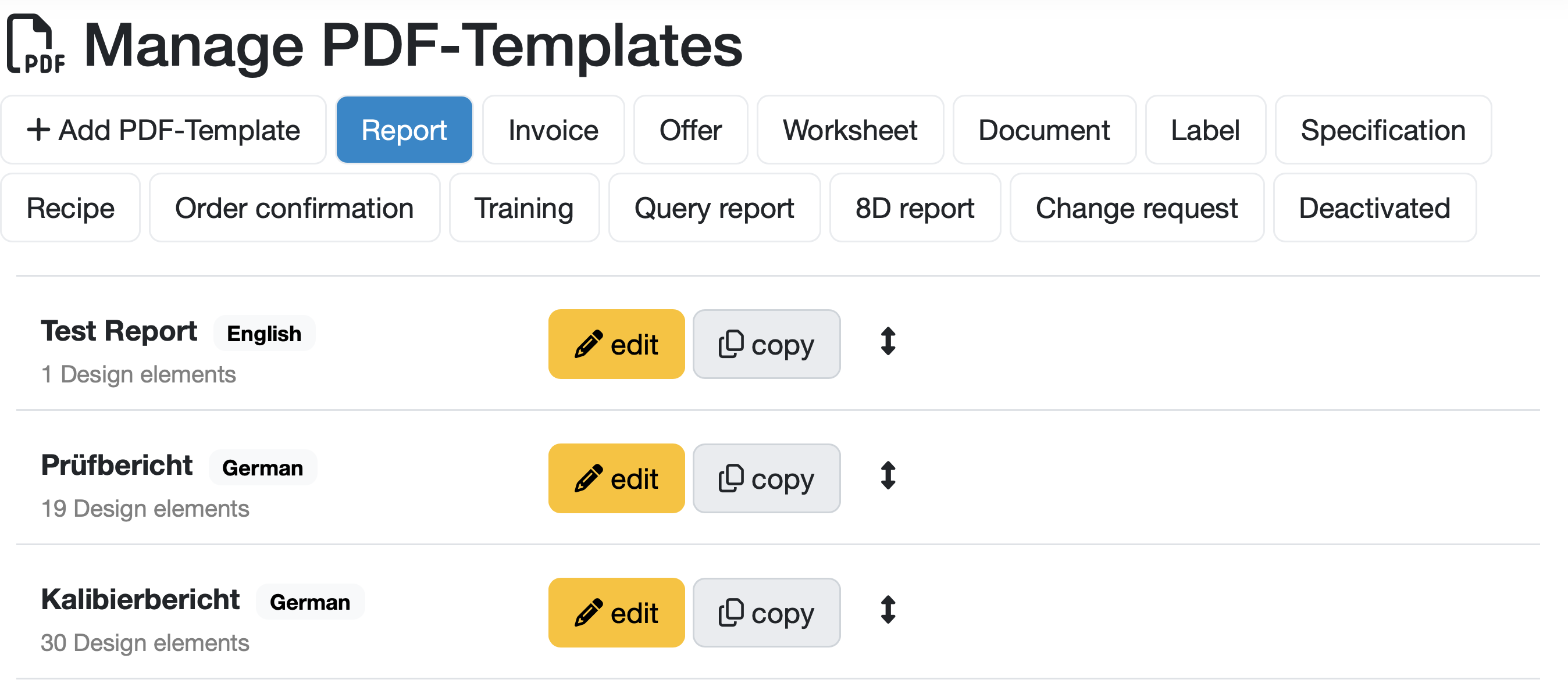
Figure: Overview of the PDF-Template management
| Column/Element | Description |
|---|---|
| Name | Name of the PDF-Template, displayed in bold. |
| Language | Language of the template, displayed as a badge next to the name (e.g. German, English). |
| Design elements | Number of contained design elements, displayed as a note below the name. |
| edit | Orange button to open the editing mask of the respective template. |
| copy | Button to create a copy of the template including all text elements. |
| Sort symbol | Arrow symbol to manually reposition the template via drag & drop. |
The management is divided into different types.
The active selection is highlighted in blue.

Figure: Filter by type
Available types (configuration-dependent):
| Type | Description |
|---|---|
| Report | Templates for test reports and analysis results – the most frequently used document type in the LDB. |
| Invoice | Templates for invoices. |
| Offer | Templates for cost estimates and offer documents. |
| Worksheet | Templates for internal working documents and work instructions. |
| Document | Document templates for the documents control. |
| Label | Templates for labels and inscriptions. |
| Specification | Templates for specifications. |
| Recipe | Templates for recipes and formulation regulations. |
| Order confirmation | Templates for order confirmations and purchase documents. |
| Training | Templates for training materials and certificates. |
| Query report | Templates for statistical evaluations and data analyses. |
| 8D report | Templates for 8D reports / CAPA in quality management. |
| Change request | Templates for change requests and documentation of modifications. |
| Deactivated | Area for templates that are no longer active. |
Note: Some templates, such as those for invoices and 8D reports, use fixed configured settings that are combined with the elements from the PDF-Templates.
For example, the table containing the fiscal and business information for displaying billing items, the total price, etc. is predefined, while the elements above and below the table are defined via the elements from the PDF-Template.

Figure: Add a new PDF-Template

Figure: Edit PDF-Template
Note: Image elements are not included when copying.
Sorting Logic
The order of PDF-Templates within a type can be adjusted manually. The order defined in the management determines the order in which templates are displayed when adding a new document. The topmost template is suggested as the default selection.
Related Topics:
Last change: 08/21/26
General information
Supplier evaluation
Material
Employees
Customers
Orders
Samples
PDF templates
Assets
Recipes
Reports
Report table editor
Interfaces
AI functions
Introductory phase
Query reports
Templates
Client zone (optional)
Offers
Invoices
Parameters
Calculating with parameters
Webservices
Transformationscode
Test plans / limit values / specifications
Documents control
Questions and answers
Equipment
Trainings
8D-report
Others
File management
Processes