You will find the access rights under: Navigation bar → Settings → Access rights.
The LDB offers a comprehensive rights and roles concept for access rights.
In a clear matrix you define which employee is allowed to use which functions.
While a trainee, for example, may only enter values, an experienced employee can also create new parameters.
Permissions are shown per employee and right using coloured circle symbols: the colour indicates the status. Further information on the access symbols can be found below in the section Legend of access symbols.

Figure: Access rights matrix
Description of the access rights matrix shown as a table:
① The first column lists the access rights, divided into categories.
② The second and third columns show which Competence / Qualifications are required for an access right and/or it is assigned via employee groups – you assign both using the grey pencil symbol next to the respective right.
The second column, Competence / Qualifications, shows the competences that are required for an access right.
Example: Only employees who hold the competence Control of QM documents can be granted the access right Add/edit employee groups.
The third column shows the access rights assigned via associated employee groups (a list of employees).
③ From the 4th column onwards, the access rights can be changed by clicking. To adjust a single right, click the circle symbol in the relevant function row in the respective employee column.
If you want to change all rights of a category for one employee at once, place the cursor on the employee abbreviation and click the grey-shaded circle symbol that then appears.
On the far right is the All column: use it to grant or revoke a right for all accounts at once.
If a right is tied to a Competence, it can only be unlocked by assigning the corresponding competence in the competence management. However, it can be revoked at any time by clicking the symbol.
To make edits, you yourself need the access right Edit access rights.
④ With the Select employee button, the view can be restricted to individual employees.
To do so, tick the checkbox below the abbreviation of the relevant employees and click Select employee.
⑤ Critical and sensitive access rights are marked in red and with a key. This requires an account with SSO or MFA (see point 6).
⑥ To ensure greater security, an account with Single Sign-On (SSO) or Multi-Factor Authentication (MFA) has been required (since 01/01/2024) for certain accesses involving far-reaching insights (e.g. audit trail) or data changes (e.g. editing parameters).
Each symbol shows at a glance whether and in what way an employee holds a right.

Figure: Access symbols
Yellow circle with X – Qualification missing: the right would be assigned, but a qualification required in the „Required qualifications" column is missing or has expired.
Red circle as prohibition sign – Read-only access.
Grey circle with tick – Access via group: the right exists, but was not assigned to the employee personally; it was granted through an assignment to an employee group.
Green circle with tick – The employee has been assigned this right directly and all requirements are met.
Red circle with X – No access.
Green lock – Access granted, but protected. The right is granted but protected against accidental changes.
In addition to the access rights, you can define further restrictions at the level of the individual entry for many data types (e.g. customers, samples, orders, test equipment). You can specify who is allowed to see the respective entry (e.g. a particular order).
The access rights matrix generally represents the higher-level permission layer.
You will find the visibility restriction in the right-hand section of the editing view.
Note: The restriction stored for an order then also applies to all samples of that order.

Figure: Who sees this entry?
For some data types you can, in addition to the visibility, also restrict the editing option in the right-hand area of the respective page: Who may edit this entry?
Note: The editing restriction stored for a piece of test equipment then also applies to creating and editing the control charts of that test equipment.
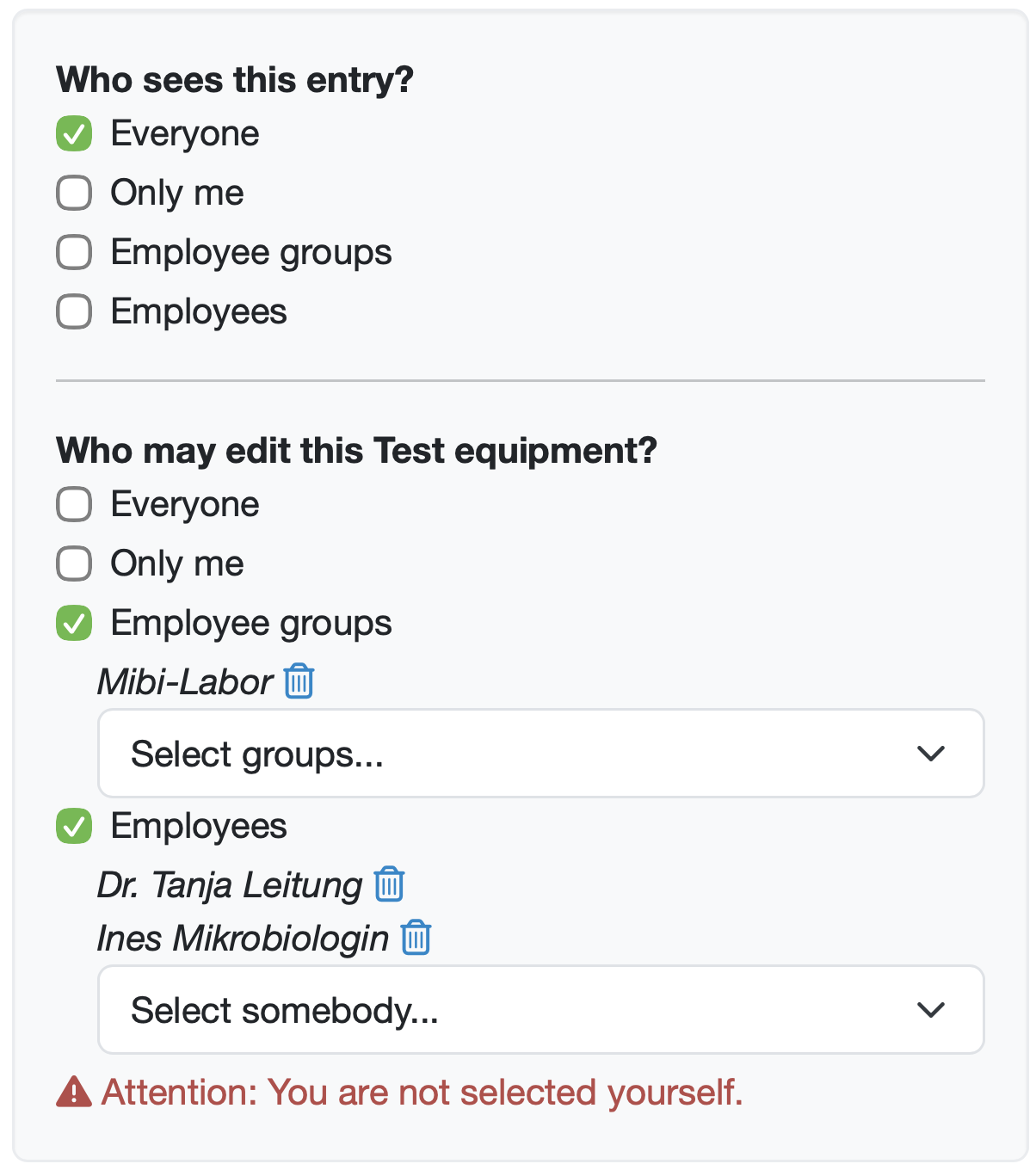
Figure: Who sees this entry?, Who may edit this entry?
Tip: To avoid having to specify all authorised employees individually, you can also divide your employees into employee groups and allow the view only for certain employee groups.
Last change: 10/14/26
General information
8D-report
Supplier evaluation
Material
Employees
Customers
Orders
Samples
PDF templates
Assets
Recipes
Reports
Report table editor
Interfaces
AI functions
Introductory phase
Query reports
Templates
Client zone (optional)
Offers
Invoices
Parameters
Calculating with parameters
Webservices
Transformationscode
Test plans / limit values / specifications
Documents control
Questions and answers
Equipment
Trainings
Others
File management
Processes