Create/edit recipe

Collect all information about the recipe directly in the recipe. Categorization, keywords, and file attachments keep all information clearly organized and easy to find. The lock function ensures production reliability and protects validated recipes from unwanted changes.

This page allows you to create and edit a new recipe in the LDB. Here you can enter all relevant master data for the recipe, descriptions, manufacturing suggestions, and file attachments.

Add new recipe

  • Click the + Add recipe button in the right-hand section of the detail view to create a new recipe.

Edit recipes

  • Click on the pencil icon next to the recipe name to edit the recipe.

  • Alternatively, you can click on the blue link for the recipe name in the recipe overview to open the detail view for this recipe.
  • Click on the orange Edit recipe button in the right-hand section of the detail view.

Archive recipes

  • Click on the pencil icon next to the recipe name.

  • Scroll down on the following page, check the archived checkbox, and save the settings.

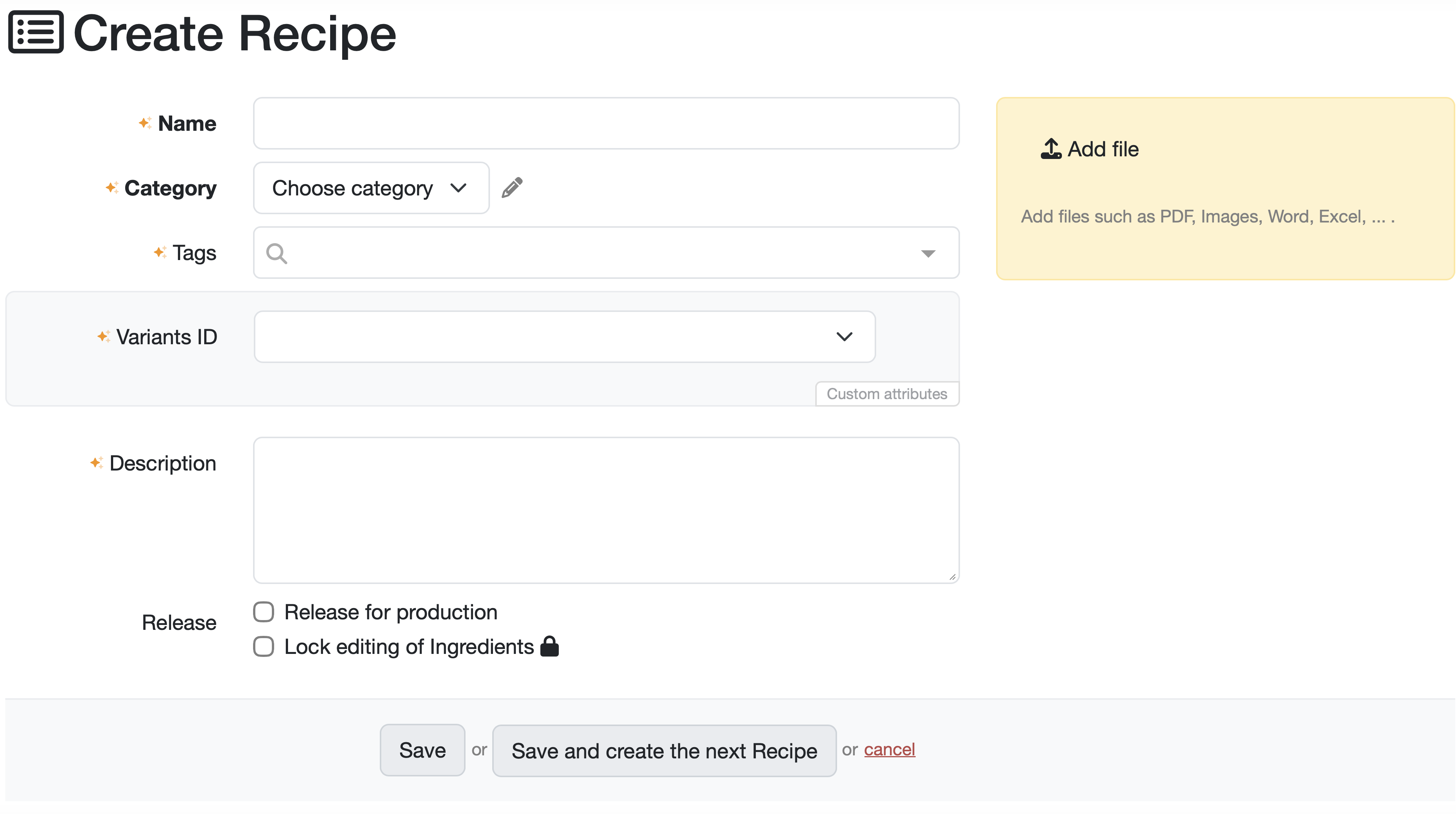
Overview of the recipe creation/editing page

Recipe master data

Basic information

  • Name: Text field for the unique name/title of the recipe
  • Category: Dropdown menu with the option Select category. The edit icon (pencil) allows you to customize the categories.
  • Tags: Search field for adding tags/keywords. Helps with later filtering and organization.
  • Variant ID: Configured master data field for product variants.
  • Description: Large text field for detailed recipe information.
  • Release: The following options are currently available.
    • Release for production: Checkbox for marking the recipe as released for production. The recipe is marked with the release symbol (green circle with a white check mark).
    • Lock editing of ingredients: Checkbox with lock icon to protect against unwanted changes. The recipe is marked with the lock icon (red lock icon).

File management, document attachment

  • Add file: Upload function for documents.
  • Allows you to attach:
    • Supplementary work instructions
    • Safety data sheets
    • Reference images or diagrams
    • Excel tables with calculations
    • ...
  • Supported formats are: PDF, images, Word, Excel, etc.

Save options

  • Save: Saves the recipe and opens the detail view of the recipe.
  • Save and create the next recipe: Saves and immediately opens a new form.
  • Cancel: Discards all entries (red link)

Workflow

1. Create a new recipe

  1. Click on + Add recipe.
  2. Enter the recipe data.
    • Unique name
    • Assign category and keywords
    • Other relevant master data
  3. Save the new recipe.

3. Edit an existing recipe

  1. Click on Edit (e.g. pencil icon) for the desired recipe.
  2. Edit the recipe data in the detailed view.
  3. Update the status if necessary.
  4. Save the changes.

4. Approve recipes/manage them

  1. Check status: Check the approval status.
  2. Approval process: Perform an internal check.
  3. Update status: Change the status of the recipe.
    • Approved for production: The checkbox is checked. The recipe can be found using the “Approved” filter and is marked with the approval symbol (green circle with a white check mark).
    • Lock editing of ingredients: The checkbox with the lock icon is checked. The recipe is marked with the lock icon (red lock icon).
  4. Documentation: Store release documentation.

Related topics: Manage recipes, Recipe detail view and ingredients

Last change: 24.11.2025

General information

Reports

Report table editor

Interfaces

Kompetenzen

AI functions

Employees

Introductory phase

Query reports

Orders

Samples

Templates

Customers

Client zone (optional)

Assets

Offers

Invoices

Parameters

Calculating with parameters

Webservices

Transformationscode

Test plans / limit values / specifications

Documents control

Material

Questions and answers

Equipment

Trainings

8D-report

Others

PDF templates

Supplier evaluation

File management

Processes