Open the 8D report management via:
Navigation bar → QM → 8D reports
Note: The exact names of the menu items may vary depending on the configuration of your LDB.
The 8D report is created as part of quality management when a nonconformity is identified. It documents the problem and the actions required to eliminate the underlying cause. The 8D report records the type of complaint, the responsibilities and the actions taken to correct the nonconformity.
Processing follows the 8D method (eight disciplines): from forming a team, describing the problem, implementing immediate containment actions and analyzing the root cause, through to corrective actions, verifying their effectiveness and closing the report.
The aim is to record all significant or quality-relevant:
The 8D report management allows you to:
The 8D reports are displayed in a tabular overview. The following table describes the columns.
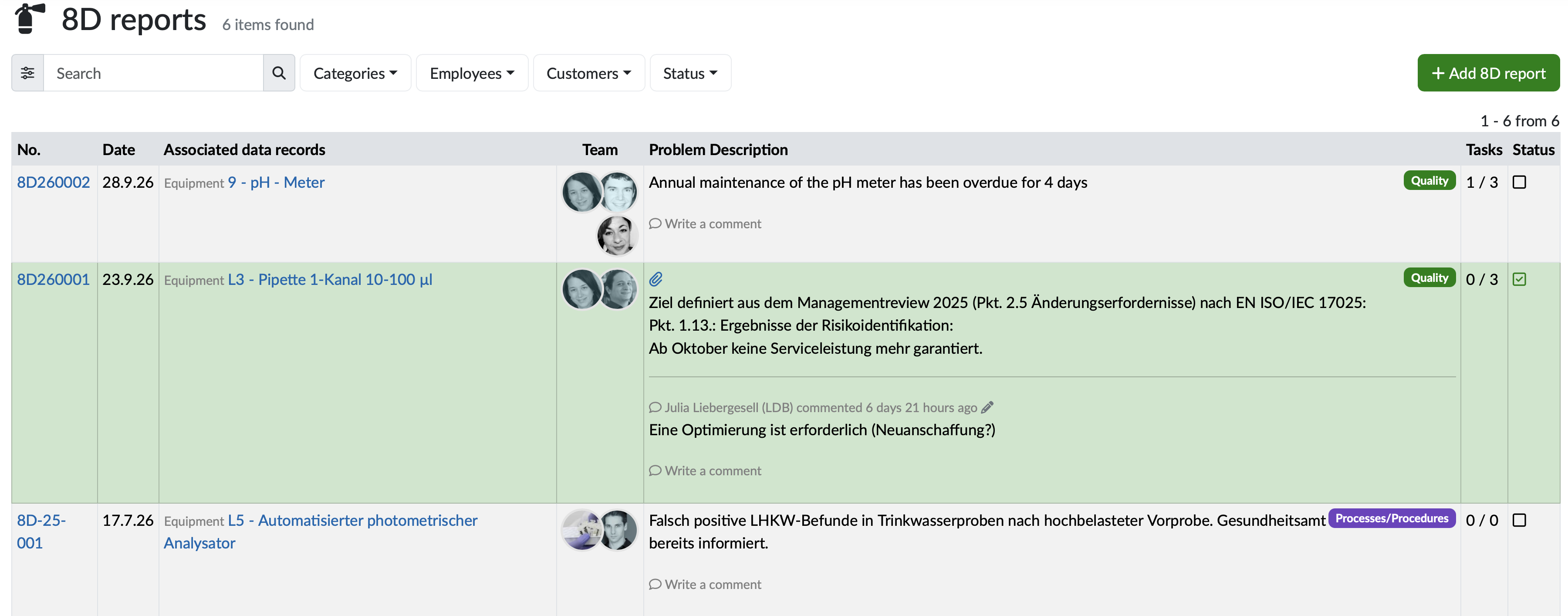
Figure: Overview of the 8D report management
Note: All texts highlighted in blue in the table are clickable links to the respective data types. Some columns are always available, others depend on the configuration. The names of the columns may also depend on the configuration.
| Column | Description |
|---|---|
| No. | The number highlighted in blue is a link to the detail view of the 8D report. |
| Date | Shows the date of the 8D report. |
| Associated data records | Shows the data records linked to the 8D report, each preceded by its data type (e.g. Equipment, Customer or Order). An 8D report can be linked to several data records. |
| Team | Shows the profile pictures of the employees assigned to the 8D team. |
| Problem Description | Shows the description of the problem. The category is displayed as a colored tag at the top right. Existing comments are shown below with author and time. Click Write a comment to add a new comment. |
| Tasks | Shows the number of completed tasks in relation to the total number of tasks of the 8D report. |
| Status | Shows whether the 8D report is completed. An empty checkbox indicates an open 8D report, a checkmark indicates a completed one. Completed 8D reports are additionally highlighted in green. |
To find 8D reports quickly and precisely, various search options are available.
Quick search
The quick search allows you to search across data types without first switching to the respective area.
/ or s, or click into it and enter your search term.[shortcut]:search term for a targeted search in this area.Simple search
Advanced search / detailed search
Further search and filter functions

Figure: Add 8D report
Further information: Create / Edit 8D Report
Open the full detail view of an 8D report.
Further information: LINK_TO_PAGE=Detailansicht eines 8D-Berichts
Add comments directly in the overview without opening the detail view, and inform the team about the comment by e-mail.
The LDB assigns 8D report numbers according to a configurable pattern. This allows the numbering to be adapted to many requirements – from a simple sequential number to a format that contains the date or other information.
Note: The number format is configured centrally. Please contact your customer support to adjust the format.
What options are available?
Examples
Sorting logic
The list is sorted by date in descending order (newest 8D reports first).
Last change: 10/19/26
General information
8D-report
Supplier evaluation
Material
Employees
Customers
Orders
Samples
PDF templates
Assets
Recipes
Reports
Report table editor
Interfaces
AI functions
Introductory phase
Query reports
Templates
Client zone (optional)
Offers
Invoices
Parameters
Calculating with parameters
Webservices
Transformationscode
Test plans / limit values / specifications
Documents control
Questions and answers
Equipment
Trainings
Others
File management
Processes