In this onboarding video, we show you step by step how to connect and use your AI system with the LDB via MCP:
MCP is not enabled centrally, but selectively per query report and per import interface.
Read access:
Navigation bar → Settings → Query reports → edit the desired query report → Connections → MCP
Write/update access:
Navigation bar → Samples → Import interfaces → edit the desired import interface → Connections → MCP
You can find the templates under:
Navigation bar → Settings → System settings → AI integration → MCP templates
Note: The exact labels of the menu items may differ depending on the configuration of your LDB.
With MCP, you simply ask your questions in your AI chat — the AI retrieves the answers directly from the released data of your LDB and, if you wish, updates it right there as well.
MCP (Model Context Protocol) is the common language in which the AI and the LDB communicate. So that the AI can use the LDB, you make individual tools available to it. A tool is a function you have released — a query report or an interface. For each tool, the AI automatically recognizes what it is for, which information it must provide, and in what form it receives the result.
There are two types of tools:
The AI therefore works exclusively through these clearly delimited tools — and not through direct, unrestricted access to the entire database. It can reach only what you have explicitly released.
Note: MCP is not an AI model itself. It merely connects AI applications such as ChatGPT or Claude with the functions and data of the LDB that you release for this purpose.
The Model Context Protocol (MCP) is an open standard that connects the LDB with AI systems such as Claude, ChatGPT, or Google Gemini. As a result, the AI can not only answer questions but also retrieve released data in a targeted way, record it in a structured form, and carry out defined work steps — controlled via the permission management that you already maintain anyway.
The MCP connection allows you to:
MCP calls run through your own AI system and do not consume any AI tokens of the LDB. A LDB license with AI integration is required.
Note: MCP is disabled by default. Every query report and every import interface must be deliberately released for MCP use, per user. This conservative default setting protects against unintended data access.
Query reports provide data for read access.
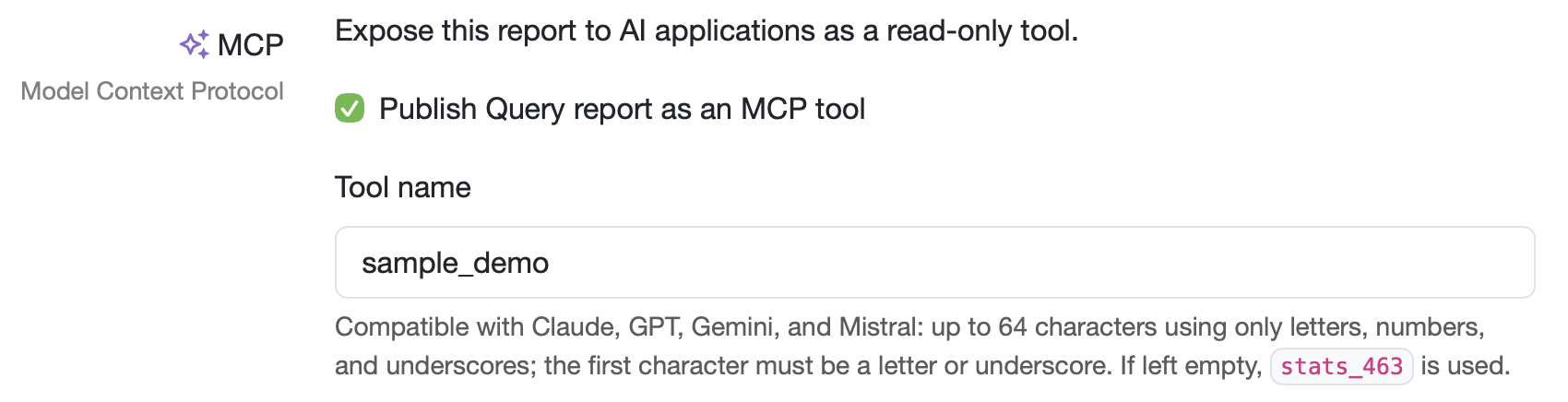
Figure: Activating MCP in the query report
Further information: Create / Edit query reports
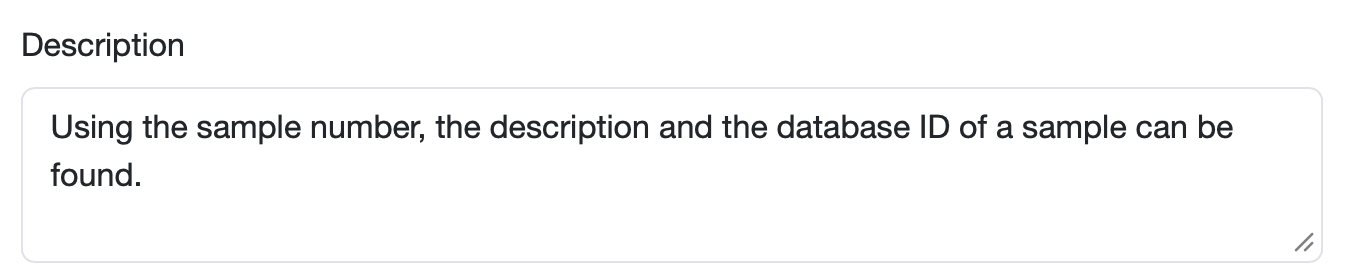
Figure: Description of the query report for the AI
Our recommendation: Make the description as precise as possible — which fields can be filtered by and which information is returned. This significantly improves the AI's hit rate.
Which search fields the AI can fill in when calling a query report follows automatically from the query report itself — you do not need to set anything up separately. If your query report has, for example, a search field "Sample number", MCP offers this field to the AI. The AI sees the field name you assigned in the query report.
If the user asks in the chat, e.g. "What is the description of the sample with sample number XY?", the AI recognizes that "XY" belongs in the "Sample number" search field, enters the value there, and calls the query report with it. As the result, it returns the corresponding description in the chat.
Import interfaces let the AI send data back to the LDB.
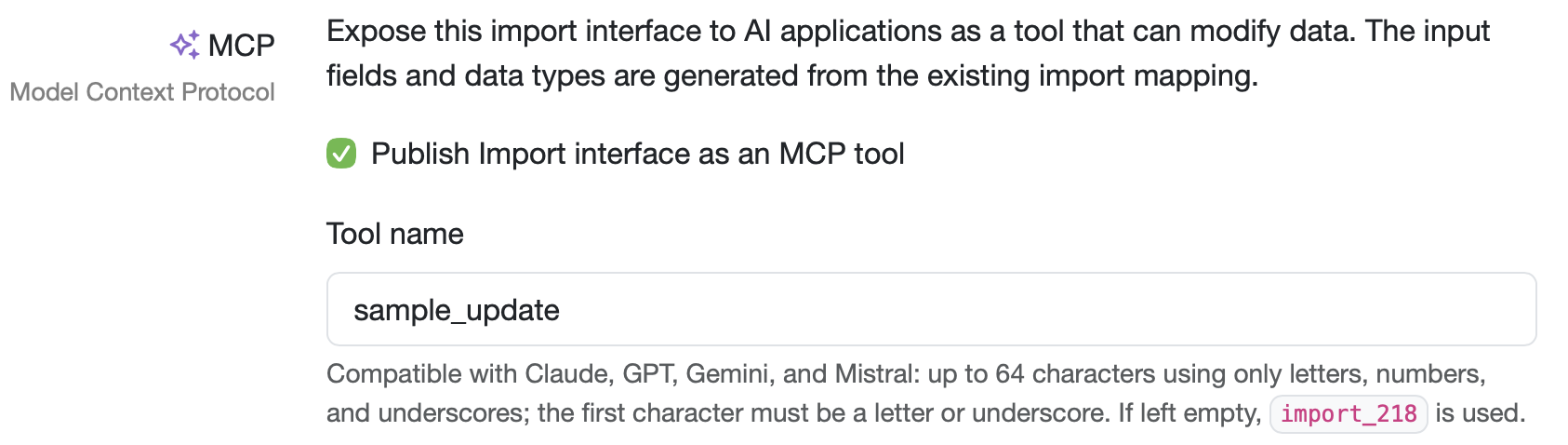
Figure: Activating MCP in the import interface
DD.MM.YYYY),status_search_details).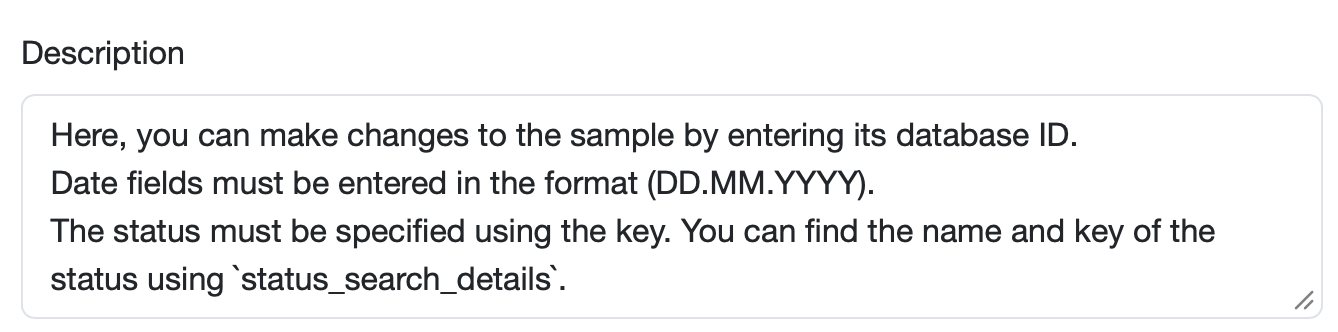
Figure: Description of the import interface for the AI
In the General settings section, define the specifications for the import:
Note: For sensitive or write actions, you can use the associated MCP description to require the AI to obtain a confirmation before execution.
The MCP tool takes the input fields and data types from the interface's mapping. Fields other than those defined in the mapping are rejected. The records are then processed unchanged via the configured import interface.
Further information: Edit Attributes in Import Mapping
At the bottom of the section where you activate the MCP connection, you will find the link to the MCP server of the LDB.
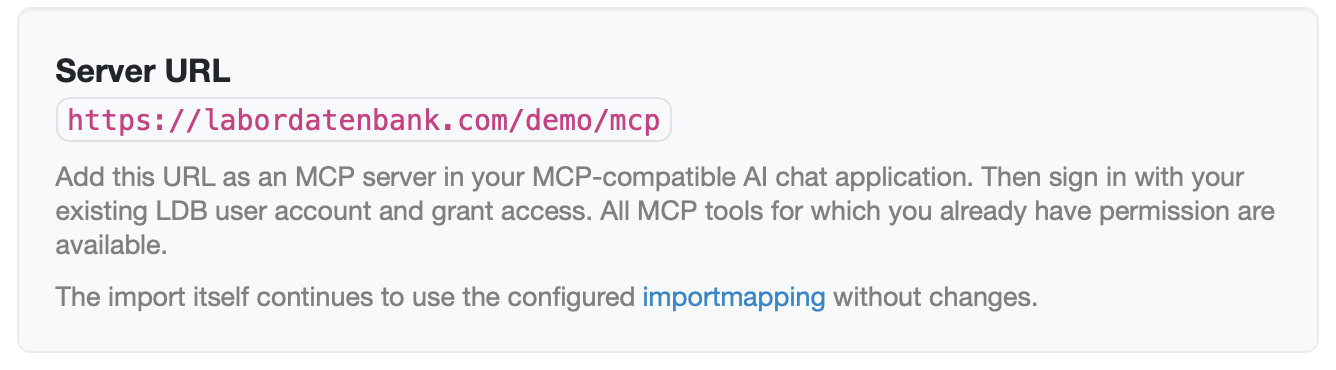
Figure: MCP server URL in the LDB
Note: Every MCP connection is tied to a user. The call runs through the AI account of the respective employee and is traceable accordingly in the audit trail of the LDB.
The following describes how to set up MCP in, for example, Claude and ChatGPT and connect your LDB application with the respective AI chat.
The connection then appears in the tool list and can be used directly in the AI chat. For each connector, you can define whether its use is always allowed, prompted each time, or generally blocked.
Note: If you have created a new query report or import interface, refresh the tool list in Claude so that the new tool becomes available and you can access the data in the AI chat.
Since the connection is tied to your account, it is then available everywhere you use your account.
Our recommendation: For use in the accredited area, we recommend a paid AI variant for data protection reasons. The connection generally also works with the free variants.
Through MCP, an external AI does not automatically gain access to all data of the LDB.
Our recommendation: The principle of data minimization applies. Release only what the AI actually needs, and specifically exclude sensitive content from the released query reports.
For getting started, ready-to-use MCP templates are available — no SQL knowledge is required, as the AI can handle the database queries. The templates cover, among other things, query reports for searching (sample orders, customers, prices, parameters, limit values) and import interfaces (measured values, orders, customers, samples).
Note: The templates contain the standard master data fields. You can add further master data fields manually or with the help of your AI assistant.
Our recommendation: Start with the ready-made templates instead of starting from scratch. Pull the appropriate template into your LDB, assign access rights to it, and activate it.
The AI combines the documents stored in your LDB and released via a query report with a free internet search, and checks which of your standards are up to date.
This way you receive only the information relevant to you and do not have to go through an extensive catalog of standards manually.
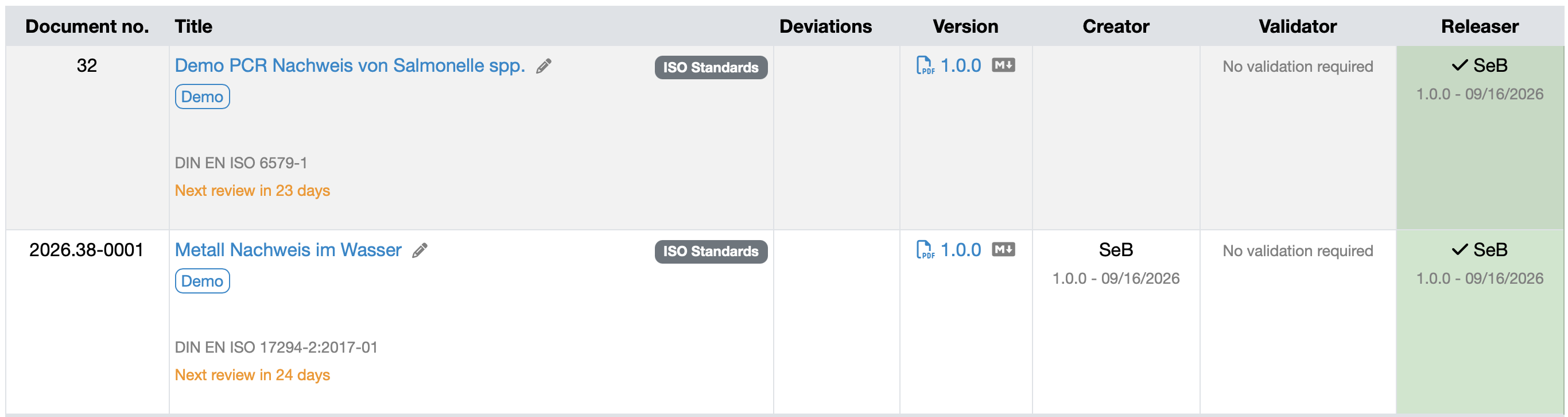
Figure: Document control
So that recurring checks do not have to be triggered manually each time, they can be stored as a scheduled task. This way you keep the overview without having to start the query yourself every time.
At the microscope — often while wearing gloves — typing on the computer is impractical. Using an AI skill and voice mode, the LDB pathology/biopsy form can be filled in hands-free.
The recorded information is then available for the report — e.g. as a design element or in the report table.
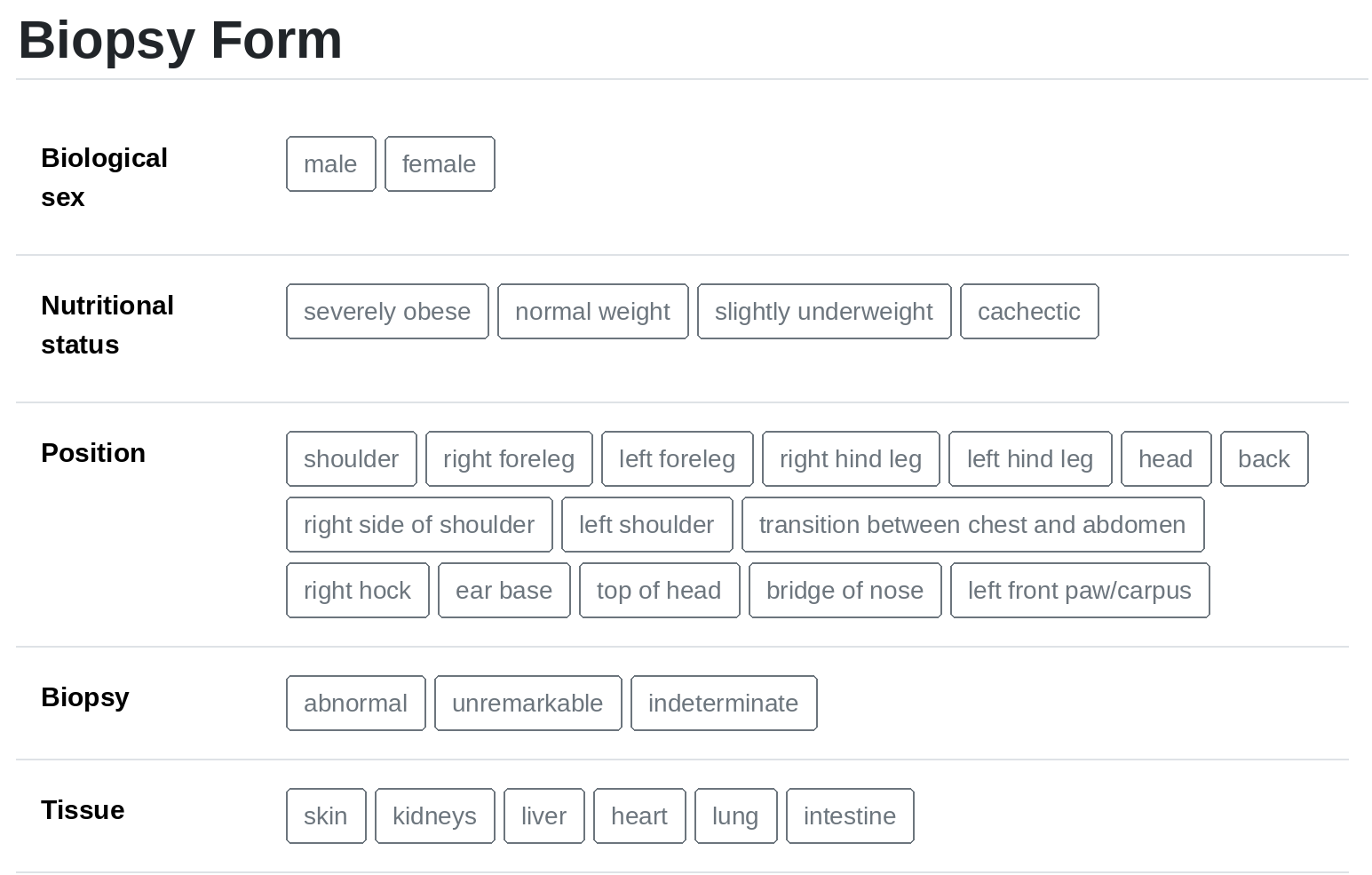
Figure: Pathology/biopsy form
Last change: 10/14/26
General information
8D-report
Supplier evaluation
Material
Employees
Customers
Orders
Samples
PDF templates
Assets
Recipes
Reports
Report table editor
Interfaces
AI functions
Introductory phase
Query reports
Templates
Client zone (optional)
Offers
Invoices
Parameters
Calculating with parameters
Webservices
Transformationscode
Test plans / limit values / specifications
Documents control
Questions and answers
Equipment
Trainings
Others
File management
Processes