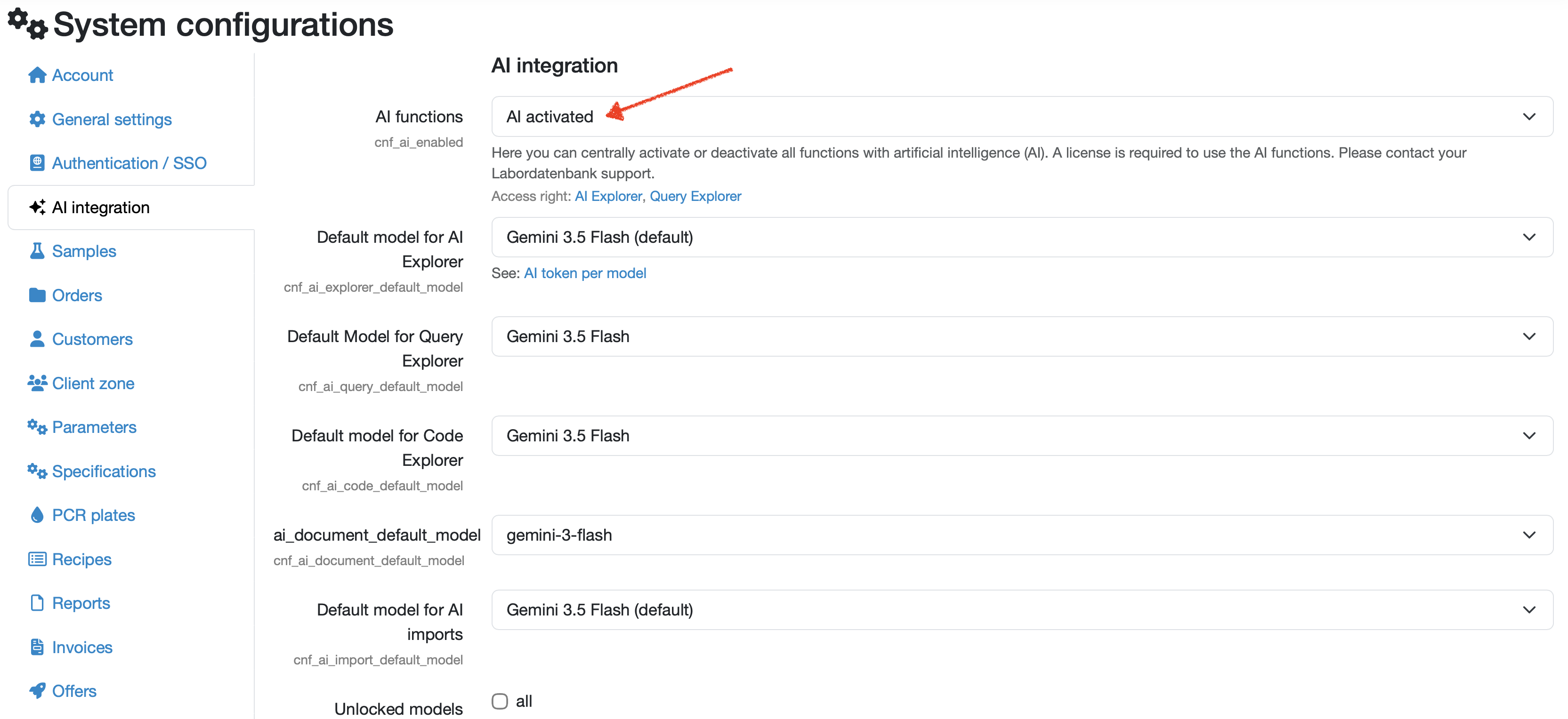
Enable/disable AI integration

Navigation

To enable or disable all AI functions centrally, go to:

Navigation bar → Settings (gear icon) → System configurations → AI integration

A license is required to use the AI functions. Please contact your LDB support team.


Enable/disable AI Integration

AI functions

  • Click on the dropdown next to AI functions.
  • Select AI activated to enable all artificial intelligence (AI) functions.
  • Select AI deactivated (default) to disable all AI functions.

Default AI model

  • Click on the dropdown next to Default model.
  • Select an AI model or leave the default setting.
  • Once you have saved the settings, you can access the enabled AI features via the star icon.


Figure: Enable/disable AI functions


Access rights – enabling AI functions for use

  • AI Explorer: To use it, you need the access right AI Explorer.
  • Import interfaces: If you want to use the AI extensions for the import interfaces of the LDB, you also need the access rights Use import interfaces and Add/edit import interfaces.
  • Query Explorer: To use it, you need the access right Add/edit query reports.
  • Audit Assistant: You need the access right Document control.

Related topics: AI Explorer, AI Extension for Import Interfaces, LDB AI Explorer, AI-Guardrails: AI security & control in the LDB LIMS
User call: User call on the AI modules

Laatste wijziging: 21.08.2026

Algemeen

Leveranciersbeoordeling

Materiaal

Medewerkers

Klanten

Opdrachten

Monsters

PDF-sjablonen

Bijlagen

Recepten

Verslagen

Editor voor rapporttabellen

Interfaces

Kompetenzen

AI-functies

Inleidende fase

Analyses

Sjablonen

Klantenportaal (optioneel)

Aanbiedingen

Facturen

Parameters

Rekenwerk met parameters

Webservices

Transformatiecode

Controleplannen / Grenswaarden / Specificaties

Documentbeheer

Vragen en antwoorden

Testmiddelen

Opleidingen voor medewerkers

8D-rapport

Overige

Bestandsbeheer

Processen