For specification limits to be applied during measurement entry, the corresponding specification must be selected for the sample.
The specification limits are then integrated into the LDB view where you enter measured values, and the measured values are automatically compared against the specification limits.

Benefits in daily work:
The following describes how to define specification limits/reference ranges:
To create specification limits in your LDB, you first need a specification (reference range table). Click edit on the desired specification or add a new one via + Create Specification.
There are two ways to add parameters:
1. Targeted Search

2. Use Overview

With specification limits, you can define reference ranges for each parameter in the LDB and have deviations marked in color.
How to create a specification limit for the previously selected parameter:
=, <, >, ≤, ≥, !=) in the second dropdown menu.AND or OR as the connector.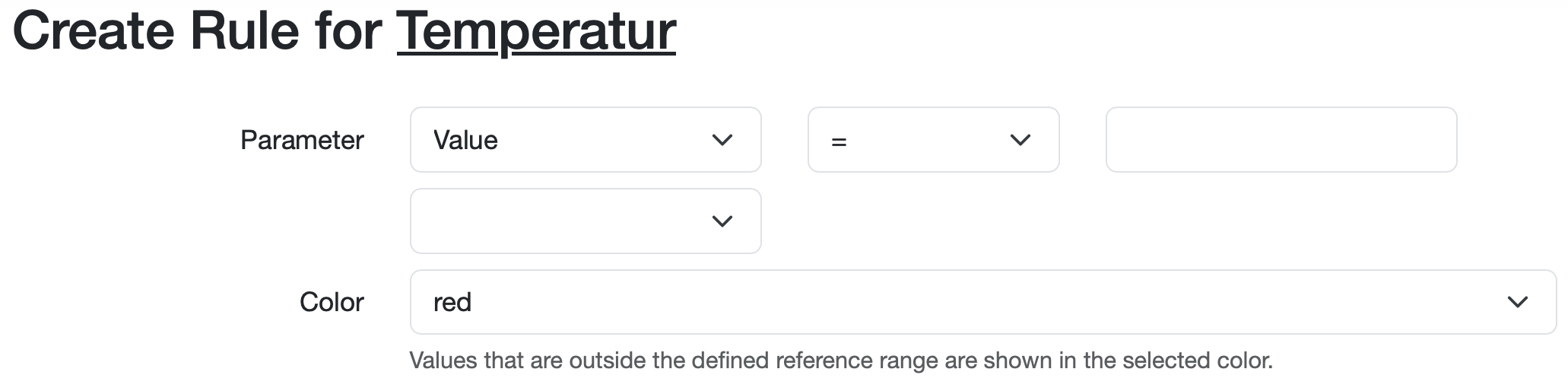
Note: In the standard configuration of the LDB, you always define the valid reference range. Only values that lie outside this range are marked with the selected color.
Below you will find the most common use cases:
Use case: A value must not exceed a certain maximum value.
Example: The temperature should remain below 5 °C.
Value < 5
Use case: A value must lie within a defined range.
Example: The temperature should be between 3 °C and 5 °C.
Value > 3 AND < 5
Use case: Only values outside a certain range are valid.
Example: The temperature should be either below 3 °C or above 5 °C.
Value < 3 OR > 5
Use case: A text value or selection option must match exactly.
Example: For visual inspection, only clear is accepted as valid.
Value = clear
Use case: Both text values and numeric values are defined as valid for a parameter.
Example: For microbial count determinations, the result can be either "nd" (not detectable) or a numerical value below 10
= n.d. OR < 10 (< 10 OR = n.d. doesn't work)
Define the frequency with which the specification limit must be met in tested samples.
Example: The specification limit must be met in every 2nd sample.

Select the color in which values that do not meet the specification limit should be displayed (red by default). This enables quick visual detection of deviations.

Check the checkbox show this rule in report to display the specification limits together with the measured values in reports.

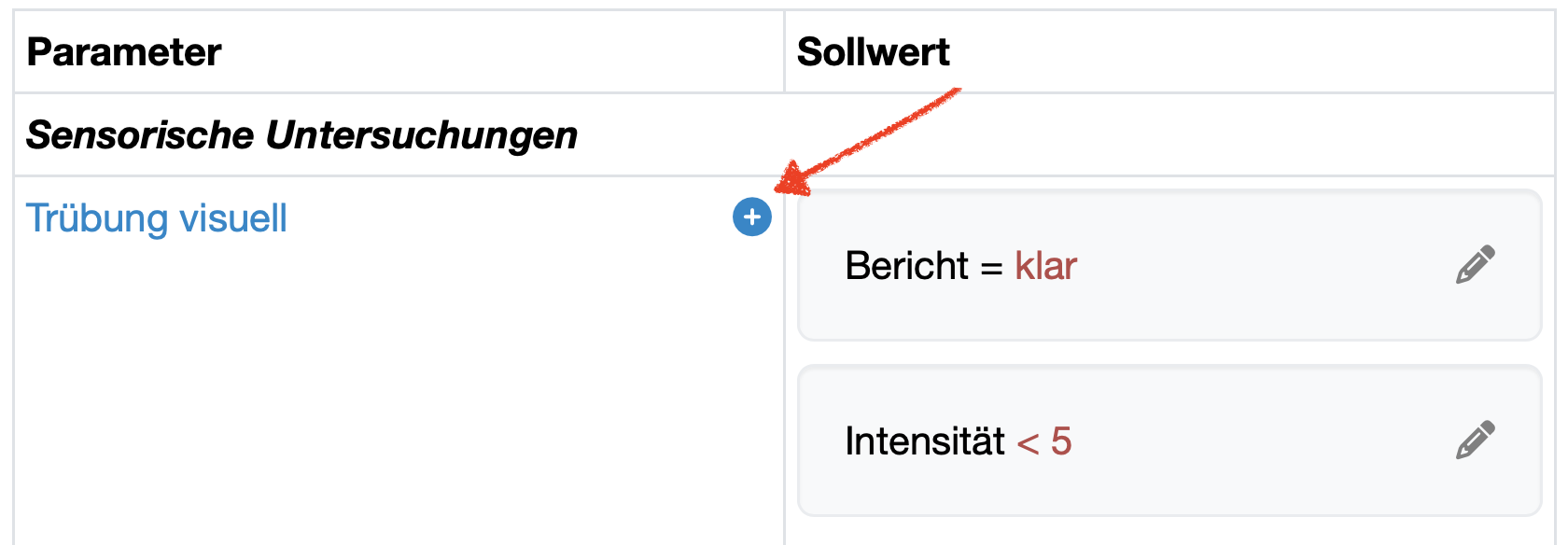
After saving, you can add additional specification limits for the same parameter if needed:
This is useful when you need different specification limits for different situations (e.g. warning and limit values).
Laatste wijziging: 21.08.2026
Algemeen
Leveranciersbeoordeling
Materiaal
Medewerkers
Klanten
Opdrachten
Monsters
PDF-sjablonen
Bijlagen
Recepten
Verslagen
Editor voor rapporttabellen
Interfaces
Kompetenzen
AI-functies
Inleidende fase
Analyses
Sjablonen
Klantenportaal (optioneel)
Aanbiedingen
Facturen
Parameters
Rekenwerk met parameters
Webservices
Transformatiecode
Controleplannen / Grenswaarden / Specificaties
Documentbeheer
Vragen en antwoorden
Testmiddelen
Opleidingen voor medewerkers
8D-rapport
Overige
Bestandsbeheer
Processen