Starting from a template in Word, PDF, or paper, you can replicate the elements in the design editor.
First, measure the distances and the width of the individual elements. These distances in X (distance from the left edge) and Y (distance from the top edge, or relative distance from another design element) are then assigned to the respective design elements.

In this example, the blue-marked distances are relative to the last element. These relative distances can be assigned to design elements in two ways:
as a relative distance to the preceding element (with a fixed y-value) or
using inc y (of the preceding design element): The relatively positioned design element is thus placed (with y=0) directly behind the preceding design element.
In the Content field, you can not only enter free text but also include variables from the LDB. Possible usable variables are listed on the right-hand side. This allows the content to be dynamically adjusted. In small gray text, you can see the results as examples based on the most recently created document of this type.

The completed test report can be created and accessed with a test sample (LINK_TO_PAGE=29). The result is displayed directly as a PDF. If no signature has been set, the report (still) reacts to every change in the design template.
Tip: Open this test report in another browser tab and check the progress while creating the design template.

You can use debug mode to analyze your results and find any errors.
To do this, click on the paper with magnifying glass icon to the right of the report number in the report overview.
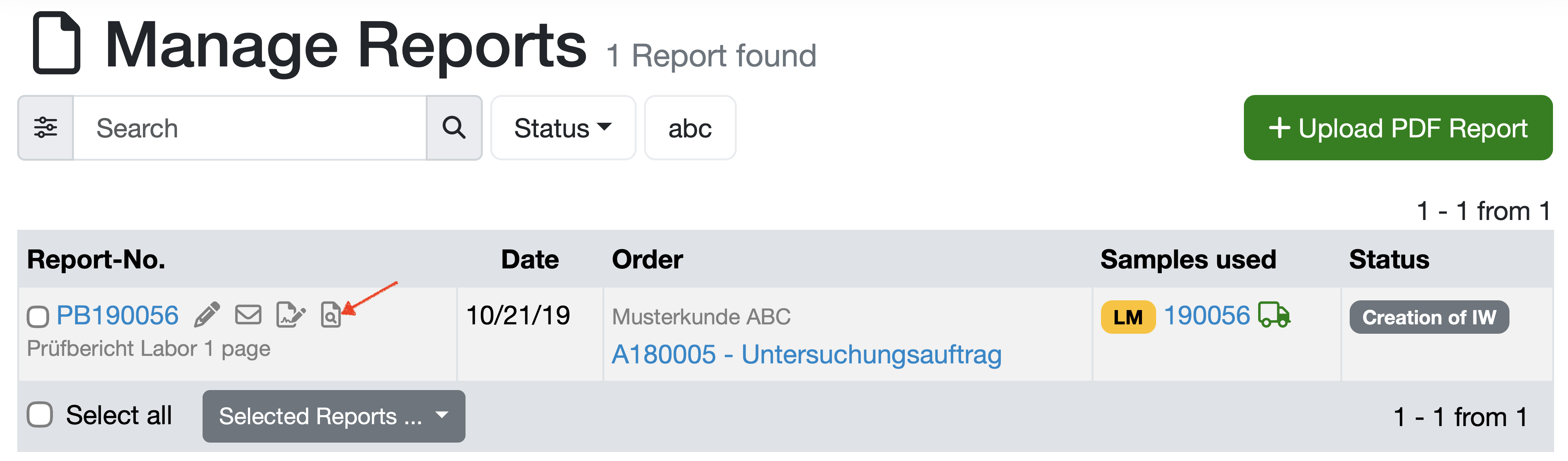
The test report now appears in a draft mode where the elements are labeled with their headers and color-coded depending on which of the 3 levels (only first page, every page, after the main part) they are assigned to.

Once your design template matches your original template, you can now add test results. See: LINK_TO_PAGE=477.
Laatste wijziging: 21.08.2026
Algemeen
Leveranciersbeoordeling
Materiaal
Medewerkers
Klanten
Opdrachten
Monsters
PDF-sjablonen
Bijlagen
Recepten
Verslagen
Editor voor rapporttabellen
Interfaces
Kompetenzen
AI-functies
Inleidende fase
Analyses
Sjablonen
Klantenportaal (optioneel)
Aanbiedingen
Facturen
Parameters
Rekenwerk met parameters
Webservices
Transformatiecode
Controleplannen / Grenswaarden / Specificaties
Documentbeheer
Vragen en antwoorden
Testmiddelen
Opleidingen voor medewerkers
8D-rapport
Overige
Bestandsbeheer
Processen