You can find the AI Explorer under: Navigation bar → Star icon (AI Explorer)
Context-sensitive
The AI Explorer automatically provides the appropriate context for each data record (sample, order, customer, test equipment, material, document, etc.) so that the AI can deliver relevant answers.
For example, if you are in the sample view, you can use the chat function to ask the AI questions about that specific sample, such as “Summarize the results of this sample and check the plausibility of the measurement results.” The AI knows the context of the sample (master data, parameters, measured values, target values, order, etc.) and, based on this, provides answers in seconds directly for the sample in question.
It works the same way on all other pages of the lab database: For a customer, you can ask, “What orders did this customer complete last year?” For a test device, you can ask, “When is the next calibration due?” etc.
This context-based approach turns the lab database into your personal AI assistant, which takes care of monotonous research for you and answers complex questions in an understandable way.
Transparency & Control
You can see at any time what information is sent to the AI along with your question. Checkboxes allow you to decide which data is included (or not).
Access Rights
The access rights of the LDB are automatically taken into account for the context.
Persistent chats
Each AI chat is saved directly with the corresponding data record and can be continued seamlessly at any time.
Sample questions
Practical sample questions enable a quick start to using AI.
In addition to these instructions, you can find further information about the AI Explorer in the user call on the AI modules and on the LDB homepage.
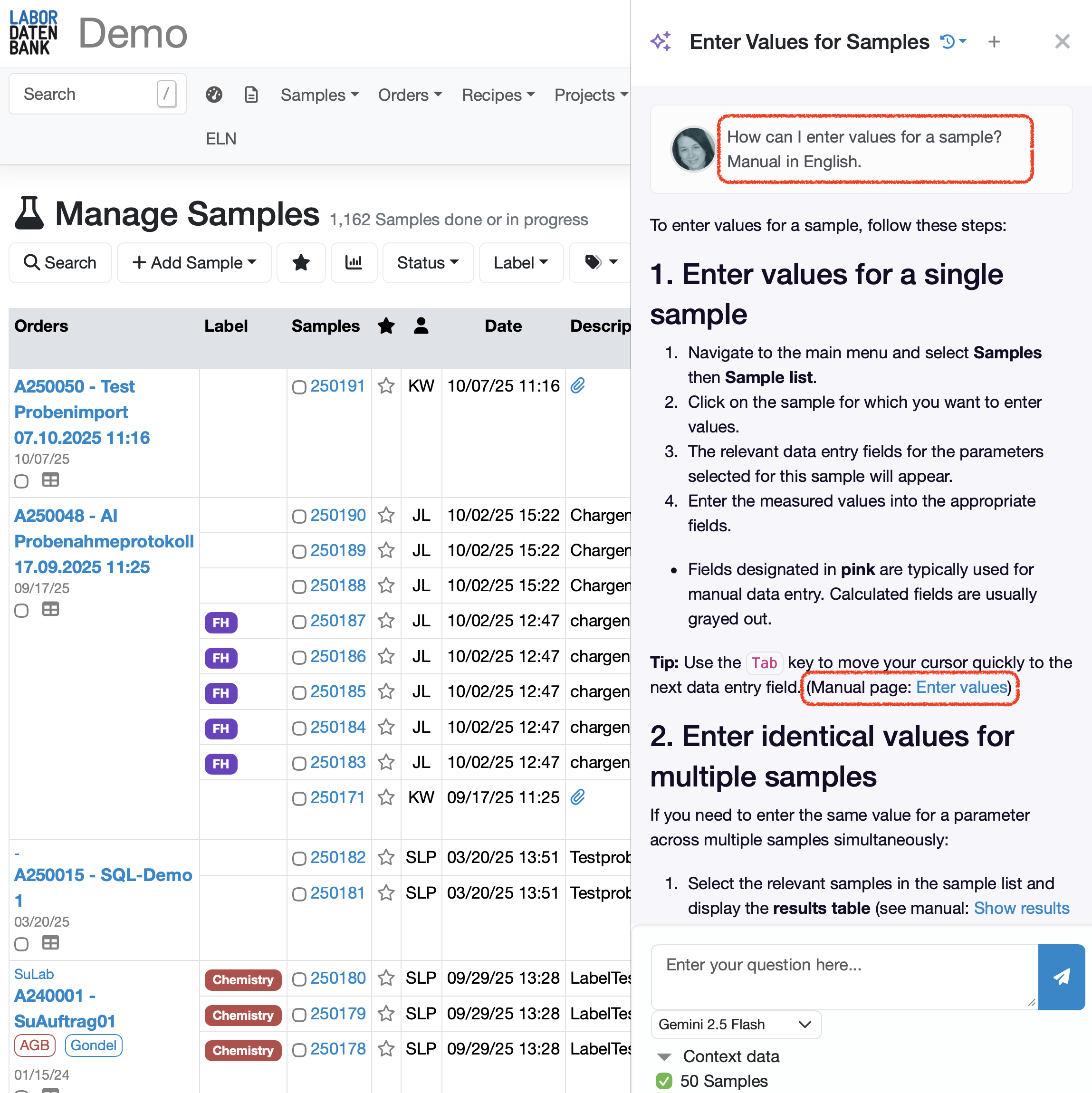
Open AI Explorer at the top right of the navigation bar by clicking on the purple star icon.



Requests (history icon) - History of previous requests. Allows you to view previous histories.
Start new request (plus icon) - Clears the current content and starts a new request session.
Pin sidebar (pin icon) - fixes the AI sidebar to the right edge of the page.
Hide sidebar (X icon) - hides the AI sidebar.
Show sidebar again - click on the star icon in the navigation bar to show the AI Explorer again.
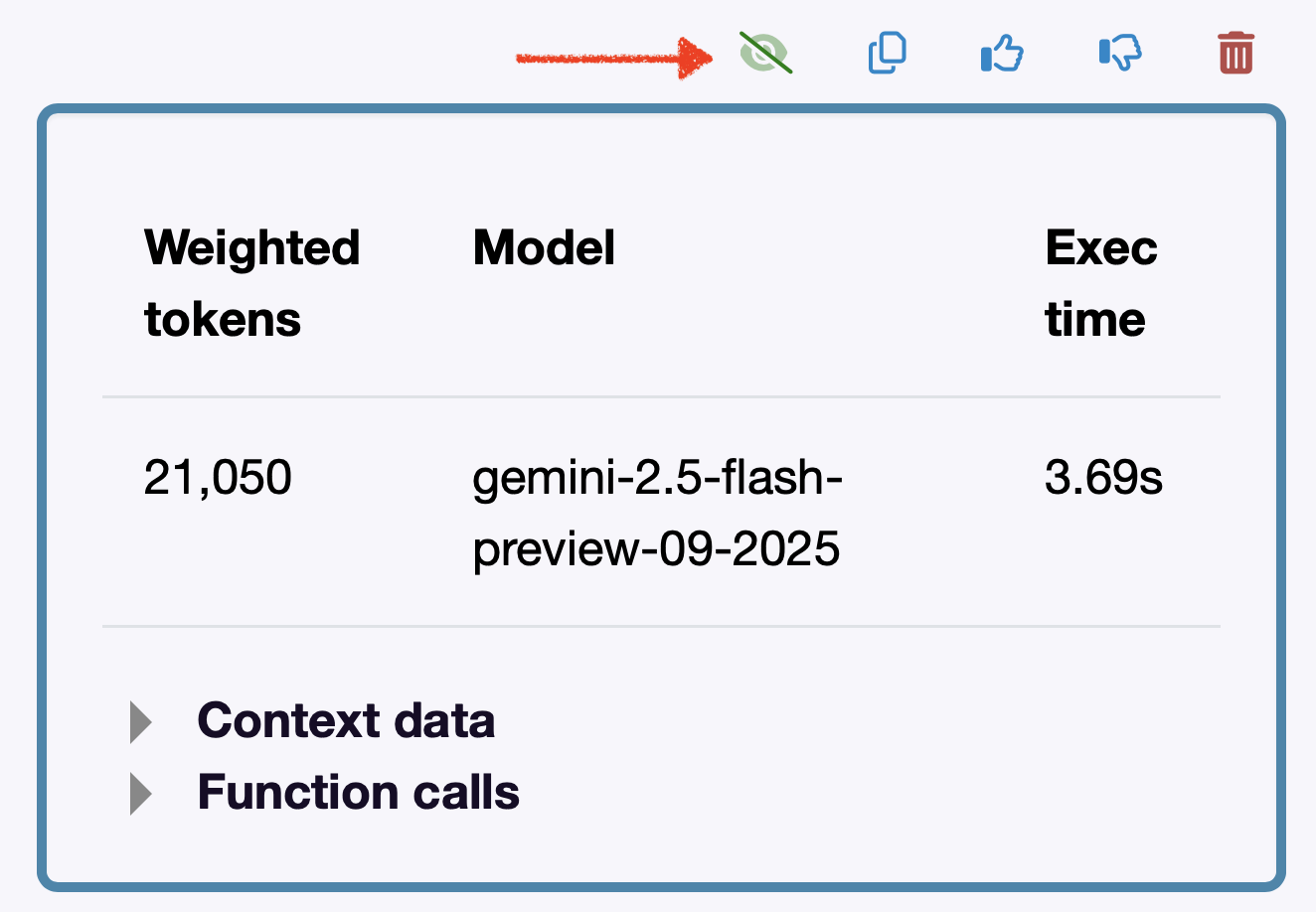
Show metadata (eye icon) - shows you information about the number of tokens used, the AI model used, and the processing time.
You can also use the expandable detail areas to view additional context data and technical details about the function calls.
Copy to clipboard (document icon) - copies the query for further use.
Rate answer positively. (Thumbs up icon)
Rate answer negatively. (Thumbs down icon)
Delete answer. (Trash can icon)
Below the input field for the question, you will find a drop-down menu with the available AI models.
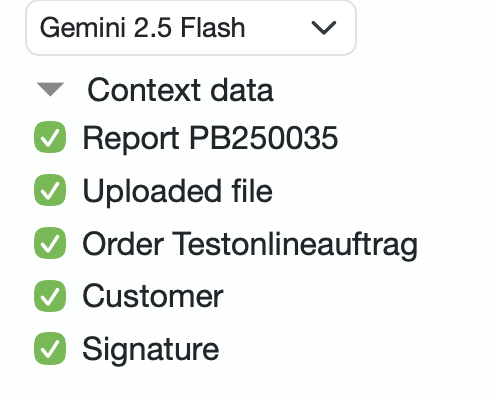
At the bottom of the sidebar, you will find checkboxes for the included contexts.
If, for example, you are in the process of sending the report to a customer by email, you can use the AI Explorer to generate a text suggestion directly on the LDB Send report page.
Open the AI Explorer in the upper right corner of the navigation bar, enter your question in the input field, and click on the blue Send button to the right of the input field.
After a short time, you will receive your AI-generated response as an email text suggestion for the test report.
Below the text suggestion, you will find the copy icon to copy the text.
Copy the text and paste it into the text field for the email.

To simplify the training of new employees, the use of new functions, and searching in the LDB instructions, you can use the AI Explorer.
Laatste wijziging: 21.08.2026
Algemeen
Leveranciersbeoordeling
Materiaal
Medewerkers
Klanten
Opdrachten
Monsters
PDF-sjablonen
Bijlagen
Recepten
Verslagen
Editor voor rapporttabellen
Interfaces
Kompetenzen
AI-functies
Inleidende fase
Analyses
Sjablonen
Klantenportaal (optioneel)
Aanbiedingen
Facturen
Parameters
Rekenwerk met parameters
Webservices
Transformatiecode
Controleplannen / Grenswaarden / Specificaties
Documentbeheer
Vragen en antwoorden
Testmiddelen
Opleidingen voor medewerkers
8D-rapport
Overige
Bestandsbeheer
Processen