Name: Give the template a unique name (e.g., “Sample Label”).
Language: Select the desired language for the document.
Type: Select Label.
Date format: Specify how dates are displayed.
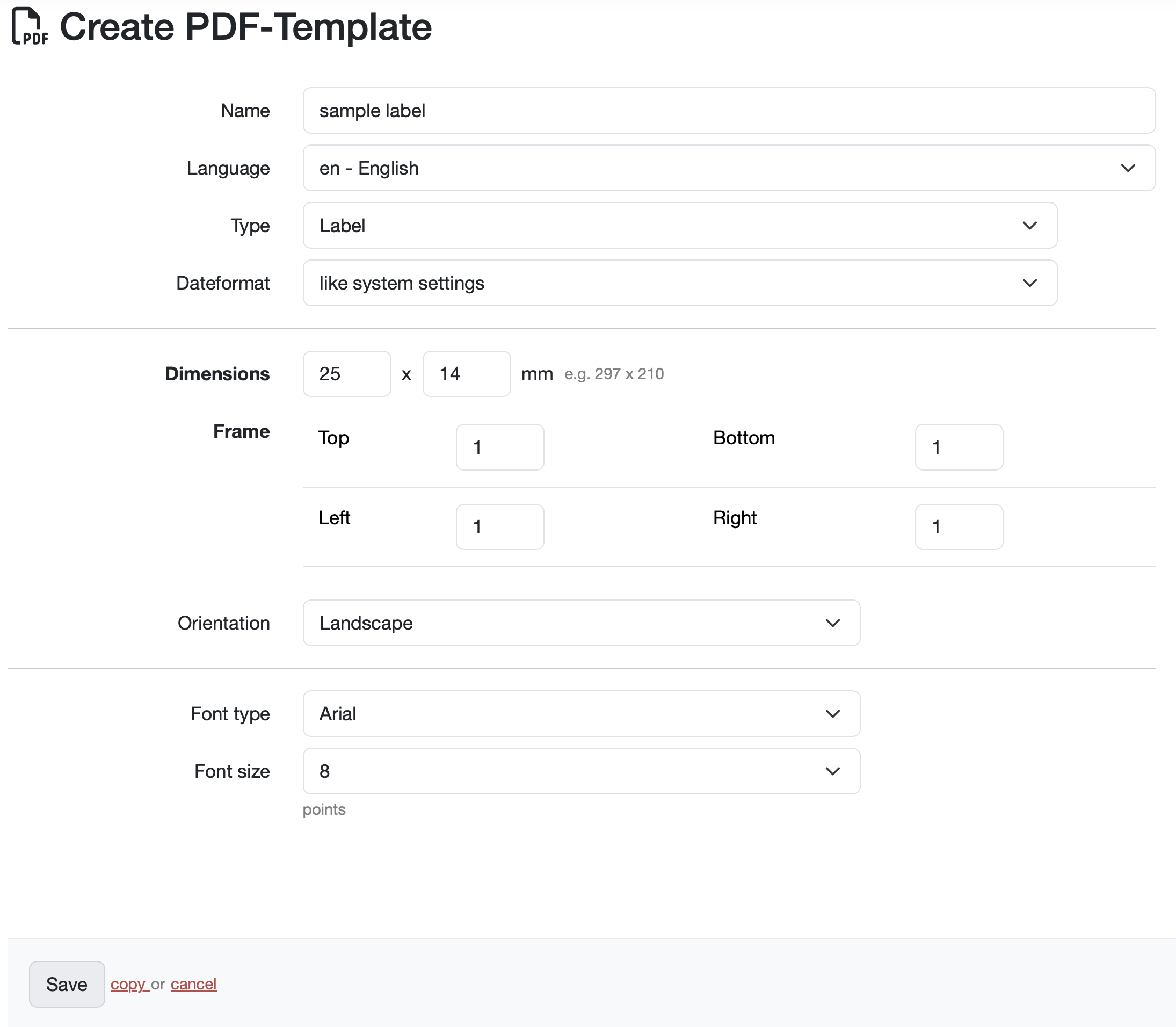
Dimensions: Enter the dimensions of your label, e.g., 25 × 17 mm
Frame: Define the margins for Top, Bottom, Left, Right (in mm)
Orientation: Landscape or Portrait
Font type: Select the font, e.g., Arial.
Font size: 8 points (adjustable)
Save the basic settings and then create the design elements.
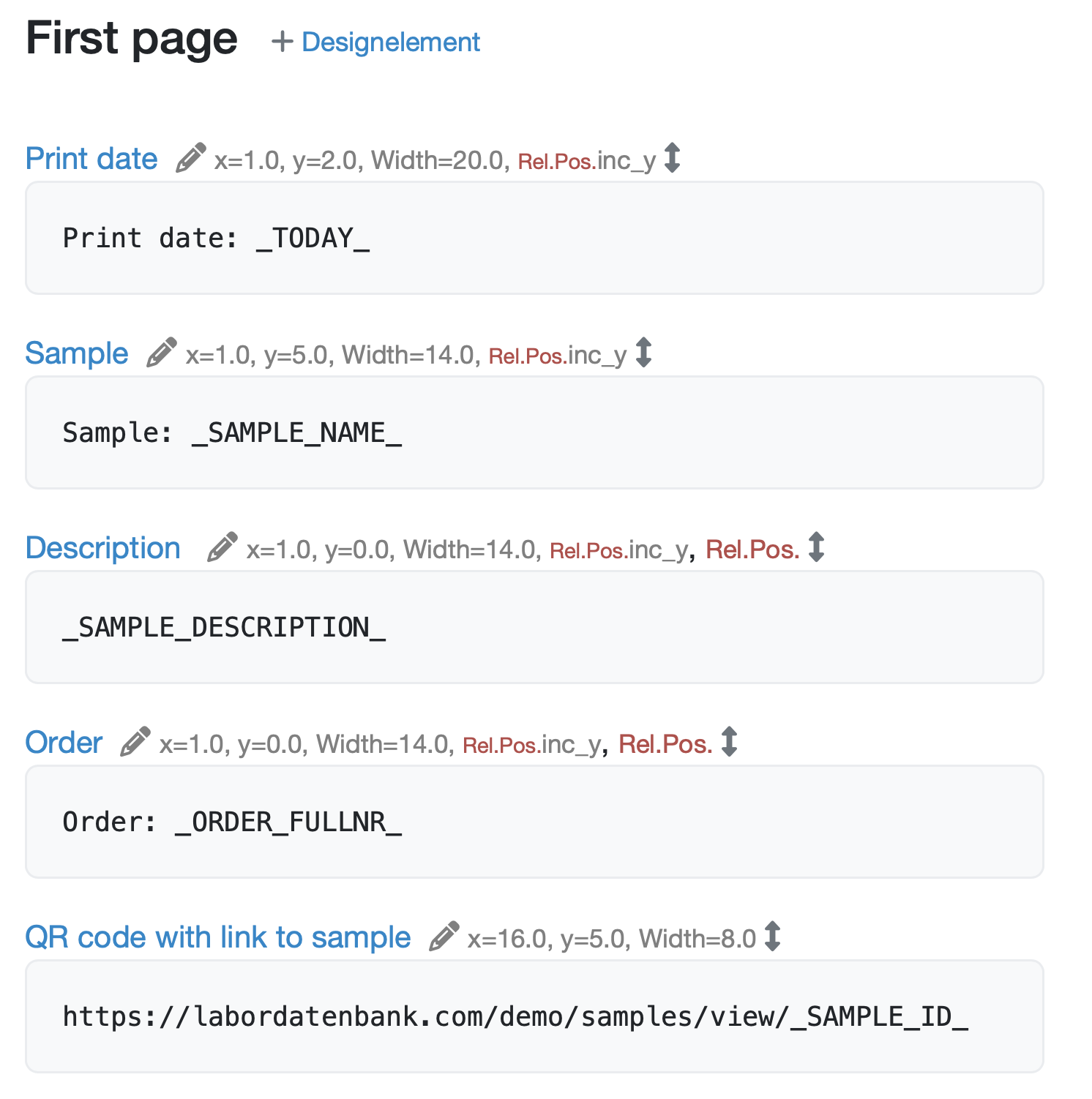
Add the relevant information about design elements and place the design elements on the first page.
In this example, the following information is visible on the label:
Print date: Shows the current date (variable: _TODAY_)
Sample number: Shows the sample number. (Variable: SAMPLE_NAME)
Description: Shows the description stored with the sample (variable: SAMPLE_DESCRIPTION)
Order: Element for the order number. (Variable: ORDER_FULLNR)
QR Code: For the QR code, you need a design element of type QR-Code. To ensure that the QR code displays the link to the sample in your LDB, use the variable SAMPLE_ID. Copy the complete URL of the sample view from the browser address bar and replace the specific ID (e.g., 12345) at the end of the URL with SAMPLE_ID.
Additional elements that appear on all labels can be added via + Design element.
Further information on the design elements can be found at: Create design elements

Laatste wijziging: 21.08.2026
Algemeen
Leveranciersbeoordeling
Materiaal
Medewerkers
Klanten
Opdrachten
Monsters
PDF-sjablonen
Bijlagen
Recepten
Verslagen
Editor voor rapporttabellen
Interfaces
Kompetenzen
AI-functies
Inleidende fase
Analyses
Sjablonen
Klantenportaal (optioneel)
Aanbiedingen
Facturen
Parameters
Rekenwerk met parameters
Webservices
Transformatiecode
Controleplannen / Grenswaarden / Specificaties
Documentbeheer
Vragen en antwoorden
Testmiddelen
Opleidingen voor medewerkers
8D-rapport
Overige
Bestandsbeheer
Processen