Open the filter management via:
Navigation bar → Samples → Manage Samples → My Filters → Filter
Note: The My Filters option appears above the sample list as soon as you have saved at least one filter. The Public Filters option appears as soon as a filter created by another user has been shared with you.

Alternatively, you can open the filter management from the result table:
Result table → My Column Filters → Filter
Note: The My Column Filters option appears above the results table as soon as you have saved at least one filter. The Public Column Filters option appears as soon as a filter created by another user has been shared with you.
The filter management is divided into two sections displayed side by side:
Contains saved search filters that are applied to the sample list.
Note: Filter names highlighted in blue are clickable links that open the respective filter directly and display the sample list with the corresponding filter applied.
Further information on creating a search filter for the sample list: Manage samples
Contains saved column filters that control the display of the result table. These filters cannot be opened directly, but can be opened automatically via a linked search filter.
Further information on creating a column filter for the result table: Results table
The figure shows what the page for managing filters looks like in the LDB:
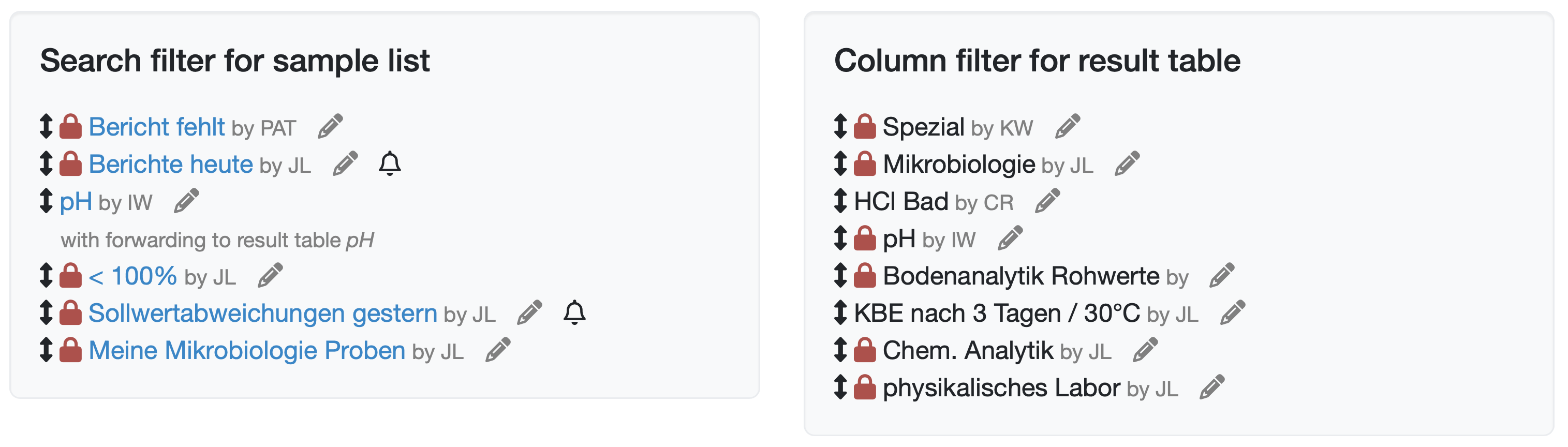
Figure: Filter Management
Each filter is displayed with its name along with additional elements and information about linked functions:
| Element | Description |
|---|---|
| Arrow icon | Drag handle for reordering the filter via drag and drop. |
| Lock icon | The filter is not visible to all users. |
| Filter name | Name of the filter; for search filters for the sample list, displayed as a clickable link if visible to the current user. |
| by | Abbreviation of the employee who created the filter. |
| Pencil icon | Button for editing the filter (only visible if you have editing rights). |
| Bell icon | An automatic e-mail notification has been set up for this filter. |
| Forwarding to result table | Indicates that the filter forwards directly to the result table; where applicable, with the name of the linked column filter. |
Note: The pencil icon is only displayed if the filter is visible to you or if you have the Edit all search and column filters permission.
Laatste wijziging: 21.08.2026
Algemeen
Leveranciersbeoordeling
Materiaal
Medewerkers
Klanten
Opdrachten
Monsters
PDF-sjablonen
Bijlagen
Recepten
Verslagen
Editor voor rapporttabellen
Interfaces
Kompetenzen
AI-functies
Inleidende fase
Analyses
Sjablonen
Klantenportaal (optioneel)
Aanbiedingen
Facturen
Parameters
Rekenwerk met parameters
Webservices
Transformatiecode
Controleplannen / Grenswaarden / Specificaties
Documentbeheer
Vragen en antwoorden
Testmiddelen
Opleidingen voor medewerkers
8D-rapport
Overige
Bestandsbeheer
Processen