Open the template management via:
Navigation bar → Settings → Templates
Templates can be created not only for samples, but for all supported data types. The process is essentially the same as creating a sample template – the available fields vary depending on the data type and configuration.
Use the tabs above the list to select the data type.
The following data types are currently available (configuration-dependent):
Samples, Examination packages, Orders, Contacts, Recipes, Specifications, Asset, Subasset, Local inspection, 8D report, Materials, Batches, Equipment
Note: Different templates are optional. They are particularly recommended when recurring types each require their own attributes or default entries.
Order templates allow frequently used order types to be saved with predefined attributes and default entries.
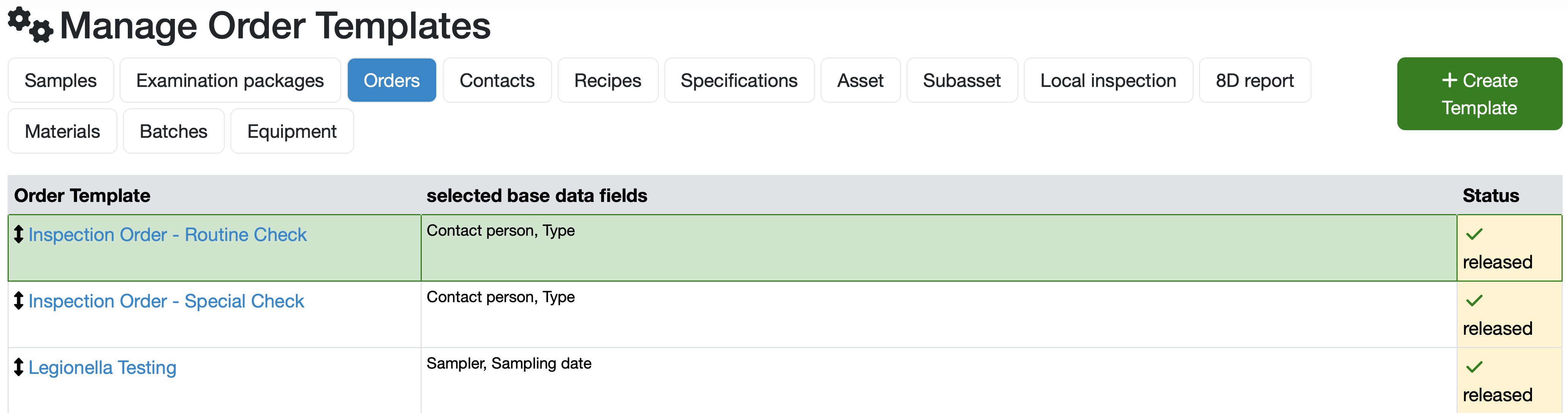
Figure: Manage Order Templates
The list of order templates shows for each template:
Released order templates appear directly in the navigation menu under Orders, enabling quick creation of a new order based on a specific template – so that only the fields relevant to that order type are displayed.
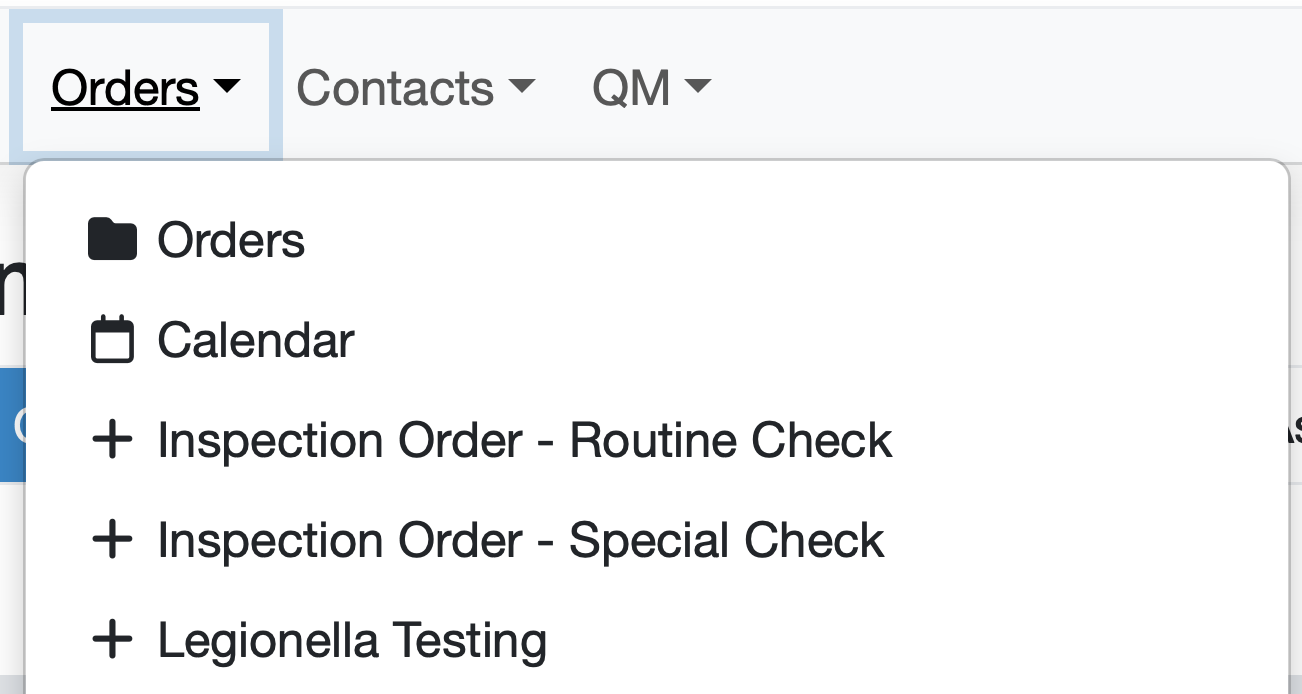
Figure: Template selection in the navigation menu
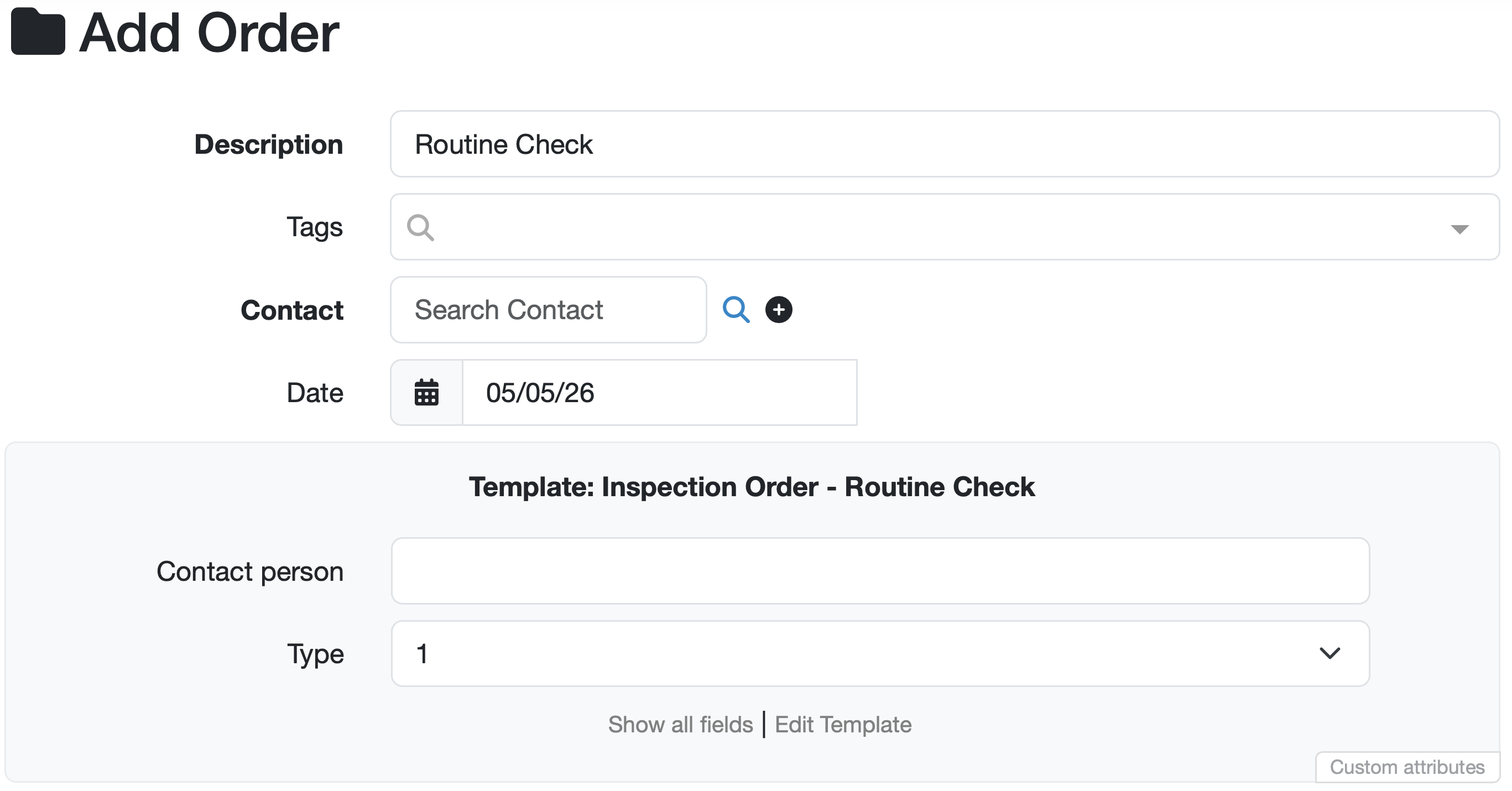
Figure: Adding an "Inspection Order - Routine Check" – Default entry: Type 1
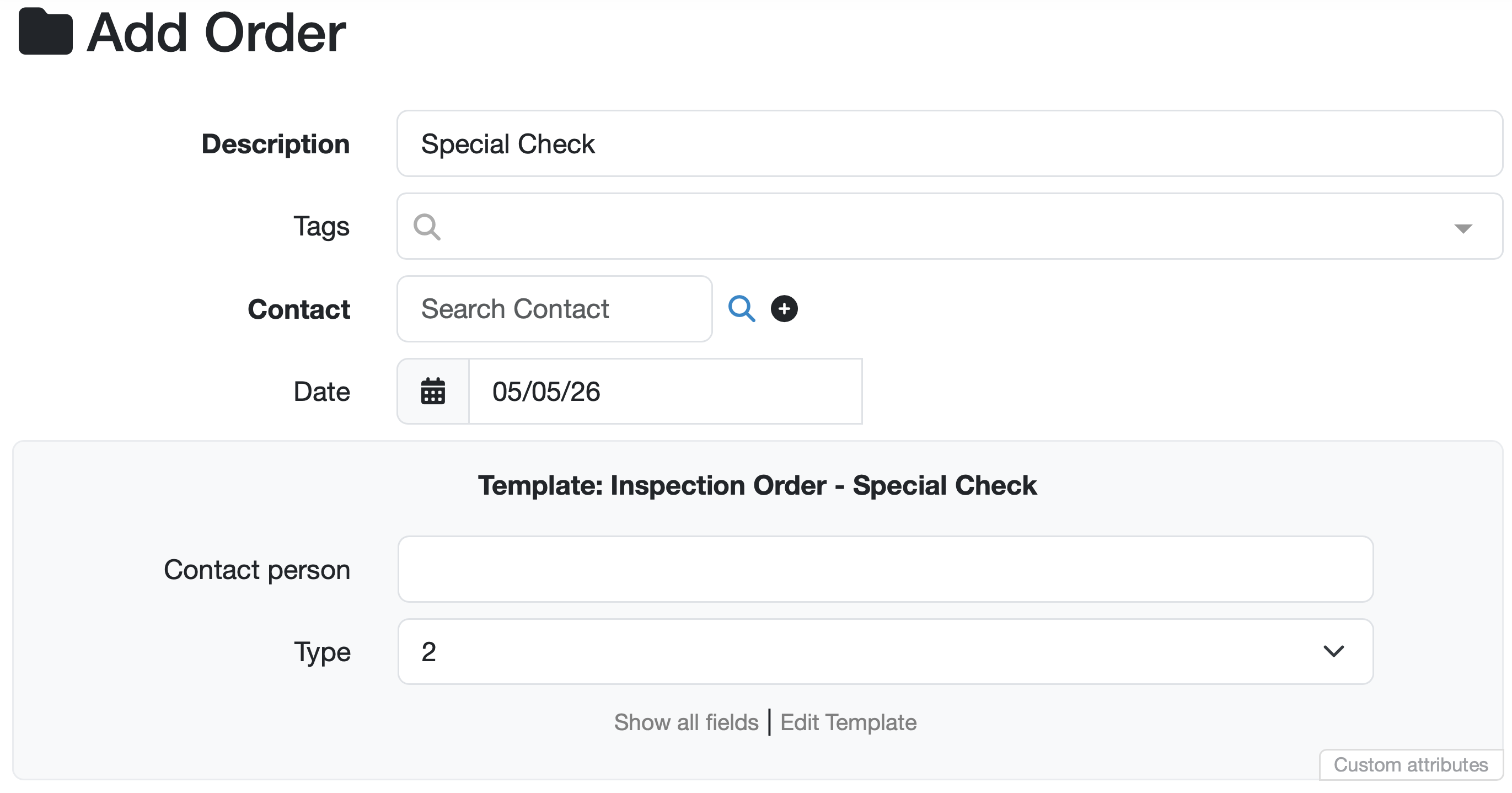
Figure: Adding an "Inspection Order - Special Check" – Default entry: Type 2
Customer templates allow frequently used customer types to be saved with predefined attributes and default entries.
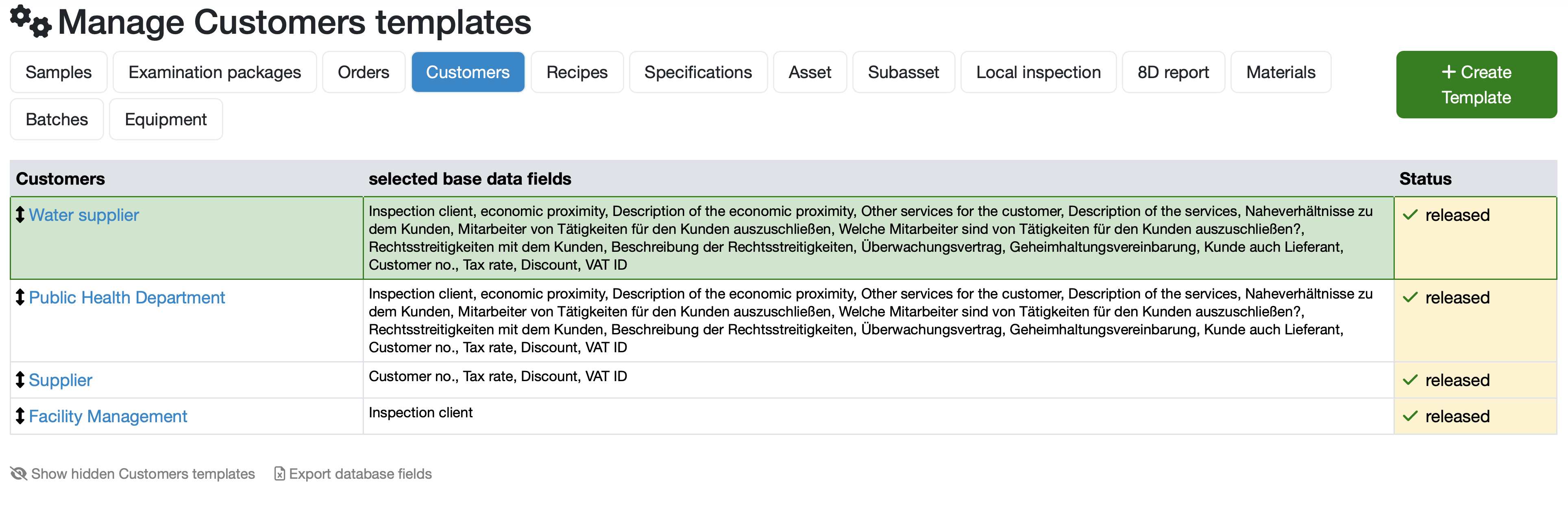
Figure: Manage Customers templates
The list of customer templates shows for each template:
Comparing the templates illustrates how significantly the scope of attributes can differ depending on the customer type: while the Supplier template contains only the fields Customer no., Tax rate, Discount, and VAT ID, the Water supplier and Public Health Department templates include a considerably larger number of fields – such as economic proximity, Inspection client, or Confidentiality agreement.
Customer templates can be assigned to a Category. For example, the Supplier template is assigned to the Supplier category, which influences how the customer is classified in the system.
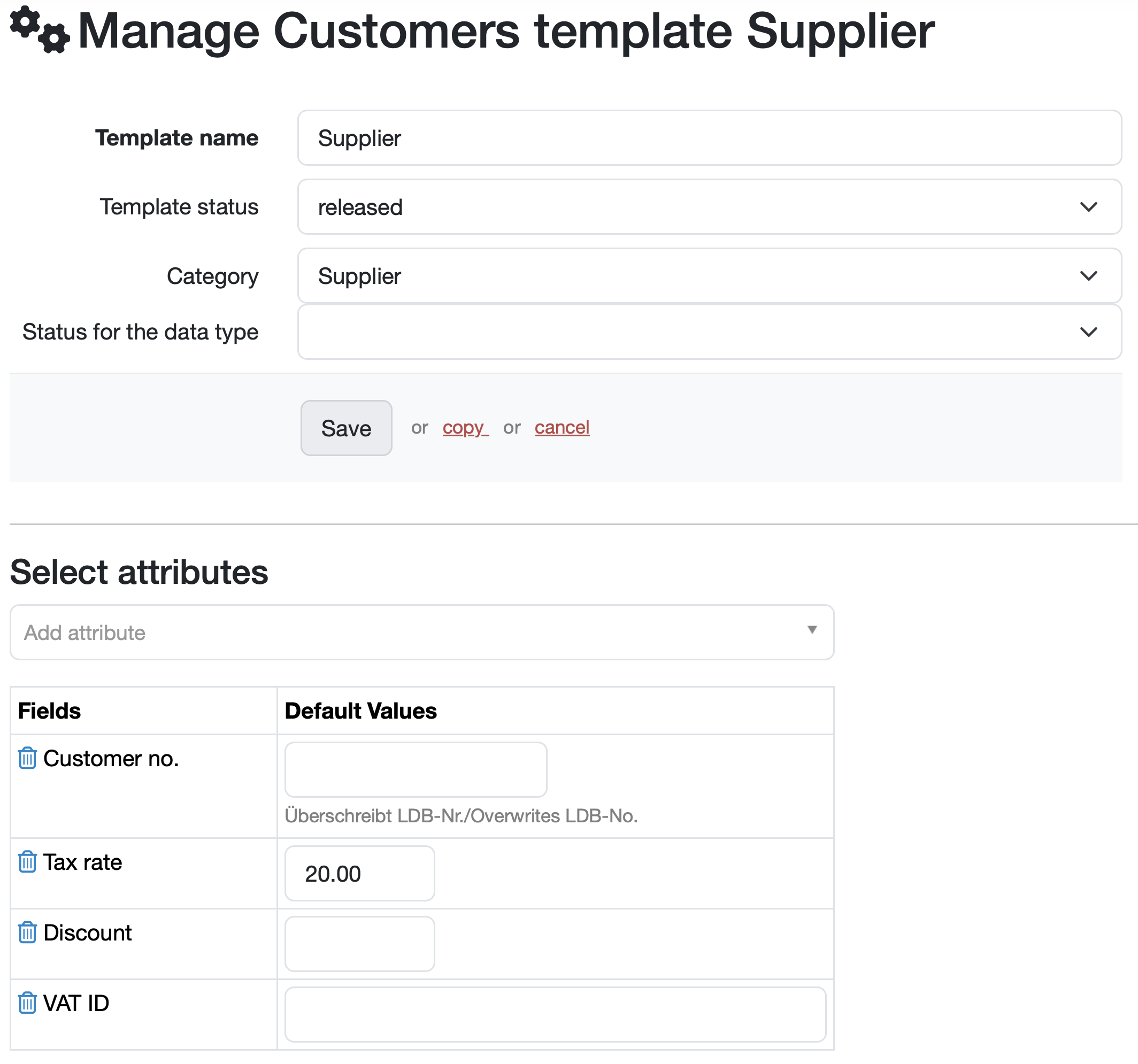
Figure: Customers template "Supplier" – category and configured attributes with default values (e.g. Tax rate: 20.00)
Released customer templates appear directly in the navigation menu under Contacts and enable quick creation of a new customer based on a specific template – displaying only the fields relevant to that customer type.
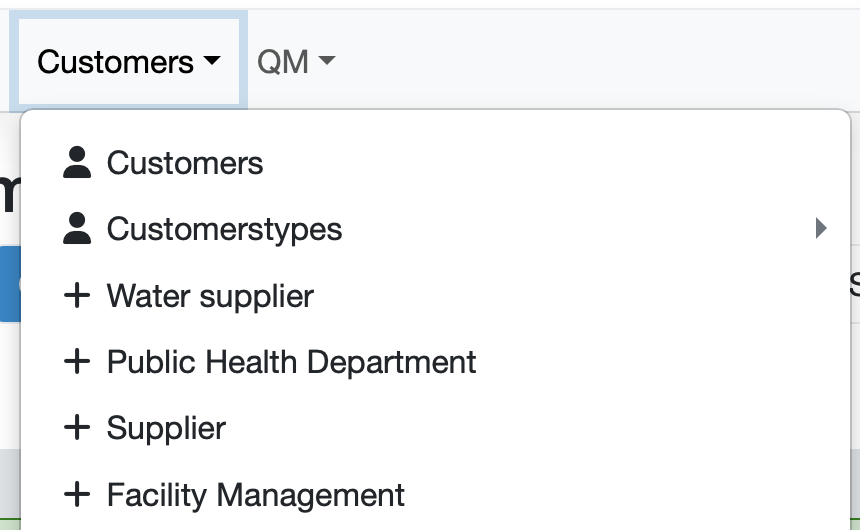
Figure: Template selection in the navigation menu
Materials templates allow frequently used material types to be saved with predefined attributes and default entries.
Templates can optionally be organized into parent categories and child templates. This allows related types to be grouped together in a clear and structured way.
A well-thought-out structure simplifies day-to-day work.
The Materials template management provides an example of such a structure:
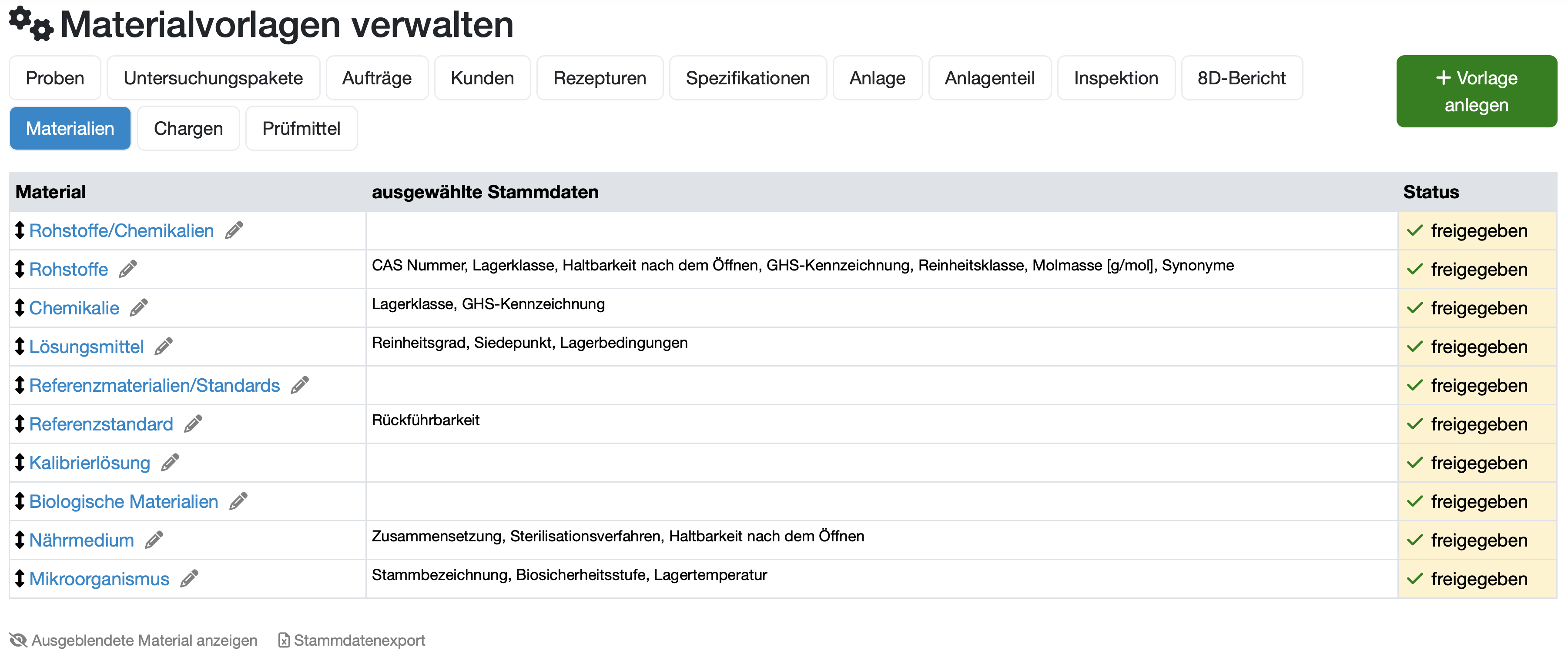
Figure: Manage Materials templates
The hierarchical structure is also reflected when creating a new record. The parent template is selected first, followed by the appropriate child template.
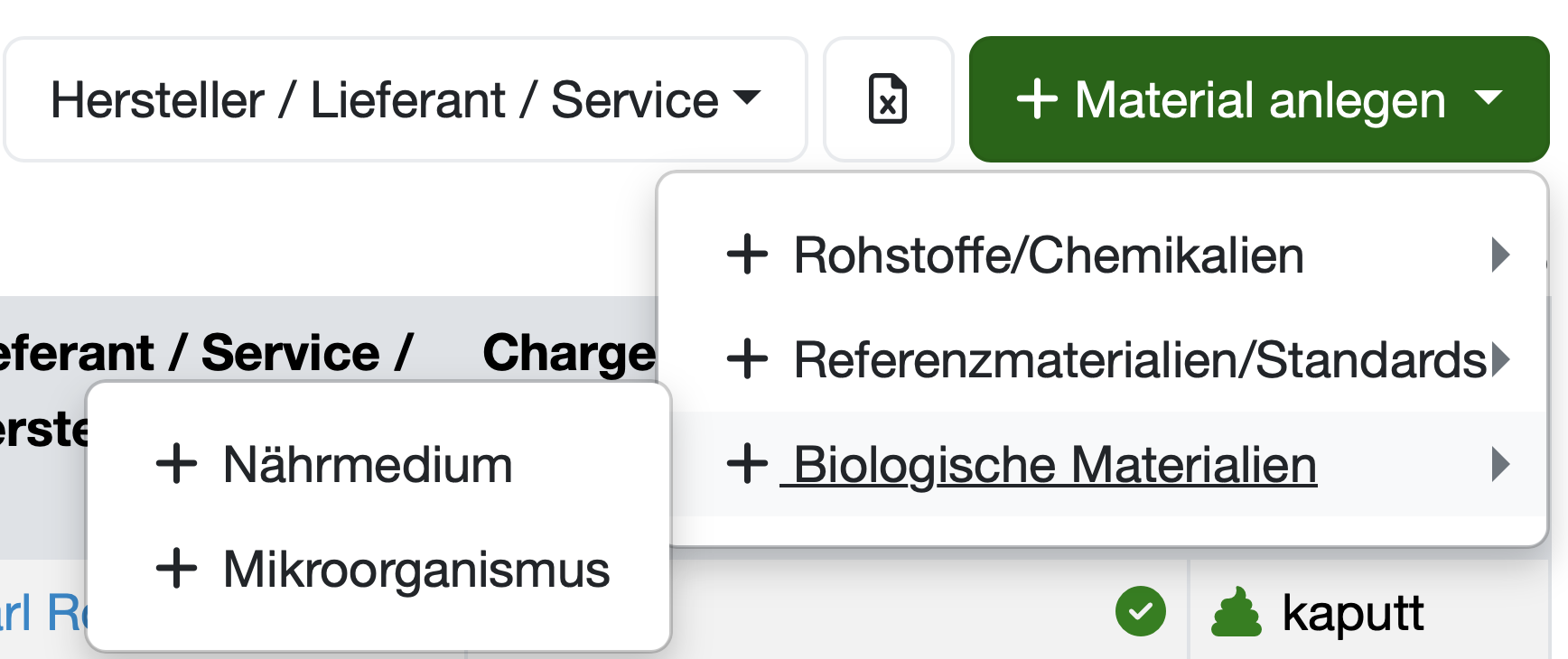
Figure: Template selection when creating a new material
Laatste wijziging: 21.08.2026
Algemeen
Leveranciersbeoordeling
Materiaal
Medewerkers
Klanten
Opdrachten
Monsters
PDF-sjablonen
Bijlagen
Recepten
Verslagen
Editor voor rapporttabellen
Interfaces
Kompetenzen
AI-functies
Inleidende fase
Analyses
Sjablonen
Klantenportaal (optioneel)
Aanbiedingen
Facturen
Parameters
Rekenwerk met parameters
Webservices
Transformatiecode
Controleplannen / Grenswaarden / Specificaties
Documentbeheer
Vragen en antwoorden
Testmiddelen
Opleidingen voor medewerkers
8D-rapport
Overige
Bestandsbeheer
Processen