To create an order, follow this path:
Navigation bar → Orders → + Order
Depending on the configuration, you have one or more custom-named order templates available for creating new orders.
Click the desired order template to create a new order.
Further information: Create order templates
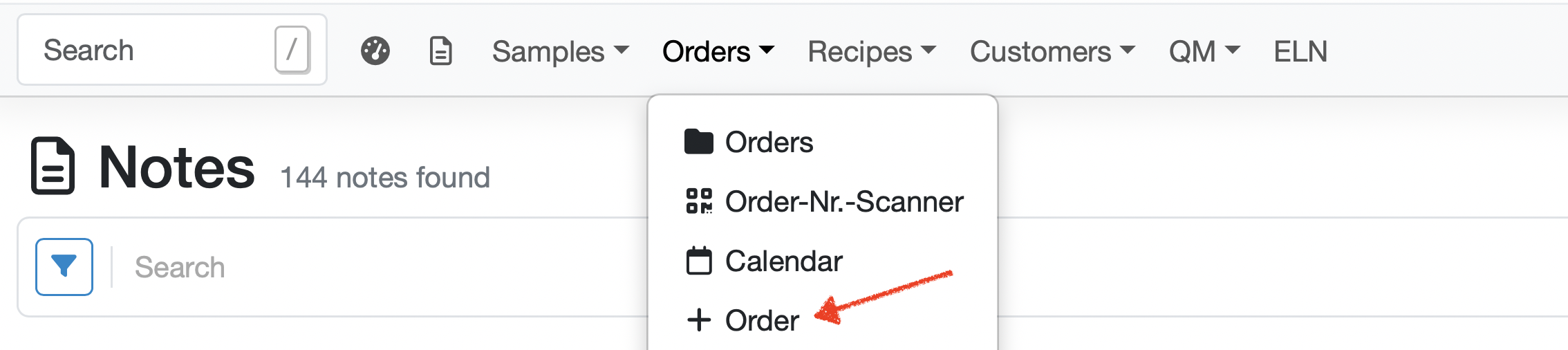
Figure: Adding an order from the navigation bar
Other ways to create an order:
Orders can also be created starting from a customer, an object (industry-specific configuration) or directly from the order management. When creating an order from a customer or a object, the respective customer or facility is already preselected.
Create an order in Order Management:
Click: Navigation Bar → Orders → Orders → + Add Order
Note: The exact labels may vary depending on the configuration of your LDB.
The order consolidates all information about an engagement and enables:
The fields of the Add Order screen are described below:
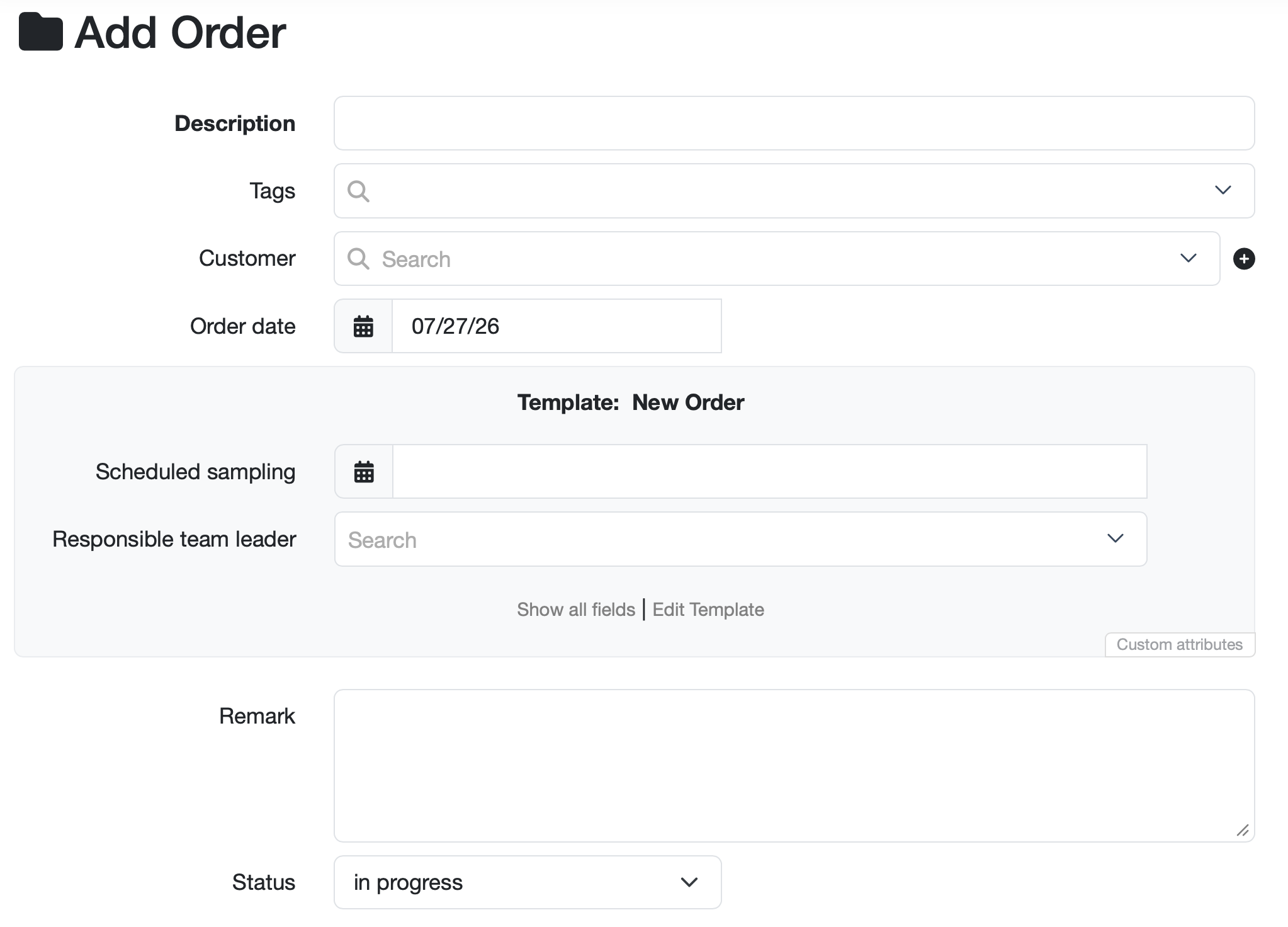
Figure: Add Order screen with individually configured attributes (grey area)
Our recommendation: You can have the configured attribute fields set up according to your requirements by your LDB customer support and then create templates for orders. This way, recurring fields are already selected and, if applicable, pre-filled.
The LDB assigns numbers to newly added orders according to a configurable pattern. This allows the numbering to be adapted to many requirements – from a simple sequential number to a format that includes the date, customer or further details.
Note: The number format is configured centrally by your customer service team as part of the setup process.
What options are available?
An order number can be composed of various building blocks:
Examples
Note: Details that are only added automatically after an order has been created (e.g. via evaluation triggers) are not yet available at the time the number is assigned and therefore cannot be part of the number.
After you have saved the order, you can add samples directly to this order, e.g. via the Samples tab.
Further information: Add/Edit/Delete samples
Inspections or site inspections are configuration dependent and are used when services are provided that do not involve any samples.
Further information: Add on-site inspection
When you create a new order, the selected customer’s read permissions are automatically applied. If necessary, you can set order-specific access rights in the edit view of an existing order to restrict the visibility of orders and samples to specific employees. These permissions then also apply to all samples in the order.
In the Who sees this entry? area on the right, select the relevant employees or employee groups that are allowed to see the order.
The following options are available:
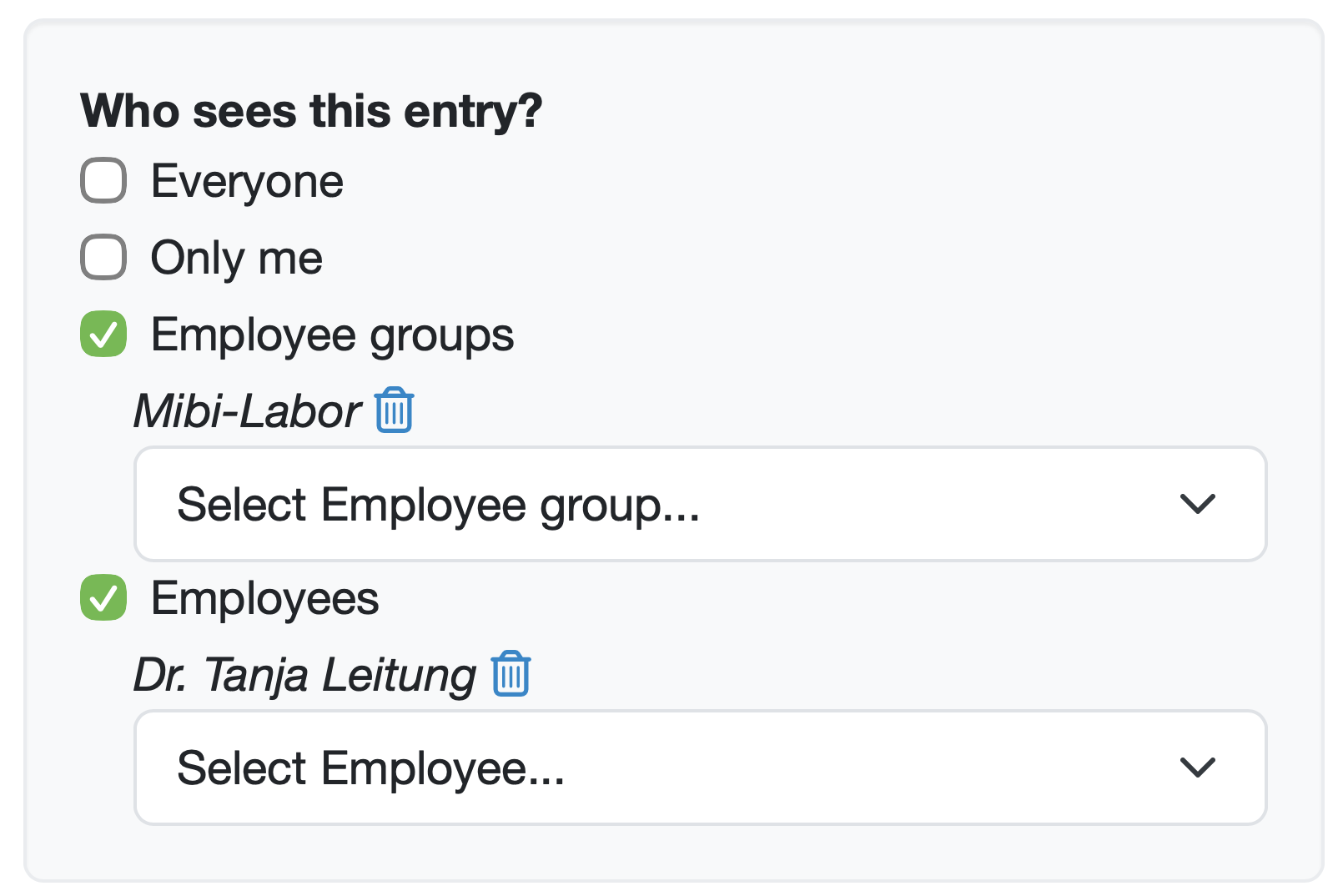
Figure: Who sees this entry?
Further information: Manage employee groups
An order is archived instead of deleted if it already has associated samples or should be retained for traceability reasons.

Figure: Status selection with option to archive the associated samples
Only orders that have no associated samples can be deleted.
Note: If the order has associated samples, the delete button is not displayed. In this case, first remove the assignment or archive the order.
Restoring a deleted order
Further information: Deleted Records
Laatste wijziging: 21.08.2026
Algemeen
Leveranciersbeoordeling
Materiaal
Medewerkers
Klanten
Opdrachten
Monsters
PDF-sjablonen
Bijlagen
Recepten
Verslagen
Editor voor rapporttabellen
Interfaces
Kompetenzen
AI-functies
Inleidende fase
Analyses
Sjablonen
Klantenportaal (optioneel)
Aanbiedingen
Facturen
Parameters
Rekenwerk met parameters
Webservices
Transformatiecode
Controleplannen / Grenswaarden / Specificaties
Documentbeheer
Vragen en antwoorden
Testmiddelen
Opleidingen voor medewerkers
8D-rapport
Overige
Bestandsbeheer
Processen