Open the templates management via:
Navigation bar → Settings → Templates → Orders tab → + Create template
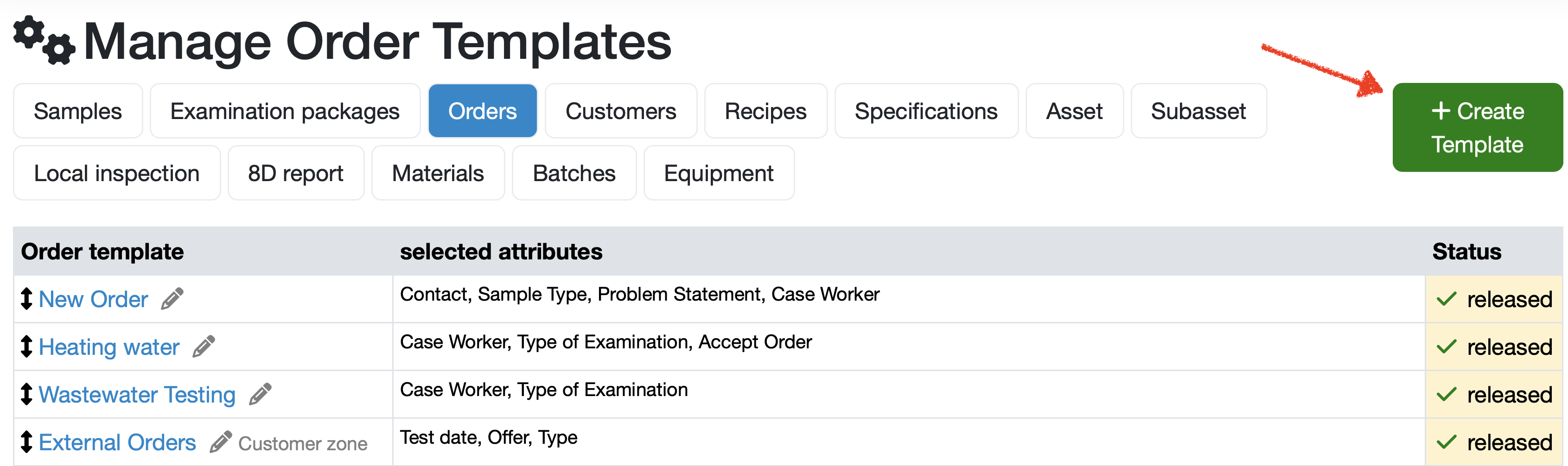
Figure: Order templates
Note: The exact labels may differ depending on the configuration of your LDB.
Name: Enter the name of the template.
Status: Select the status of the template.
Parent Template: If this template is based on another template, select the corresponding parent template here. If none is selected, this template will be taken as a new parent template.
Project: Select the project to which this template will be assigned.
Order Label: Enter a specific label for the order that will be based on this template.
Order Request: Determine whether the activation of the order template should be done for DE or ENG customers in the customer zone.
Add Attributes Add additional fields that should be included in the template.

Once you have saved and approved the order template, you can use it to create orders. (see instructions LINK_TO_PAGE=207).
Laatste wijziging: 21.08.2026
Algemeen
Leveranciersbeoordeling
Materiaal
Medewerkers
Klanten
Opdrachten
Monsters
PDF-sjablonen
Bijlagen
Recepten
Verslagen
Editor voor rapporttabellen
Interfaces
Kompetenzen
AI-functies
Inleidende fase
Analyses
Sjablonen
Klantenportaal (optioneel)
Aanbiedingen
Facturen
Parameters
Rekenwerk met parameters
Webservices
Transformatiecode
Controleplannen / Grenswaarden / Specificaties
Documentbeheer
Vragen en antwoorden
Testmiddelen
Opleidingen voor medewerkers
8D-rapport
Overige
Bestandsbeheer
Processen