Open the vacation view via:
Navigation bar → Clock icon → Show hours overview → Vacation Days tab
The Vacation Days view shows the recorded vacation days of all employees as a calendar and allows you to:
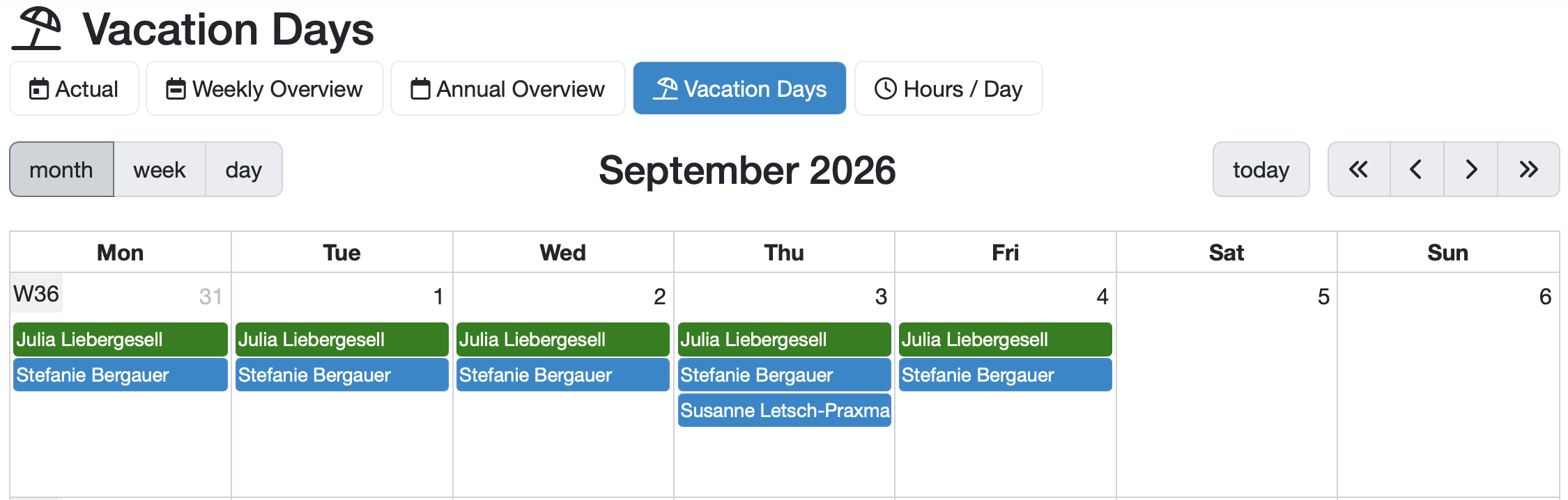
Figure: Vacation Days view
At the top, you switch between the time tracking views using the tabs. The active tab (Vacation Days) is highlighted in blue.
| Tab | Description |
|---|---|
| Actual | Overview of the most recently recorded hour entries. |
| Weekly Overview | Weekly display of the recorded hours. |
| Annual Overview | Annual view of the recorded hours. |
| Vacation Days | Calendar view of the vacation days. |
| Hours / Day | Display of the hours per day. |
Above the calendar, the following control elements are available:
The calendar shows the recorded vacation days. Each entry is assigned to an employee and displayed with their name on the respective day.
The entries are color-coded:
Below the calendar, you find a table overview of the recorded vacation days for the selected year. The following table describes the columns.
| Column | Description |
|---|---|
| Employee | Name of the employee. |
| recorded | Number of vacation days already recorded in the selected year. |
| Remaining vacation | Number of remaining vacation days. These result from the vacation entitlement minus the recorded days plus any stored correction. |
Note: Only your own entries are clickable. Vacation entries of other employees (blue) cannot be edited here.
Laatste wijziging: 21.08.2026
Algemeen
Leveranciersbeoordeling
Materiaal
Medewerkers
Klanten
Opdrachten
Monsters
PDF-sjablonen
Bijlagen
Recepten
Verslagen
Editor voor rapporttabellen
Interfaces
Kompetenzen
AI-functies
Inleidende fase
Analyses
Sjablonen
Klantenportaal (optioneel)
Aanbiedingen
Facturen
Parameters
Rekenwerk met parameters
Webservices
Transformatiecode
Controleplannen / Grenswaarden / Specificaties
Documentbeheer
Vragen en antwoorden
Testmiddelen
Opleidingen voor medewerkers
8D-rapport
Overige
Bestandsbeheer
Processen