Option 1: The label printer is connected via USB to the PC where the LDB is used and the printer driver of the label printer is installed.In this case the labels are exported from the LDB as PDF in the format of the label. To use this option, please provide us with the dimensions of the labels (i.e. 30 mm x 60 mm) and the label content (sample number, name, QR code, etc.).
Option 2: Network label printerIf your label printer is installed on a network, you can print labels from any PC or tablet using the LDB.In this case, we transmit the labels to the label printer as a CSV file. The CSV file is stored on an SFTP server, which is connected to the label printer. Your IT department needs to provide an appropriate SFTP server for this purpose.
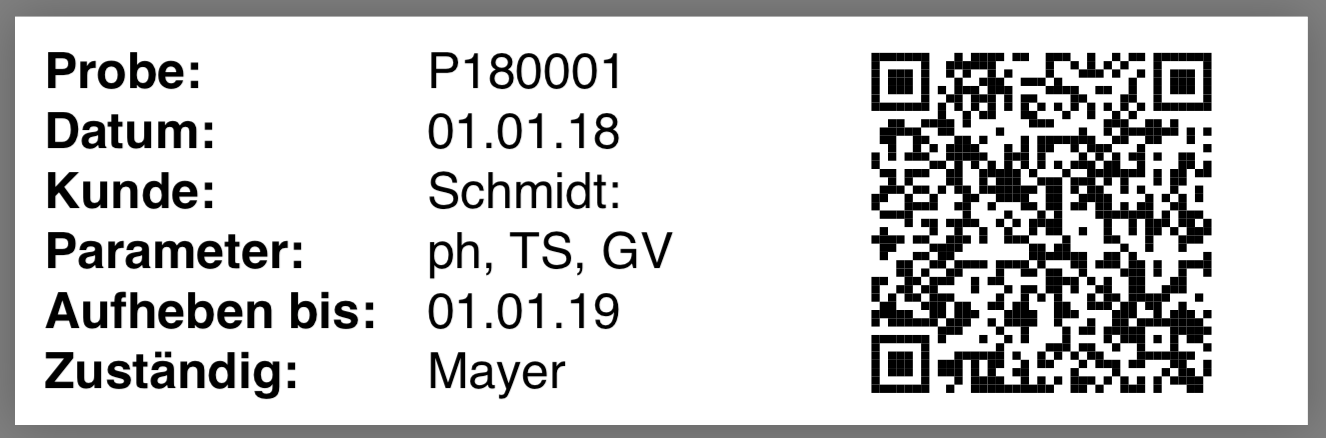
You can print labels for the following cases:
Tip 1: Set up a filter (i.e. all microbiology samples added today)
Tip 2: In addition to the barcode or QR code, enter readily legible information for lab workers (i.e. sample number, customer, requested analyses, etc.).
We recommend the following tools for processing the QR codes:

Our customer support team can also set up label printing for you. You can find configuration examples in the Application Examples section: Export data from query reports
Laatste wijziging: 18.09.2026
Algemeen
Leveranciersbeoordeling
Materiaal
Medewerkers
Klanten
Opdrachten
Monsters
PDF-sjablonen
Bijlagen
Recepten
Verslagen
Editor voor rapporttabellen
Interfaces
Kompetenzen
AI-functies
Inleidende fase
Analyses
Sjablonen
Klantenportaal (optioneel)
Aanbiedingen
Facturen
Parameters
Rekenwerk met parameters
Webservices
Transformatiecode
Controleplannen / Grenswaarden / Specificaties
Documentbeheer
Vragen en antwoorden
Testmiddelen
Opleidingen voor medewerkers
8D-rapport
Overige
Bestandsbeheer
Processen