To add a system component to an existing asset, follow this path:
Navigation bar → Customers → Click on the asset of your choice → + Add Subasset
Note: The exact names of the menu items may vary depending on the configuration of your LDB.
Note: The types displayed in the dropdown are configuration-dependent and correspond to the permitted subasset templates stored in the asset template.
Further information about the templates: Templates for orders, customers, materials, and other data types
The following figure shows the dropdown for adding a new subasset in the detail view of an asset:

Figure: Add Subasset
The following figure shows the form for adding a subasset of the type Well:
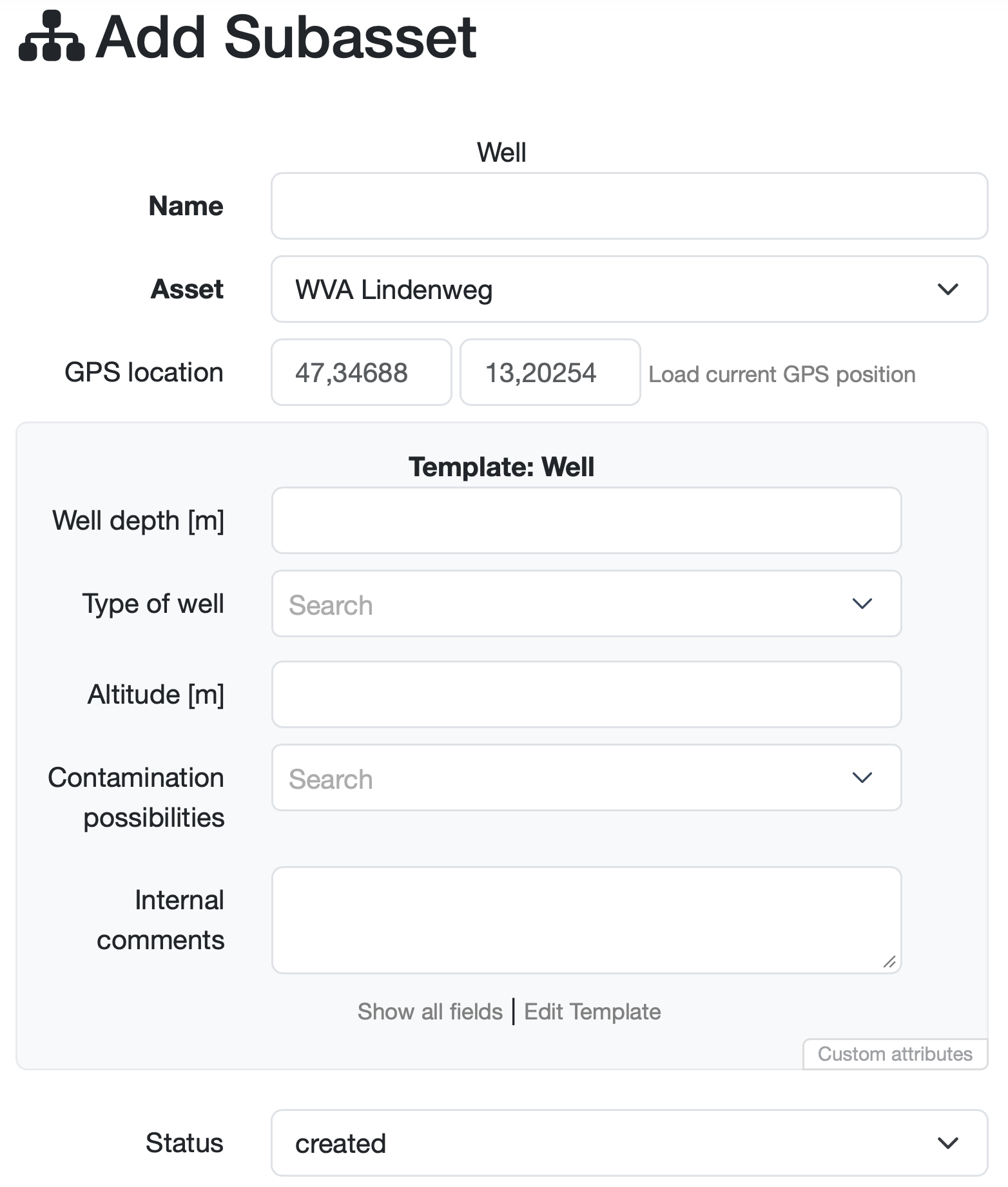
Figure: Enter subasset attributes (Template: Well)
Note: Use the Show all fields link to display additional fields not preselected by the template. Edit Template takes you directly to the configuration of the subasset template being used.
The newly created subasset will subsequently appear in the detail view of the asset under the Subasset tab. Existing subassets are listed there and can be expanded as needed to view the stored attributes data.
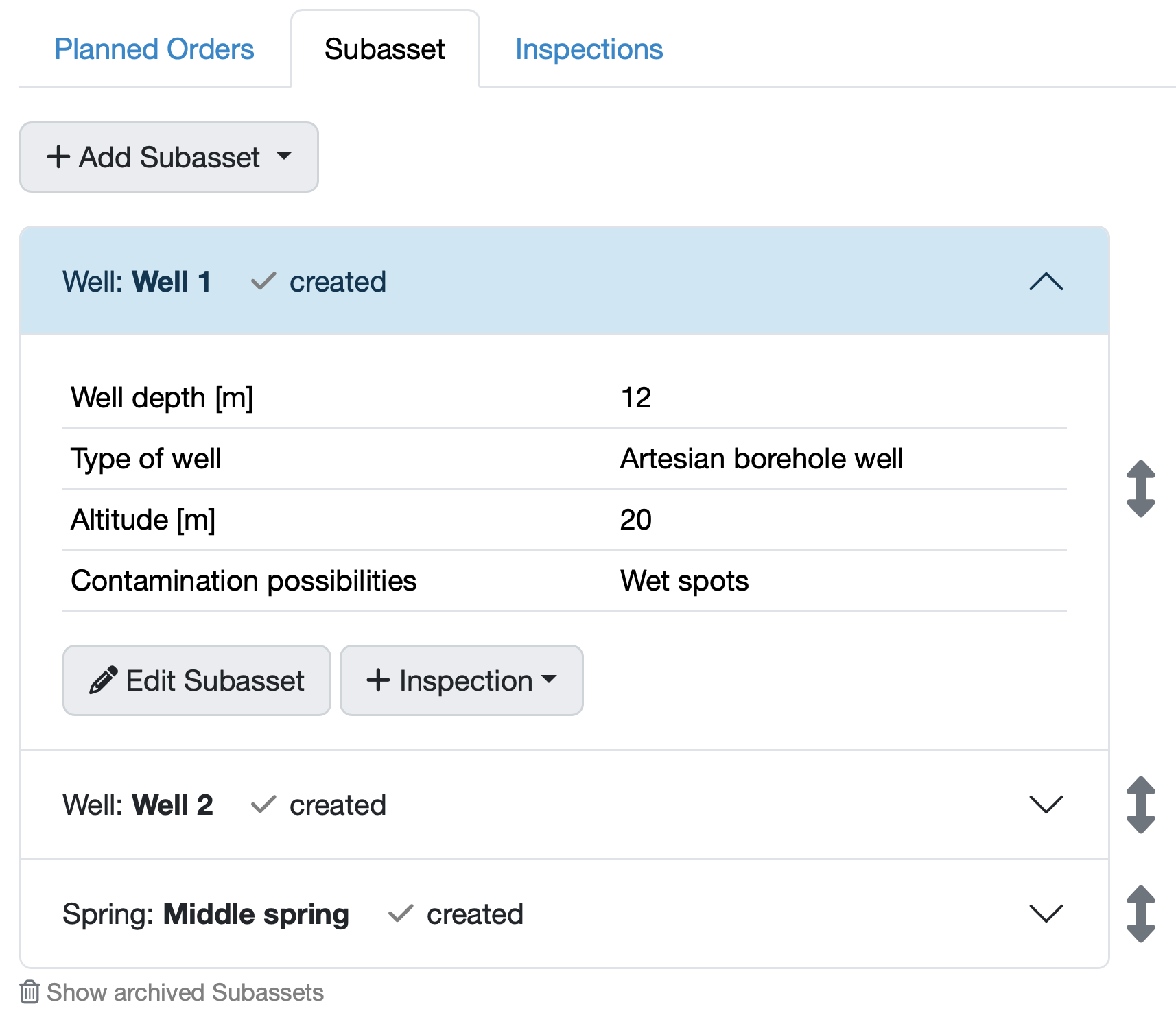
Figure: Subassets with attributes and actions
Each subasset displays its attributes in the expanded view as well as the following buttons:
For further information:
Laatste wijziging: 21.08.2026
Algemeen
Leveranciersbeoordeling
Materiaal
Medewerkers
Klanten
Opdrachten
Monsters
PDF-sjablonen
Bijlagen
Recepten
Verslagen
Editor voor rapporttabellen
Interfaces
Kompetenzen
AI-functies
Inleidende fase
Analyses
Sjablonen
Klantenportaal (optioneel)
Aanbiedingen
Facturen
Parameters
Rekenwerk met parameters
Webservices
Transformatiecode
Controleplannen / Grenswaarden / Specificaties
Documentbeheer
Vragen en antwoorden
Testmiddelen
Opleidingen voor medewerkers
8D-rapport
Overige
Bestandsbeheer
Processen