You can find the management of examination packages under:
Navigation bar → Settings → Manage examination packages.
The figure shows what the page for managing examination packages looks like. The functions are described below.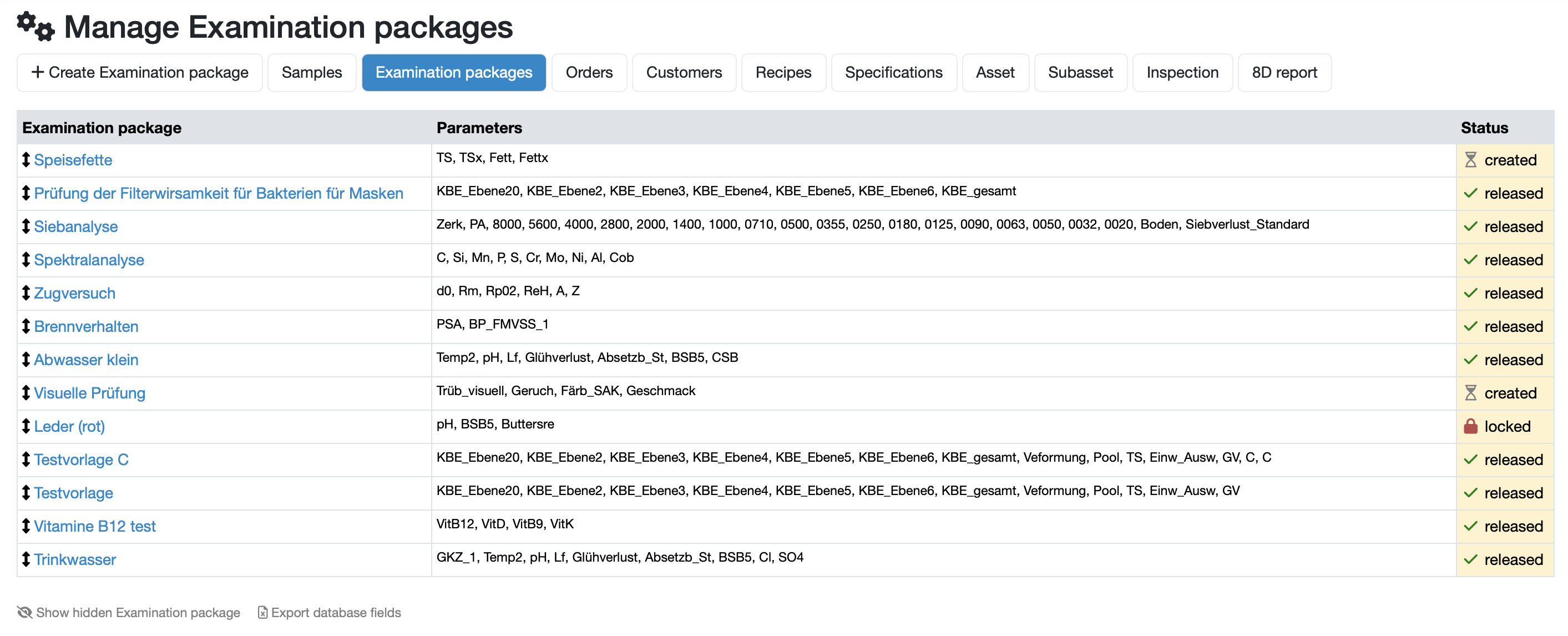
Shows the name of the respective package. The name is displayed in blue font as a clickable link. Clicking on the name gives you direct access to the configuration of the package.
Shows the abbreviations of the parameters selected for the respective package.
Shows the current status of the examination package.
Related topics: Create/Edit examination packages
Laatste wijziging: 21.08.2026
Algemeen
Leveranciersbeoordeling
Materiaal
Medewerkers
Klanten
Opdrachten
Monsters
PDF-sjablonen
Bijlagen
Recepten
Verslagen
Editor voor rapporttabellen
Interfaces
Kompetenzen
AI-functies
Inleidende fase
Analyses
Sjablonen
Klantenportaal (optioneel)
Aanbiedingen
Facturen
Parameters
Rekenwerk met parameters
Webservices
Transformatiecode
Controleplannen / Grenswaarden / Specificaties
Documentbeheer
Vragen en antwoorden
Testmiddelen
Opleidingen voor medewerkers
8D-rapport
Overige
Bestandsbeheer
Processen