To activate the customer zone, please create a contact for the relevant customer if one does not already exist.
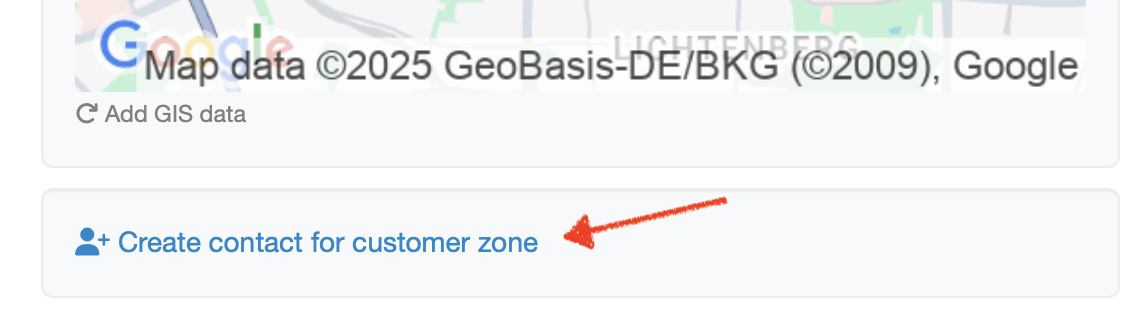
If the contact already exists, you can also activate the customer zone retrospectively:
Provide the customer with the web address for accessing the customer zone.
The web address for your customer zone is https://labordatenbank.com/demo/customers/login
The customer zone is now set up and the customer can access the shared content.
Each email address can only be assigned once as a login.
If the same email address is to have access to different customer zones (multiple customers), an extension can be integrated into the email address (via using '+').
Example of how the email address max.musterfrau@test.de can be used for multiple customer zones:
The contact for customer A receives the email address max.musterfrau+customerA@test.de
The contact for customer B receives the email address max.musterfrau+customerB@test.de
This extension does not affect the receipt of emails. The emails are still delivered to the same mailbox, but the system can distinguish between the contacts based on the extension.
When resetting the password, everything between the + and the @ is ignored, so that the reset email is always sent to the correct address (in this example, max.musterfrau@test.de).
Every contact with an active customer-zone login can edit their own data. Account management makes it possible to:
As soon as a contact is logged in to their own customer zone, the following path provides the option to edit their own contact data:
Navigation bar → Edit my account

Figure: Edit my account in the customer zone
Once Edit my account has been opened, the form for editing the contact data with the following fields appears:
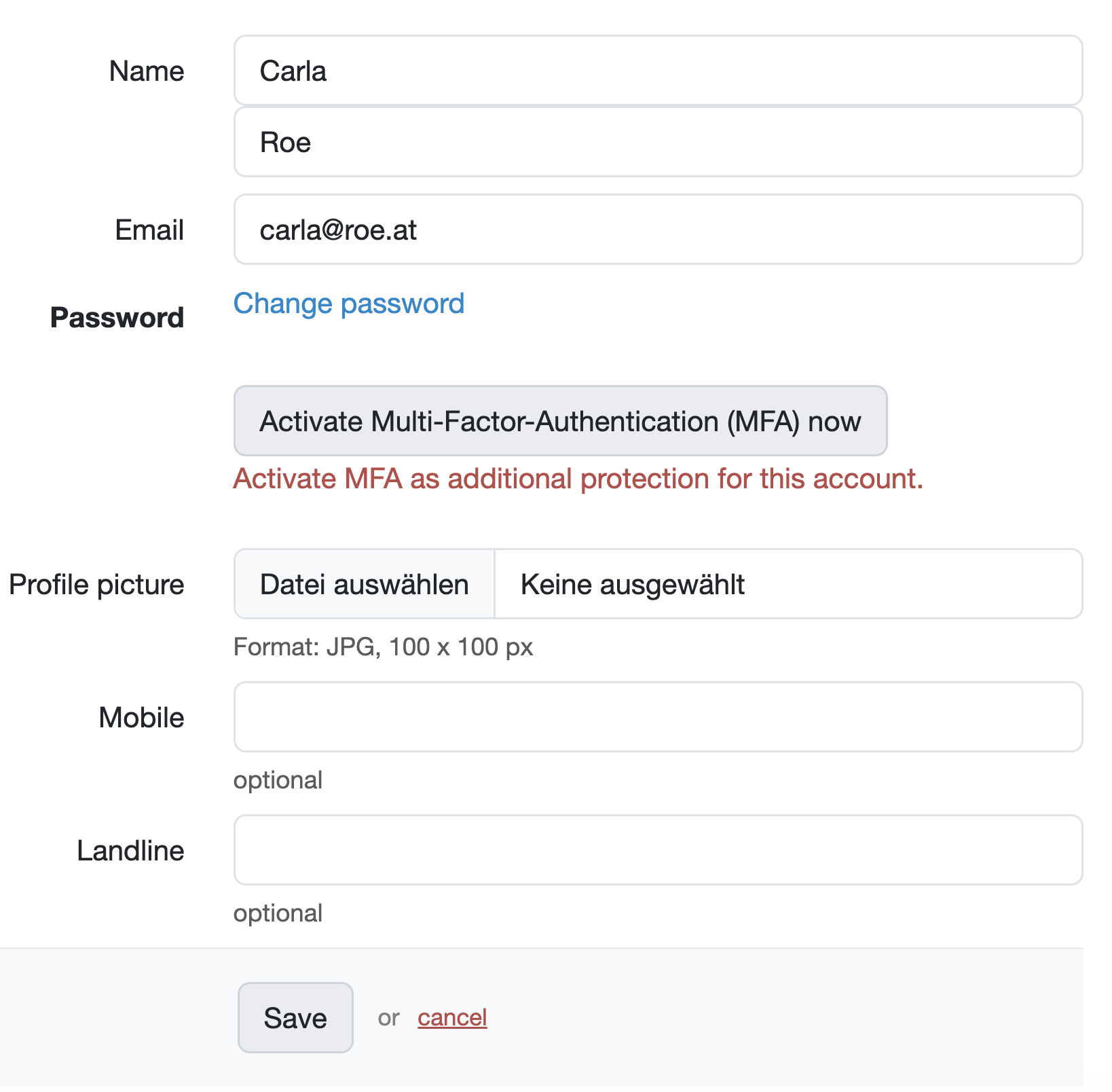
Figure: Editing the own contact data in the customer zone
Our recommendation: Multi-factor authentication (MFA) should be activated as additional protection for the account.
Change own login:
Since the email address entered for the contact is used as the login for signing in to the customer zone, changing the email address in the contact data automatically changes the login accordingly. The new email address is then used for the login.
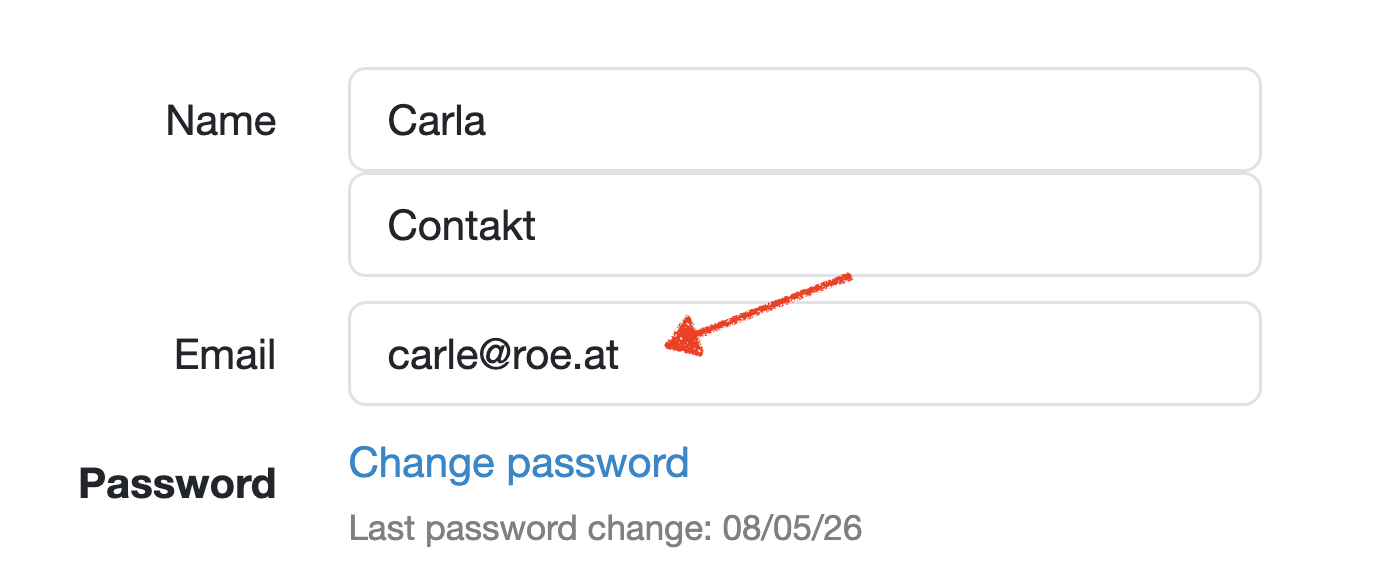
Figure: Change login
Change own password:
Every contact can also change their own password under Edit my account. Clicking Change password opens the mask for entering the current (old) password and the new password.
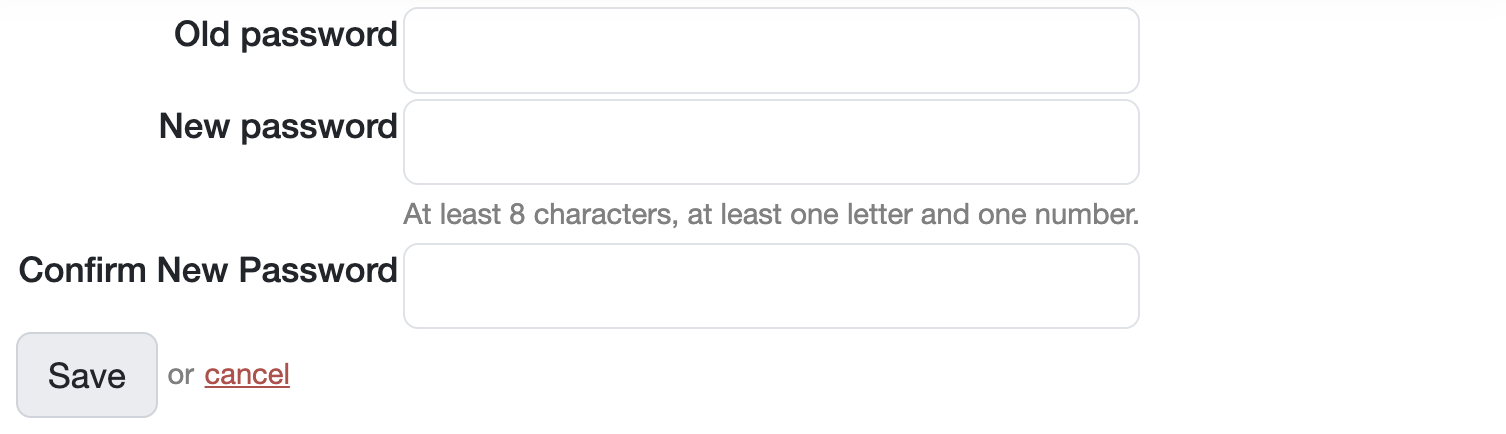
Figure: Change password
Laatste wijziging: 21.08.2026
Algemeen
Leveranciersbeoordeling
Materiaal
Medewerkers
Klanten
Opdrachten
Monsters
PDF-sjablonen
Bijlagen
Recepten
Verslagen
Editor voor rapporttabellen
Interfaces
Kompetenzen
AI-functies
Inleidende fase
Analyses
Sjablonen
Klantenportaal (optioneel)
Aanbiedingen
Facturen
Parameters
Rekenwerk met parameters
Webservices
Transformatiecode
Controleplannen / Grenswaarden / Specificaties
Documentbeheer
Vragen en antwoorden
Testmiddelen
Opleidingen voor medewerkers
8D-rapport
Overige
Bestandsbeheer
Processen