Connect analytical instruments, testing machines, third-party laboratories, and ERP systems such as SAP to the LIMS: CSV, JSON, XML, REST API, and SFTP—with AI-powered mapping.
The device prints or exports the data, and someone enters the numbers into the system by hand. Each value is handled twice, and that's when the transposed numbers occur.
One device outputs semicolons, the next outputs tab stops, and the third doesn't start the header until line 13. A separate Excel workaround is maintained for each format.
Without a unique identifier, someone has to decide which sample a measurement belongs to. This works—until it doesn't, and it's noticed during an audit.
A new interface means a ticket, a service provider, and a wait. Until then, we'll continue using Excel for this intermediate step.
That is exactly what LDB LIMS’s import interface editor is for: a tool that allows you to integrate the many different devices, systems, and external laboratories—which vary widely in the frequency with which they provide data—ranging from an analyzer that reports hourly to a partner laboratory that sends a file three times a year.
The import interface editor is not limited to analytical instruments. Orders, master data, and documents are also imported through the same interface.
In addition, there are notes, time tracking, and files—a total of 19 data types that can be created or updated via import interfaces.
HL7 and LDT cover medical data exchange. Excel works as well—just save the file as a CSV in Excel. Everything else is added via a transformation code.
Four options, ranging from manual operation to fully automated. The decision depends on three factors: what your source system can do, what your IT infrastructure allows, and how often data is received.
Upload the device's export file directly to the interface. The best way to get started—and for devices that are rarely in use.
The device saves the file on the server, and the lab database retrieves it automatically. Imported files are moved or deleted.
The external system actively sends the data via POST, or the lab database retrieves it. The fastest way—almost in real time.
The interface accepts attachments via email. This is useful for partner labs that do not offer any other options.
ChatGPT, Claude, and other AI applications transmit data via open import interfaces—pathology findings are dictated rather than typed, sample collection is recorded via voice commands while on the go, and microbiology test results are documented hands-free.
You can create your own HTML page or form—for on-site sampling, for submitters, or for a data collection process that doesn't yet exist. Once submitted, the entries go directly into the import interface.
During mapping, you specify which column in your file corresponds to which field in the lab database: Customer, Order, Sample, Sampling Location, Parameter, Measurement Value.
You upload a sample file, the lab database reads the attribute row, and you map the data. It doesn't matter whether the parameters are arranged side by side in columns or one below the other in rows—the mapping follows the structure of your file, not the other way around.
/screenshots/importmappings_edit_7_1_0_desktop_sm/en/97ad283ba34b38f7.png)
Each attribute is given a descriptive name—a cryptic column heading becomes “Sampler.”
If a field in the import file is empty, the lab database automatically fills it with the stored default value.
Multiple columns can be concatenated into a single field—first and last names become a single name.
A template validates the data as soon as it is imported: If a value does not match the expected format, the import is aborted instead of creating invalid data.
A transformation code then generates the required format before the mapping takes effect. Administrators in your lab can write and maintain this code themselves. Alternatively, we can handle this as a service at an hourly rate. In the import window, you will then see both side by side: the raw data and the converted version.
Transformation Code in the ManualHandwritten sampling logs, photographed measurement results, PDFs from clients or third-party laboratories: The AI extension converts unstructured documents into structured data, validates them, and passes them on to the import process.
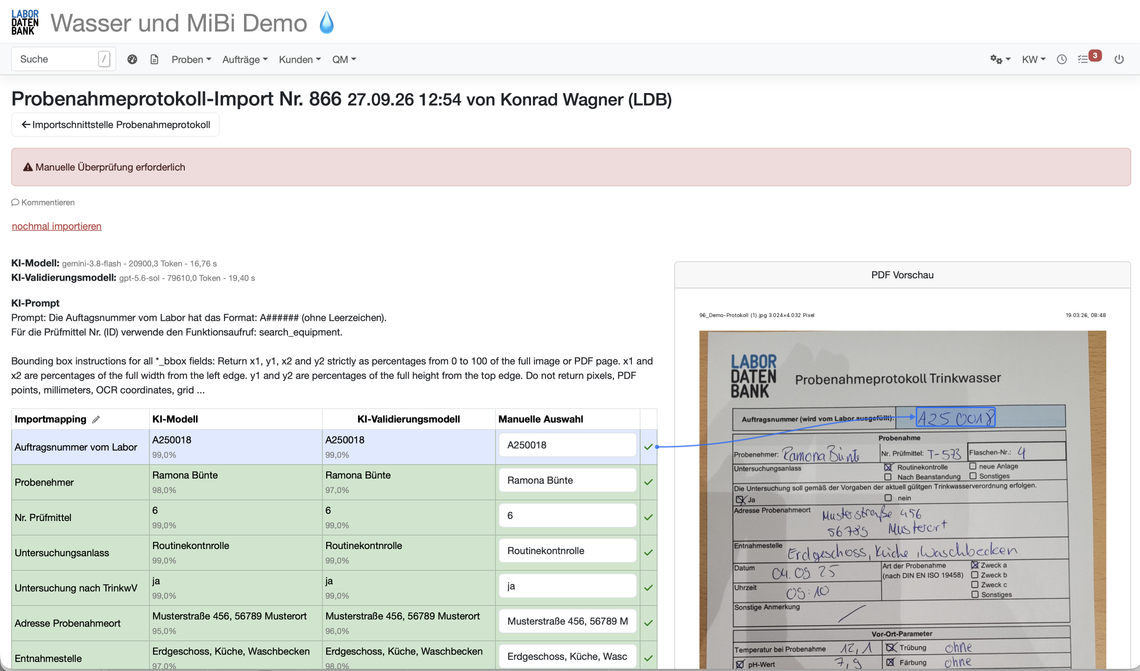
One model generates a result, and a second model independently verifies it. Both suggestions are displayed side by side, each with a confidence score—you can immediately see where they agree and where they don't.
For each field that is recognized, the lab database displays the location in the original document from which the value was derived. Any values that are ambiguous are flagged for manual review rather than being automatically accepted.
The AI is allowed to search the database for specific items—such as finding the testing equipment mentioned and correctly identifying it. It doesn't make recommendations; it simply looks things up.
For details on how the AI extension works, what data types it recognizes, and how to configure it for each interface, see the dedicated page.
View AI-powered importsAn import can create, update, or deliberately leave everything unchanged. The mode is set for each interface—and then applies to every run.
The default is "update": The new value is always applied. In addition, there are modes that only fill in empty parameters, only update existing ones, create missing parameters without a value, or append measured values to an existing data series. If you do not want to overwrite any data during a repeat measurement, select an “ignore” mode—with or without a warning.
All Import Modes in the Manual/screenshots/importinterfaces_edit_2_full_desktop_sm/en/177f915d45bac9eb.png)
Each interface is first set up there and tested using anonymized sample files. It goes live only after successful validation.
One click tests SFTP or FTP: reachability, login credentials, and write permissions. The HTTPS interface returns a 200 or 400 response before any actual data is transmitted.
Missing required fields, unknown IDs, special characters, empty values: Anything that goes wrong in everyday use belongs in the test—not in the first production run.
Every import run is logged and can be repeated. If errors occur, you can see exactly where the problem lies—in the source file, the key, the mapping, or the transformation.
And anything not listed here is added through mapping and transformation—the device's format simply determines how much preparatory work is required.
Every step is documented—with screenshots, sample files, and videos. Freely accessible, even before you make a decision.
Step-by-step guide with video: Import measurement data. Further reading: Import interface overview, create a CSV measurement data import interface, import results from measurement devices, transformation code for other data formats, automatic FTP/SFTP import, and AI enhancements for import interfaces.
Laboratory Information Management System (LIMS)
Simplify Documentation & Put ISO Requirements into Practice Every Day